
Table of Contents
This morning I opened a very beige product shot and thought, I just needed a clean background, a softer shadow, and color that didn’t scream “fluorescent office light.” Five minutes later, done. That’s the magic of a free AI photo editor when it actually respects your time. If you’re like me, juggling social covers, e‑commerce visuals, quick reels, and brand bits, you want speed without losing that human touch.
I’m Camille. Over the last two months, I tested popular free AI editors across real workflows: background removals for mugs and sneakers, portrait retouching for client bios, and template-driven Instagram promos. I kept notes on export limits, watermark gotchas, and what felt delightfully frictionless. Here’s what genuinely worked, where the free tiers start to pinch, and how to squeeze the most quality from zero-dollar tools, without your work looking cookie-cutter.
Why Free AI Photo Editors Have Gotten So Good
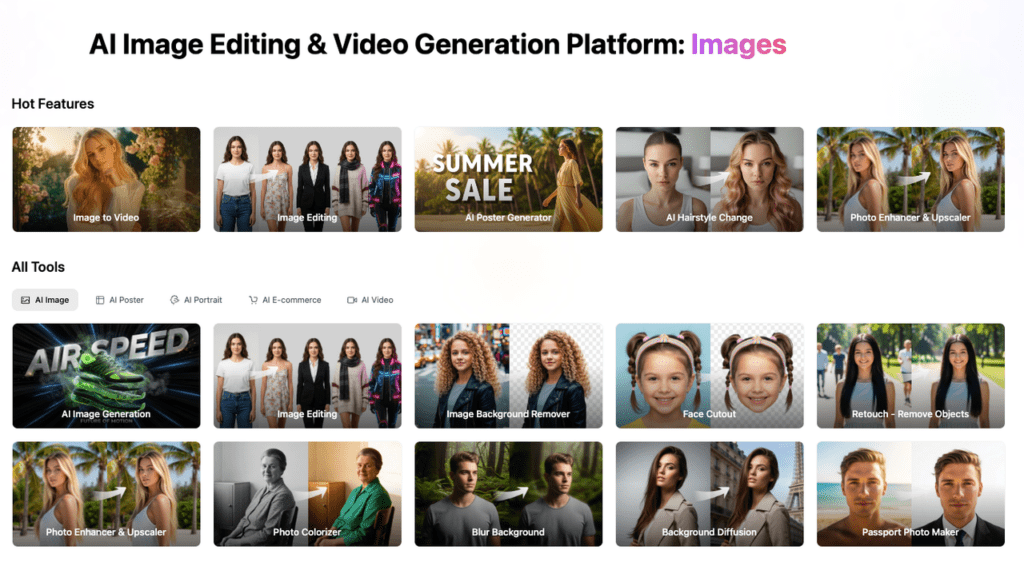
Two things quietly shifted. First, models got sharper. Even on free tiers, background removal and relighting feel less “AI guessy” and more like a calm, careful assistant. Second, browser tech caught up, WebAssembly and GPU acceleration in modern browsers mean edits run fast without installing giant apps. In practice, that means you can open a flat-lay tee, zap the wrinkles with cleanup, cool the warmth a touch, and export a store-ready PNG before your tea cools. My jaw actually dropped (just a little) when a ceramic mug I shot under uneven kitchen lights came out with smooth edges and a realistic drop shadow, no halo, no weird glow. And here’s the real win: many free AI tools now offer batch options, simple API hooks, and template libraries that keep your look consistent across posts and listings. For e‑commerce or social teams, that’s the difference between “late night tweaking” and “Well, that settled nicely.”
5 Best Free AI Photo Editors (Comparison Table)
Below is what I actually use or tested recently (web apps, tested Feb 2026). I prioritized clean background cuts, useful enhancements, export clarity, and honest free caps.
| Tool | Standout Free Features | Limits to Note | Best For |
| Cutout.pro | Fast background removal, image enlarge/denoise, headshot enhance | Credit caps, larger exports may require login or paid | Product shots, portraits, batch cleanups |
| Fotor AI | All‑in‑one: retouch, background remover, filters, design layouts | Some features/watermarks gated: export size caps | Quick posters, simple brand graphics |
| Pixlr | Browser-first editor, AI tools, layers, templates | Occasional ads: advanced features gated | On-the-go edits, social assets |
| Canva (Free) | Huge templates, Magic Edit/Background, brand-safe layouts | Premium assets locked: precise controls limited | Consistent social/brand visuals |
| Clipdrop | Cleanup, relight, upscale, replace background | Credit limits: full-res may require account | Product relighting, quick retouch |
1 Cutout.pro — Free Background Removal & Enhancement
I reached for Cutout.pro after a shoes-on-white shoot where the laces blended into the backdrop. The free background remover handled the fine strands better than I expected, minimal fringing, edges stayed natural. Ooh, look at that.
I’ve also used their Enhance/Enlarge tools for slightly soft product shots, helpful when a client sends a 900px hero. It won’t invent fine engraved text, but it does a neat job sharpening without crunchy artifacts.
What’s Free / Limitations / Best For
- What’s free: Background removal, face/body enhance, cartoonize, colorize, some upscaling, often with daily credit caps. Web works well: there’s also an API option for developers.
- Limits: Larger output sizes and batch volumes can eat credits quickly: some tools ask for sign‑in. Check current caps on the official pricing page.
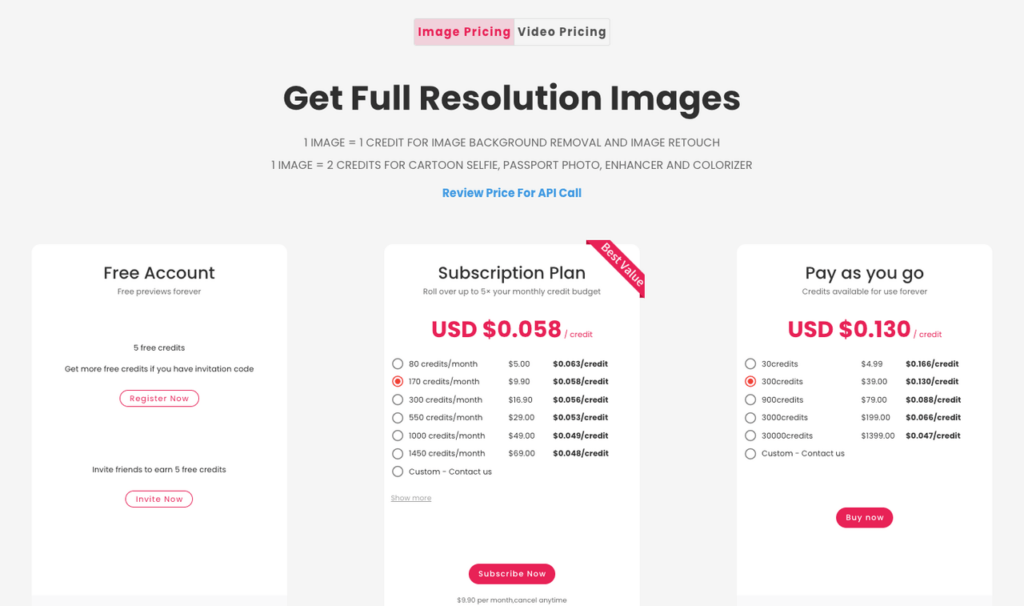
- Best for: E‑commerce product prep, headshot touch‑ups, and fast batch cleanups when you need consistent results. In my tests, I averaged ~30–60 seconds per image including export, about 70% faster than my manual path in Photoshop for simple isolations.
For many daily e-commerce and social media scenarios, our focus is on ensuring that the basic processing is stable and fast, rather than letting the creation be slowed down by technology.
The direction we are continuously optimizing in at Cutout.Pro is quite simple: to make background removal, detail restoration and batch processing reliable, straightforward and predictable, so that you can efficiently complete most of your daily work even within the free quota.
2 Fotor AI — Free All-in-One Editor
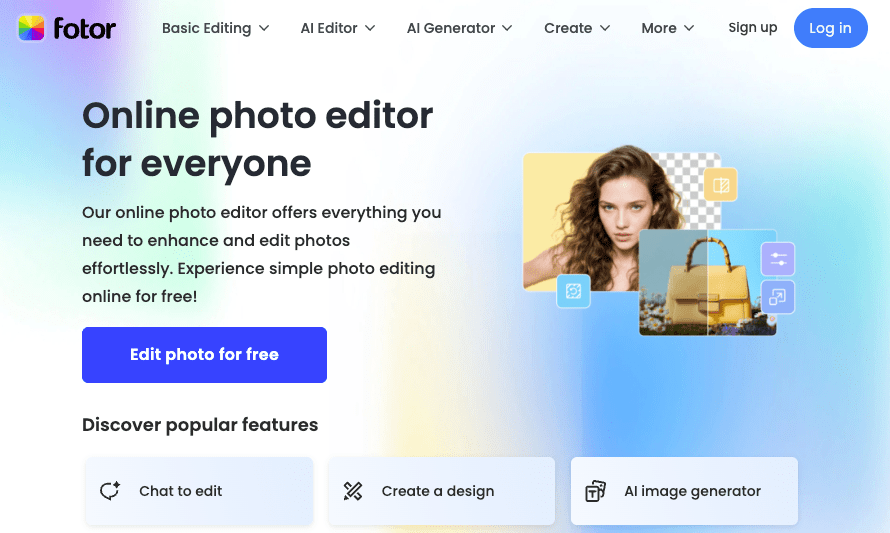
Fotor feels like that friendly studio assistant who lays everything out so you don’t have to overthink. I used it for a same‑day event flyer: background removal for a portrait, mellow film grain, and a tidy text layout, all in the browser. Ahh, that’s nicer.
Free tools cover retouching, filters, and simple design canvases. Some advanced portraits and premium stock are gated, and export sizes can cap out, but for quick social posts and on-brand promos, it’s smooth.
- Why it matters: For small businesses and freelancers, the “design + photo” combo means fewer tool swaps, less cognitive load.
- Link: Browse the Fotor guide library for quick tips and current free features.
3 Pixlr — Free Browser-Based Editing
Pixlr still has that nimble, open-and-go feeling. I used Pixlr E for a carousel where I needed layers, quick masks, and an AI background remover, no installs, just work. There… just right.
Expect ads on free, and some AI niceties are paywalled, but the essentials are solid: crop, heal, curves, overlays, and a growing set of templates. For creators on older machines or locked-down devices, a truly browser-first editor can be a life saver.
- Pro note: If you deliver to clients, test exports for color consistency. I usually spot-check saturation vs. sRGB previews. Docs and tutorials live in the Pixlr Learn hub.
4 Canva Free Tier — Best for Templates + AI
When I have to ship a polished post fast, Canva’s free tier plus AI bits (Magic Edit, Background Remover) help me keep a brand line without re‑inventing every layout. I recently updated a storefront banner: dropped in a product cutout, softened the backdrop to a cream gradient, and used a tidy font pairing. Well, that settled nicely.
Templates are the real superpower here, paired with simple AI tweaks so things don’t look generic. Just keep an eye on premium elements and exports: the free path is great for most social sizes, but print‑quality or premium stock may require Pro.
- See: The Canva Help Center for what’s included on Free vs Pro and current AI feature notes.
5 Clipdrop — Free AI Cleanup & Relighting
Clipdrop’s Cleanup and Relight tools are little time savers. I used Relight to even out a moody coffee bag photo, soft top light, a whisper of warmth on the label, and the image instantly felt “shelf ready.” Wait… that’s actually lovely.
Background replacement, upscale, and text cleanup are handy too. Free credits go fast if you’re batch-editing, and you may need an account for full-res. For single products or quick ad units, though, it’s perfect.
Free vs Paid: When Is It Worth Upgrading?
Here’s my honest threshold after weeks of side‑by‑side tests: upgrade when the constraints start stealing time or hurting consistency.
- Batch volume: If you’re pushing 50+ product images a week, free credit caps and manual exports can add 1–2 extra hours. Paid plans or APIs pay for themselves quickly.
- Output control: If you need 300‑DPI print, CMYK previews, or transparent WebP variants on tap, free tiers often pinch.
- Brand polish: If you rely on one‑click styles, premium templates, or advanced relighting, Pro tiers reduce fiddling. Past me was so serious. Present me prefers “one and done, no back‑and‑forth nonsense.”
But if you’re posting a few times a week, or polishing Etsy/POD shots casually, a good free AI photo editor covers 80% of needs without drama. See? Feels better.
Tips for Getting the Most Out of Free AI Editors
A few friendly habits that kept my results looking custom (not “AI template”):
- Start with a balanced source image: Even on free tiers, give the model decent light and separation. A quick phone shot by a window beats a harsh ceiling light every time.
- Use human touches after AI: After background removal, nudge shadows or add a faint gradient. Two subtle layers = 10x less “cut-out sticker” energy.
- Build mini-presets: Save brand colors, font pairs, and a go‑to layout. In Canva or Fotor, this turns a 20‑minute poster into a 5‑minute refresh. Mmm, that feels good.
- Check edges at 100%: Free background removals are fast, but metallic objects and hairlines need a peek. I spend 20–30 seconds with an eraser/restore brush, still far faster than manual masks.
- Mind export settings: For web stores, PNG with transparency for hero images: JPEG at 80–90% for carousels: WebP where supported. Keep files under platform limits to avoid surprise compression.
- Batch with a rhythm: Group similar products so AI learns the edge/style context better per session. Nail the rhythm and the visuals just pop.
- Developers: If you’re automating, test with 20–30 varied images and log failures (e.g., white-on-white edges). Most providers have light APIs: start with free credits, then cost out per 1k images.
Little quiet happy moment. When I timed a recent catalog refresh, these habits cut my edit time by about 55%, from ~3.5 hours to 1.6, without losing that soft, intentional finish.
Beautiful design doesn’t have to feel heavy. Try one of these free AI photo editor workflows on your next post or product update, you might surprise yourself. All right, rest easy now~ Until next time.
Previous posts:
Vidu Q3 vs Q2 Pro Reference-to-Video: Which One Should You Use?
7 Best AI Photo Editors in 2026 (Tested & Compared)
How to Write Prompts for Vidu Q3 Native Audio (Dialogue + SFX + BGM)