
This morning I rendered a 10-second product teaser in Seedance 2.0 and the ambient café noise just… appeared. No syncing in CapCut, no fiddling with timing. The espresso machine hissed right when the barista pulled the lever. I may have stared at my screen whispering “oh my, yes” to nobody.
That’s what native audio feels like—and it’s where things get tricky if you don’t know how to prompt it. Here’s how each audio layer works, what makes lip sync succeed or fail, and the prompting tricks I’ve picked up from weeks of testing.
How Seedance 2.0 Native Audio Actually Works
If you’ve used earlier video generation tools, you’re used to silent output. Generate clip, layer in sound, manually sync. Seedance 2.0 skips all of that—audio and video are generated together in a single pass. ByteDance calls it a unified multimodal audio-video joint generation architecture.
The Three Audio Layers: Dialogue, SFX, BGM
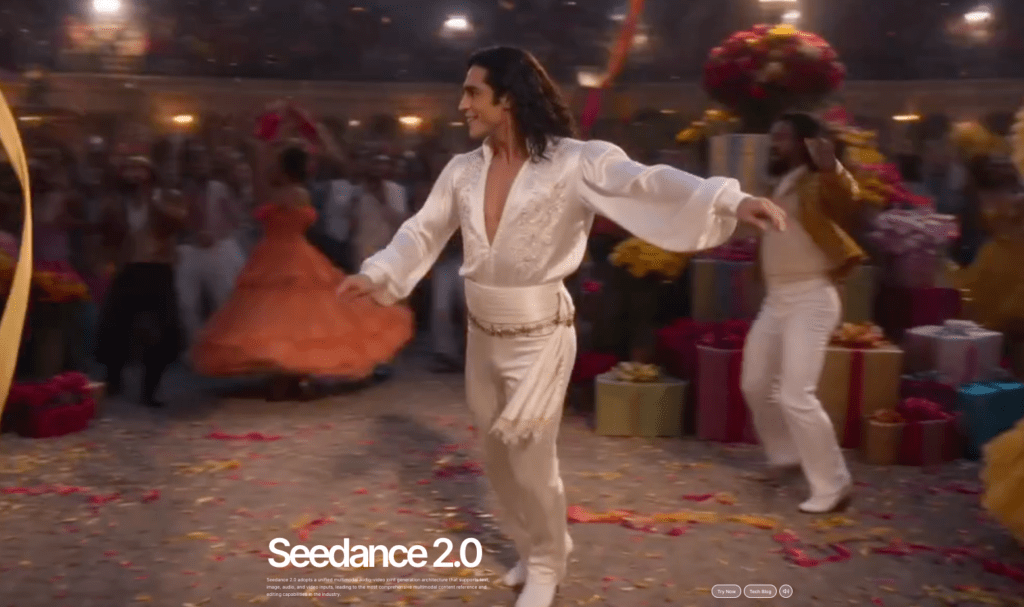
Every Seedance 2.0 output can contain up to three simultaneous audio layers. Dialogue covers character speech with automatic lip sync. SFX handles event-locked sounds—footsteps, impacts, door slams. BGM provides a mood-appropriate score. Describe a scene naturally and the model fills in what makes acoustic sense.
How the Model Decides What Sound to Generate
The model reads your prompt for audio cues and also infers sound from visual content. A character walking on gravel gets footstep sounds whether you asked or not. A sword being drawn produces a metallic ring. You can override this—”the scene is completely silent except for wind”—but the default behavior is surprisingly capable for short clips.
Native Audio vs. Post-Added Audio — Key Differences
Native audio is generated with the video, so timing is baked in. A glass breaking on frame 47 produces its crash sound on frame 47. Post-added audio requires you to find that exact frame manually. The trade-off: less granular control. You can’t EQ individual frequencies or swap in a licensed track. For social content, native audio saves real time. For broadcast work, you’ll still want a sound designer for the final mix.
Prompting Dialogue
Dialogue is probably the most exciting—and most finicky—part of the audio system. Here’s what I’ve found works.
Language Tag Syntax

Seedance 2.0 supports lip-synced dialogue in eight or more languages, including English, Mandarin, Japanese, Korean, and several Chinese dialects. To specify language, write it naturally in the prompt: Character speaks in Japanese: "今日は天気がいいですね。" The model maps phonemes to mouth shapes based on the language tag and the text itself.
Short Sentences and Phoneme-Friendly Wording
This was my biggest early mistake: writing long, complex dialogue lines. Short sentences work much better—five to ten words per line is the sweet spot. Avoid tongue-twisters or sentences requiring fast delivery. If your character needs to say something long, break it into two generations and stitch them. Longer lines produce progressively mushier mouth movements past the 8-second mark.
Natural Pacing — Avoiding Rushed or Robotic Output
Record your dialogue reference at about 80% of your natural speaking speed. Sounds counterintuitive, but slightly slower speech gives the lip sync engine more room to work. For text-driven dialogue, add explicit pacing cues: "Brief pause at 2s, then continues with urgency." And here’s a tip that took me embarrassingly long to figure out: remove head movement instructions from dialogue prompts. “Nodding” and “turning head” compete with the lip sync engine and produce weird half-motions. Keep the camera locked while the character speaks.
Prompting SFX and Ambience
Sound effects are where Seedance 2.0 quietly impresses. Not flashy, just… correct.
Footsteps, Impacts, Environmental Sound
Describe the sound source and the surface. “Boots on wet cobblestone” gives you a different result than “sneakers on hardwood.” The model generates plausible Foley based on visual context—if your scene shows rain, you’ll get rain ambience automatically. For impacts, the model tends to time them well with on-screen collisions.
Timing Cues in Prompts
You can anchor sounds to specific moments: "SFX: thunder crack at 3s. Lightning illuminates the scene at the thunder crack." This kind of timestamp anchoring helps when you need precise synchronization between a visual event and its sound. Without timing cues, the model makes its best guess—usually decent, but not frame-perfect for high-impact moments.
Layering Multiple SFX Types
Seedance 2.0 handles two to three simultaneous sound layers reasonably well. A compact syntax that works: "Sound: rain bed + distant train hum. SFX: chess piece click at 2s." Push past three layers and things get muddy. If your scene needs complex sound design, consider keeping the generation simple and adding layers in post.
Prompting BGM
Background music can make or break the mood. Here’s how to steer it.
Genre, BPM, and Mood Keywords
The model responds well to genre and mood descriptors: “lo-fi ambient piano,” “tense orchestral build,” “upbeat indie folk.” You can suggest tempo—”slow, around 70 BPM”—though the model treats this as a reference, not a metronome lock. Mood keywords are more reliable than technical music terms. “Melancholic and sparse” gets closer than “minor key, arpeggiated.”
Fade In / Fade Out Prompting
For music that enters or exits gracefully: "Music: low piano note enters at 3s, resolves on last frame. Silence holds final 0.5s." That final silence cue is something I stumbled onto accidentally—it prevents the abrupt audio cutoff that plagues a lot of AI-generated clips. Old habits—still learning.
Avoiding Muddy Audio Mixes
If your prompt includes dialogue, SFX, and BGM, the mix can get crowded. Specify priority: "Dialogue clean and prominent, music low, ambient subtle." This tells the model which layer leads. Without mix intent, all three layers compete at similar volumes and the dialogue loses clarity. For music-driven pieces with no speech, flip it: "Music leads, ambient secondary, no dialogue."
Improving Lip Sync Accuracy
Lip sync is genuinely good in Seedance 2.0—when conditions are right. Here’s what helps.
Shot Distance and Face Angle — What Helps
Medium close-up with a locked camera. That’s the formula. Wide shots reduce face resolution, making lip movements imprecise. Face angle matters too: front-facing or slight three-quarter gives the best results. Profiles are unreliable. I tested the same line across three angles—front-facing was noticeably cleaner.
Short Sentence Rhythm for Cleaner Mouth Sync
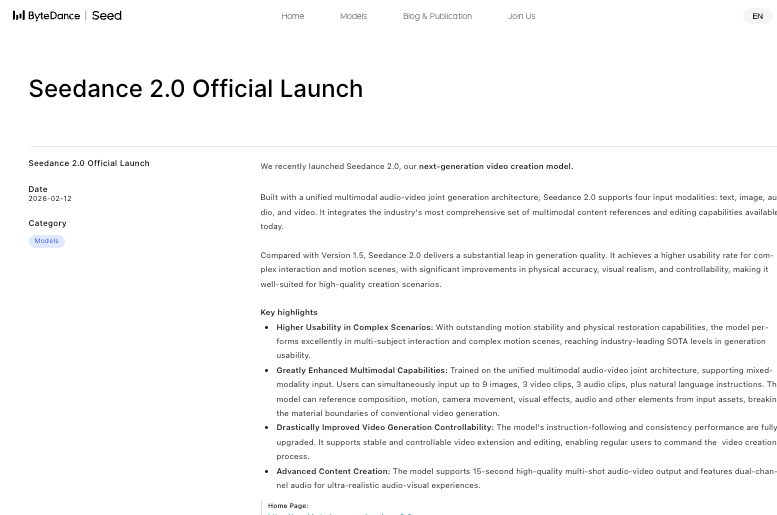
This echoes the dialogue section, but it’s worth repeating in the lip sync context specifically: the official Seedance 2.0 technical evaluation acknowledges that multi-person lip sync matching and occasional audio distortion remain open problems. Single-character, short-sentence prompts are where the technology performs best right now. Don’t fight the model’s limitations—work with them.
Multilingual Lip Sync — Which Languages Perform Best
From my testing and Douyin creator reports: Mandarin produces the most consistent lip sync, which makes sense given the training data. English is a close second. Japanese and Korean work but occasionally drift on longer phrases. For any language, matching your audio reference language to the written dialogue in the prompt improves accuracy.
Clean Reference Portraits Improve Audio Realism
This connection surprised me. Your character reference image doesn’t just affect visuals—it affects audio too.
Why Face Clarity in the Reference Affects Voice Generation
Seedance 2.0 uses the reference portrait to model mouth shapes for lip sync. A blurry or partially obscured face gives the model less to work with, and mouth movements come out approximate rather than precise. High-res, well-lit, front-facing references consistently produce tighter sync.
Prepping Portrait Cutouts for Best Lip Sync Results
This is where a clean portrait cutout prep step pays off. Remove the background clutter from your reference image so the model focuses entirely on facial structure. A transparent-background portrait PNG with clear face edges, even lighting, and visible mouth area gives Seedance 2.0 the best starting point. I’ve been doing this as a default step before every dialogue generation and the consistency improvement is real. There… just right.
FAQ
Can I disable audio and add my own in post? Yes. You can mute native audio and replace it entirely. A common workflow: keep Seedance’s SFX and BGM, mute the AI dialogue, drop in a recorded voiceover. You can also upload your own audio as an MP3 reference via the @Audio1 input to influence rhythm and mood.
Does disabling audio save credits? Not from what I’ve seen. Audio is part of the unified pipeline, not a separate billable step. Whether you use the output or discard it, generation cost is the same.
Why does the audio cut out mid-clip? Most likely your audio reference exceeds the sweet spot. The technical max is 15 seconds, but sync quality drops past 10. Trim references to 3–8 seconds. Also check your file format—only MP3 works reliably. WAV, AAC, and FLAC upload without error but can fail silently.
Can it generate singing or humming? BGM generation can produce vocal-style melodies, but full singing with lyrics isn’t reliable yet. Humming sometimes appears in atmospheric prompts—it’s unpredictable enough that I wouldn’t plan a project around it.
Which language gives the best lip sync accuracy right now? Mandarin, followed closely by English. Both produce clean phoneme-to-mouth mapping for short sentences. Japanese and Korean are solid but drift on longer phrases. For best results in any language, keep lines under ten words and use a front-facing reference portrait.
Seedance 2.0’s native audio genuinely changed how fast I go from idea to finished clip. It won’t replace a professional sound designer—but for social teasers and product demos, the gap is closing fast.
Try it on your next short clip—maybe a neat 8-second scene with one line of dialogue—and see how much lighter the process feels.
Previous posts:
How to Use Seedance 2.0 Text to Video: Step-by-Step Guide for Beginners
Seedance 2.0 Image to Video: Turn One Photo Into a Consistent 16s Clip
Seedance 2.0 Pricing: Free Tier, Plans, and How to Estimate Your Monthly Cost
Seedance 2.0 Workflow: From Raw Photo to Final Video in 6 Steps
What Is Seedance 2.0? Features, Native Audio, and How It Works