
Table of Contents
Introduction
The digital landscape is shifting beneath our feet. In 2026, 3D content is no longer a luxury reserved for big-budget Hollywood studios or AAA game developers; it is a necessity. Whether you are an e-commerce merchant trying to boost conversion rates with interactive product spins, or an indie game developer racing against a tight deadline, the demand for high-quality 3D assets is universal.
However, there is a stubborn bottleneck: creation. Traditional 3D modeling is slow, expensive, and requires specialized skills. While AI 2D-to-3D generators have promised a revolution, they often fall short due to a simple rule of computing: “Garbage in, garbage out.” If your source photo has a messy background, low resolution, or poor lighting, the AI will generate a distorted, unusable mesh.
This is where the power of a combined workflow comes in. By pairing Cutout— a powerful image enhancement tool—with Tripo, a state-of-the-art AI 3D model generator, we can demolish the barriers to entry. This dynamic duo allows you to transform a simple, even flawed, 2D image into a high-fidelity 3D model in under a minute.
In this guide, we will walk through exactly how this workflow solves the “quality in, quality out” dilemma.
The Problem: Why “Perfect Input” is the Key to AI 3D
Before we dive into the solution, let’s dissect the problem. AI models like Tripo rely heavily on the visual data you feed them. They analyze the silhouette, shading, and texture of a 2D image to infer 3D geometry.
If your input image is compromised—if there is a distracting background, compression artifacts, or the subject is blurry—the AI receives “noise” instead of signal. This results in common failure modes:
- Distorted Geometry: The model warps because the AI misinterprets shadows as physical edges.
- Floating Artifacts: Residual background pixels get interpreted as part of the 3D object.
- Low Detail: Low-resolution inputs force the AI to hallucinate details rather than reconstruct them.
To achieve a “fabulous” 3D output, we must start with a “perfect” 2D input. This is where Cutout takes the stage.
Product Overview: The Roles in This Workflow
- Cutout: The Pre-Production Powerhouse
Cutout is not just a background remover; it is a comprehensive image optimization suite. In this workflow, Cutout acts as the “Art Director.” Its job is to prepare the canvas by:
- Isolating the Subject: Removing visual clutter.
- Enhancing Fidelity: Upscaling resolution to provide the AI with more data.
- Cleaning Artifacts: Smoothing edges and removing noise.
- Tripo: The 3D Generation Engine
Tripo is a leading AI-powered 3D generation platform. In this workflow, Tripo acts as the “Sculptor.” Once fed a perfect 2D image, Tripo’s AI analyzes the visual cues and instantly generates a fully textured, high-fidelity 3D mesh. It handles the complex tasks of geometry inference, UV unwrapping, and texture mapping automatically.
Step-by-Step Workflow: From Photo to 3D in Minutes
This workflow is built on a simple principle: one tool prepares the “canvas,” and the other paints the “masterpiece.”
Step 1: Preparation with Cutout
- The Scenario: You have a product photo taken in a messy room, and it’s a bit fuzzy.
- The Action: Upload the image to Cutout. Use the Background Remover to delete the clutter. Then, run it through the Image Upscaler to double the resolution.
- The Result: A crisp, high-res PNG with a transparent background—ready for its 3D transformation.

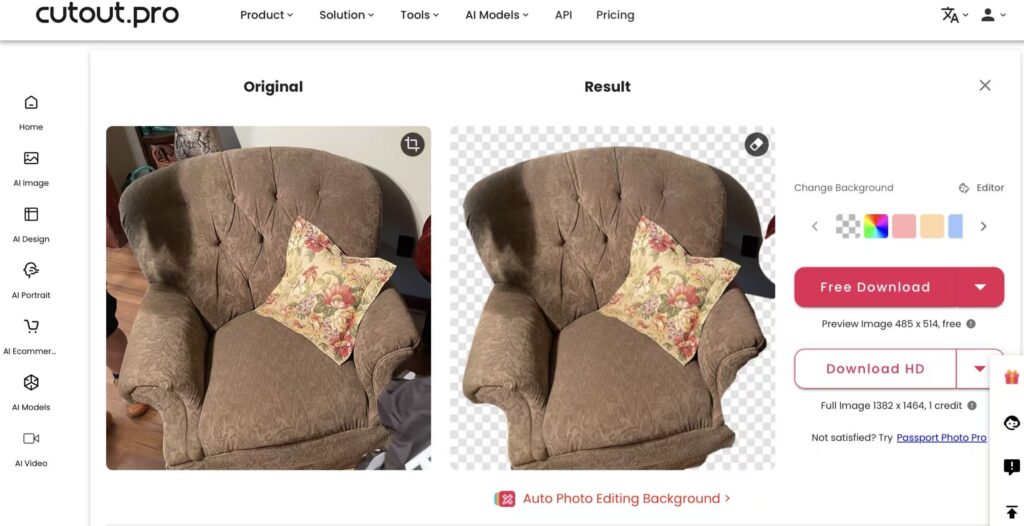
Step 2: Generation with Tripo
- The Action: Head to the Tripo website. Upload the clean PNG file you just created in Cutout,and use this powerful “Image to 3D Model“.
- The Process: Tripo’s AI analyzes the image and generates a 3D mesh in under a minute. If needed, use the Refinefeature to enhance details.
- The Result: A fully rotatable, textured 3D model generated from a flat 2D image.
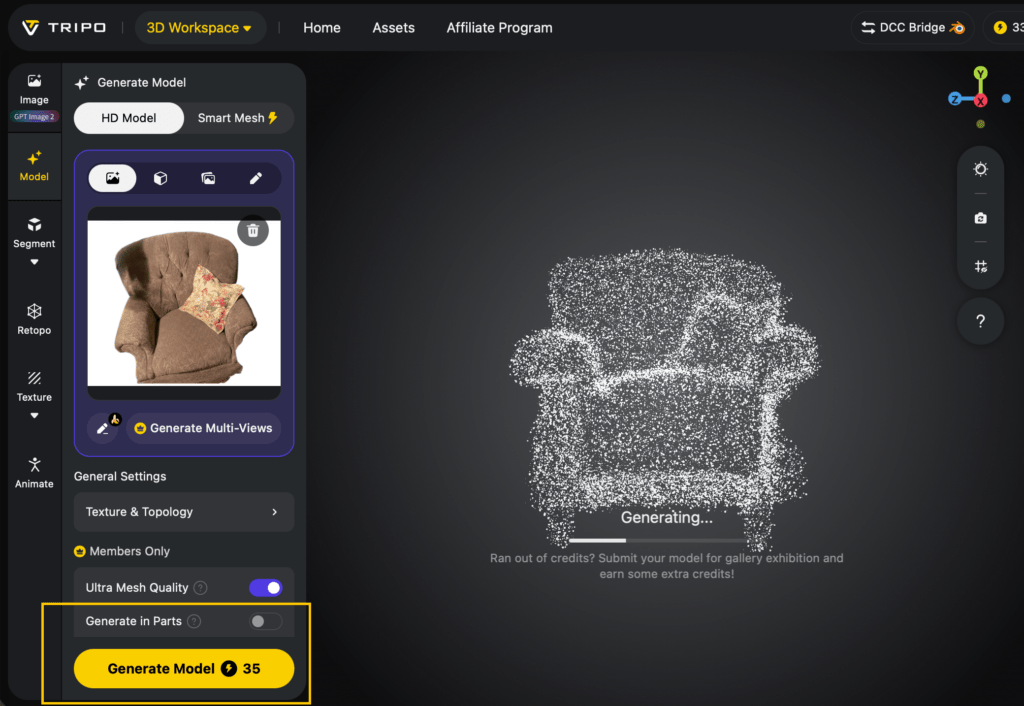
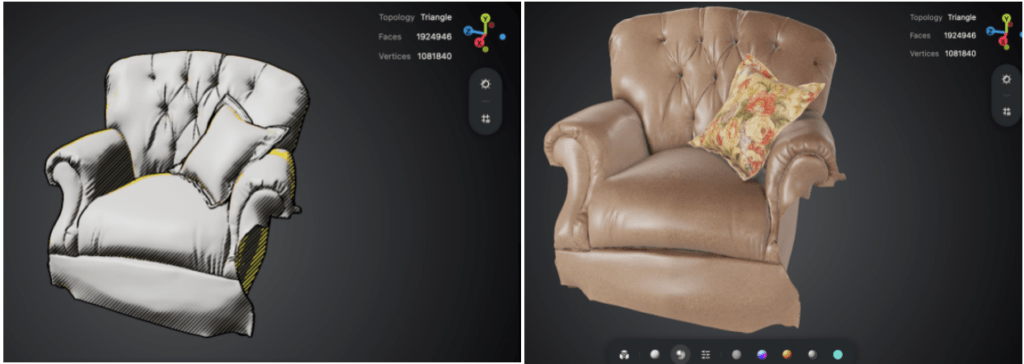
Use Cases: Why This Matters
This combination unlocks revolutionary efficiency across industries.
- E-commerce & Shopify: Turn simple warehouse photos into interactive 3D product spins without hiring photographers or 3D artists.
- Game Development: Rapidly prototype assets by taking sketches or reference photos, cleaning them with Cutout, and generating 3D props with Tripo.
- Digital Marketing: Create eye-catching 3D social media ads from existing 2D product shots to boost engagement and CTR.
Pro Tips for Best Results
To ensure Tripo generates the perfect model, follow these guidelines:
- Isolate the Subject: Use Cutout to ensure there are no “floating” pixels or residual background colors.
- Mind the Resolution: If your input is tiny, use Cutout’s upscaler before sending it to Tripo. Low-res inputs equal low-detail outputs.
- Simple is Better: Avoid complex shadows or reflections in the original photo. Cutout can help clean these up, giving Tripo a clearer signal.
Conclusion
The barrier to entry for 3D creation has officially been demolished. By combining Cutout’s ability to fix and enhance imagery with Tripo’s ability to generate geometry from nothing, we’ve created a seamless pipeline.
You no longer need to be a 3D artist to create 3D art. All you need is a photo and the right tools.