
Table of Contents
Hey, Camille is back. Last weekend, I’d been meaning to test Vidu Q3 text to video on a tight-turn social clip, simple, moody product hero, a bit of camera sway, soft reflections, nothing wild.
And yet, I could feel the spiral coming: too many takes, too much fiddling. So I opened Vidu’s Q3 build, and promised myself: one clean prompt, a couple tiny iterations, ship it. There we go.
If you’re like me, balancing speed and style, you want the real bits: what to prep, what to say in the prompt, how to get audio right, and how to export without crunchy edges. Here’s the exact setup I’ve been using since late January 2026 (Chrome on desktop: Q3 interface label in-app), with honest notes on what actually saves time and what to skip.
Before You Start (Account, Credits, File Expectations)
💡 Curious about the tool itself? Learn more in What Is Vidu Q3?
Let’s set the table so the rest goes down easy. A calm five minutes here often saves twenty later.
- Account and credits: In my tests, Vidu Q3 text to video requires signed-in sessions to queue renders. Credit consumption depends on duration, resolution, and whether you enable native audio. I plan my day by batching 3–5 short drafts first, reviewing them together, then running one or two final high‑res exports. One and done, no back‑and‑forth nonsense.
- Reference assets: If you’re guiding style with an image, I’ve had best results with 1024–1536 px shortest side, clean backgrounds, and no heavy compression. Color‑accurate PNGs beat fuzzy JPGs. For logos, use SVG or high‑res PNG with transparent background: avoid thin 1 px lines, they shimmer on motion.
- Aspect ratios: Vidu Q3 supports the usual suspects: 9:16 (Reels/TikTok), 1:1 (feeds/carousels), and 16:9 (YouTube, site hero). I prototype in 9:16 or 1:1 because flaws show up faster on vertical and square. If your end use is 16:9, still preview vertically once, edge artifacts hide less.
- Rights and brand safety: If you’re using native audio, remember music licensing. I keep a small library of cleared tracks and drop them in during edit: when I do generate BGM, it’s for draft vibe checks, not final release.
Tiny time-saver: name your shots before rendering (e.g., “ss24_bottle_angled_warm-sway_v03”). Future you will thank you when you’re digging through downloads at 11 p.m.
Prompt Structure That Works
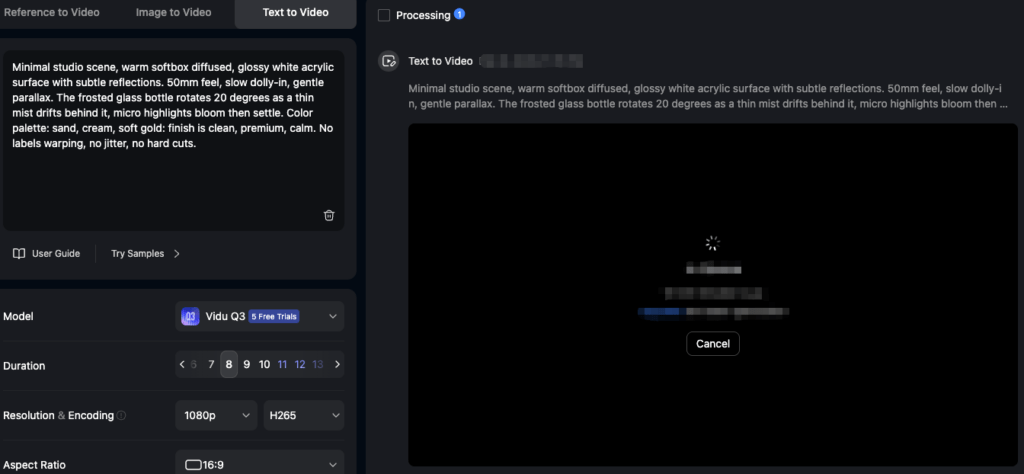
Here’s the structure that consistently gives me controllable, repeatable results. Not fancy, just reliable. Past me was so serious: present me likes prompts that behave.
I think in layers:
- Scene: Where are we, what’s the light, what’s the mood? Keep nouns concrete and textures visible.
- Camera: How we see it, lens feel, moves, framing. Short, film-y phrases help more than specs soup.
- Action: What changes in the shot, product rotates, steam drifts, reflection blooms. One main action per clip, two at most.
- Look: Styling rules, color palette, materials, finish, time of day. I use 2–3 anchors, not ten.
- Safeguards: What to avoid. I add these gently: “no text overlays,” “no distorted hands,” “no shaky zoom.”
An example that worked for a skincare bottle hero last week:
“Minimal studio scene, warm softbox diffused, glossy white acrylic surface with subtle reflections. 50mm feel, slow dolly-in, gentle parallax. The frosted glass bottle rotates 20 degrees as a thin mist drifts behind it, micro highlights bloom then settle. Color palette: sand, cream, soft gold: finish is clean, premium, calm. No labels warping, no jitter, no hard cuts.”
I giggled a little when the highlights kissed the edge and behaved. Ooh, look at that.
A couple of practical notes:
- Short beats long: If my prompt spills past three sentences, quality drops. I split into shots instead.
- Verbs matter: “drifts,” “blooms,” “settles,” “glides.” The engine reads movement words well.
- One hero: If you say “bottle and petals and steam and text and hands,” you’ll get compromise soup. Pick one star.
Scene + Camera + Action Template
Use this when your brain is oatmeal and deadlines are… present.
- Scene: [space/location], [lighting], [surface/materials], [ambient elements].
- Camera: [lens feel], [primary move], [framing].
- Action: [one motion], [one atmospheric change].
- Look: [2–3 colors], [finish/material adjectives], [time/temperature].
- Safeguards: [1–3 “avoid” items].
Fill example:
- Scene: “Cozy desk at dusk, window light with warm bounce, walnut tabletop, soft paper textures.”
- Camera: “35mm feel, slow tilt-down, medium close.”
- Action: “Steam curls from a matte ceramic mug: dust motes drift.”
- Look: “Muted browns and slate blue: matte, tactile, calm.”
- Safeguards: “No text overlays, no harsh flicker, no handheld shake.”
Drop that in, render 5–6 seconds, and, there… just right.
Turning on Native Audio (What to Specify)
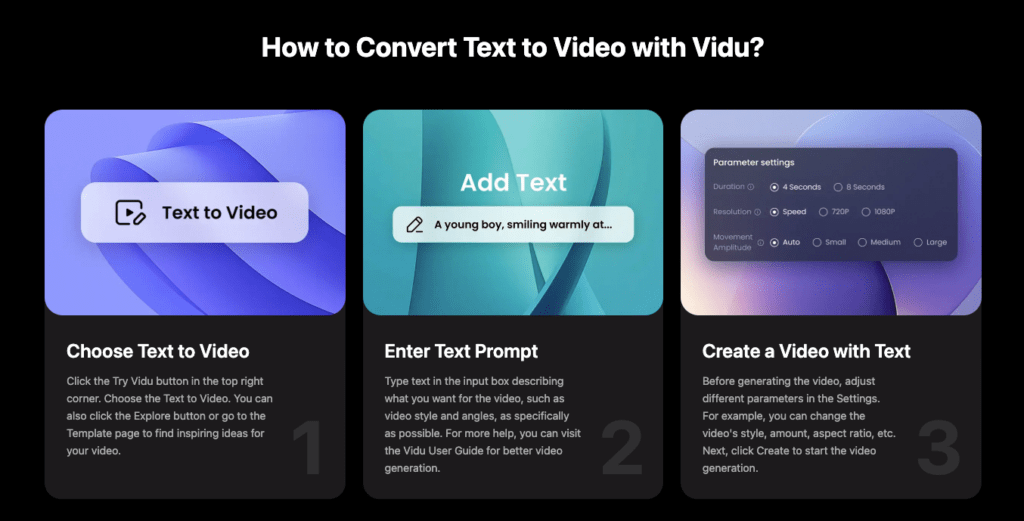
Vidu Q3 text to video includes a native audio toggle in the render panel in my current build. If it’s missing on your side, it may be region-, plan-, or rollout‑dependent. When it’s available, I treat it as a sketchpad for timing and mood, useful, quick, and usually good enough for drafts. For finals, I still like hand‑picked music in the edit.
What I specify directly in the prompt or settings:
- Voice or no voice: “No narration” for product shorts unless I’m matching a scripted line.
- If voice: pace, tone, and gender neutrality (e.g., “calm, mid‑tempo, neutral voice”). I avoid accents unless absolutely needed: better to record or import your own VO for brand consistency.
- SFX: I name two anchors max: “soft whoosh on dolly‑in,” “subtle glass clink,” or “ambient room tone.” Micro and minimal.
- BGM: I describe mood and instrumentation, not genres: “quiet warm keys, lo‑fi texture, 70–80 BPM, low mix.” If native options aren’t licensing‑clear for your use, keep it draft‑only.
In January tests, lip‑sync on talking avatars was surprisingly aligned when I uploaded a clean audio guide. When I skipped the guide and asked it to “make it match,” results were hit‑and‑miss. Hehe, nice when it works: acceptable when it doesn’t.
Dialogue vs SFX vs BGM Rules of Thumb
A few guardrails that keep the mix from turning into a crowded café:
- Dialogue leads: If you have spoken lines, I lock timing with a guide track first, then animate. Music sits -14 to -18 LUFS integrated by the end. Easy now~
- SFX as seasoning: One motion = one sound. Two if you must. If your product rotates and a mist drifts, I’ll choose the one we should feel most.
- BGM stays simple: Pads, keys, or a soft pulse. Avoid big drum hits on short clips: they call attention to cuts you don’t want noticed.
- Room tone is your friend: A barely-there bed hides small audio seams between shots.
If native audio isn’t available or feels off, I export silent and finish in Premiere/Resolve. Takes five minutes, tops, and buys you control.
Export Settings + Quality Checklist
I aim for a clean master that survives platform compression. Here’s what’s worked with Vidu Q3 outputs on my side:
- Resolution: 1080p for most socials, 1440p if the scene has fine textures, 720p only for quick drafts. If the draft looks mushy at 1080p, I resubmit at the same res with a crisper lighting description rather than jumping to 4K.
- Frame rate: 24 fps for mood, 30 fps if there’s UI or fast movement. Consistency across shots beats chasing “cinematic.”
- Codec/container: H.264 in MP4 for upload friendliness: ProRes LT/422 proxy only if you’re moving into a heavy grade. If Vidu gives you a choice, pick the highest profile available.
- Bitrate: Target 15–20 Mbps for 1080p masters: platforms will squash it anyway. Variable bitrate is fine.
- Color: Keep it Rec.709. If your platform supports HDR and your scene is built for it, great, but most brand work lives in SDR.
Quick quality pass before shipping:
- Motion: Edges stable? Any micro‑jitter on thin lines or logos? If yes, reduce camera speed by 20% and rerender.
- Lighting: Highlights clipping or banding? Nudge “soft” and “diffused,” and add one reflective surface callout.
- Text/logos: Warping? Consider compositing the label in post instead of forcing it end‑to‑end in‑gen.
- Color: Brand palette accurate? If it’s drifting warm, ground it with one cool anchor in the Look line.
- Duration: Trim to the beat. Even ambient clips land better when they breathe with the music.
Well, that settled nicely.
Troubleshooting

A few things I bump into, and the tiny fixes that keep me sane.
- Overactive camera: If the engine gives you a roller‑coaster when you asked for a stroll, swap “push in” for “locked-off” or “subtle dolly, 10% speed.” One calm verb can reset the motion.
- Melty logos or labels: Ask for “clean, unwarped label area” in the prompt, but don’t fight too hard. I often render label‑less, then comp the logo in post with a gentle track. Five minutes, zero heartbreak.
- Plastic skin or waxy materials: Ground the scene with real‑world textures: “paper fiber,” “linen,” “micro‑scratches on metal.” It helps the model pick a more believable material response.
- Banding in gradients: Add “soft film grain, fine” to the Look, or dither in post. It’s subtle, but it calms skies and walls.
- Strobing on fine patterns: Back off contrast: ask for “matte fabric” instead of high‑contrast stripes. Or slow the camera.
If you’re integrating via API in a pipeline, log prompts, seeds, and settings per render. When something gorgeous happens by accident, oh my, yes, you’ll want to repeat it.
All that said, when the lighting lands and the camera just… glides? Little quiet happy moment.
When you’re staring at a half-finished clip and whispering, “Easy now~,” we get it. At Cutout.Pro, we quietly handle the tricky edges and background fuss so your footage can just… glide. Focus on the motion, the mood, the tiny details that make your story shine—leave the tedious separation to us.
Try Cutout.Pro here!
Until next time, keep it light, keep it lovely.
Previous posts:
What Is Vidu Q3? The 16s Native Audio-Video Model Released Jan 30, 2026
Remove Background on Android: Clean Cutouts for Social & Ecommerce
Remove Background on iPhone: Fast Steps + Export Guide