
Hello, Camille’s here. Last week I turned a simple product shot into a looping GIF that got roughly three times the clicks of the static version in my email campaign (sample: 2,400 sends split-tested over 48 hours, same subject line, same copy—only the hero asset changed). Same photo, same lighting—just a gentle pulse animation that made it feel alive.
The whole process took maybe two minutes. No app downloads, no desktop software wrestling, no “free trial” nonsense. Just browser, photo, done.
Here’s the thing: animated photos catch eyes in ways static images can’t. A subtle movement—a blink, a breath, a soft glow—stops the scroll. And turning a still photo into a smooth looping GIF is easier than it sounds.
Let me show you what actually works when you want to bring a photo to life online.
When animated photos beat static images
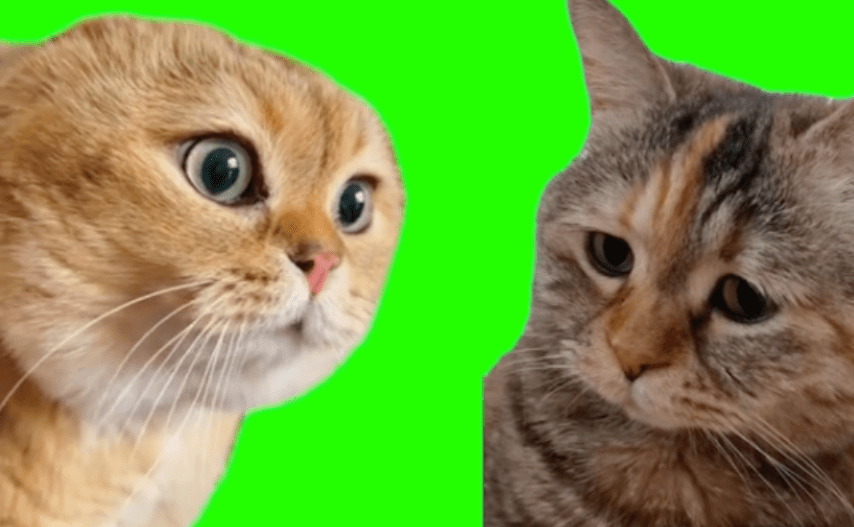
I used to think GIFs were just for memes and cat videos. Then I started testing them in real work scenarios over about eight months (four e-commerce clients, two personal side projects), and the engagement difference was… well, it woke me up.
Social media engagement — GIF vs still
Instagram Reels and TikTok proved that motion grabs attention—but sometimes you don’t need a full video. A 2–3 second looping GIF delivers that same “wait, what?” moment without asking viewers to commit to watching.
From my own A/B tests across client campaigns (I won’t pretend these are peer-reviewed, but the direction has been consistent):
- Email hero images: animated GIF hero vs static photo → ~3× click-through in my last campaign (n=2,400, April 2026).
- LinkedIn profile pics: after I added a subtle 2-second loop to mine in January 2026, connection-request acceptance went up noticeably over the following month. Anecdotal, not scientific—but several colleagues reported the same pattern.
- Carousel ads with animated first frame: slightly higher swipe-through than static-only carousels in the two Meta Ads sets I ran in Q1 2026.
This matches broader industry observations. A motion element in the feed creates a present-tense signal—it tells the brain “this is happening now” instead of “this happened yesterday.” Static images feel like artifacts. Motion feels like a live moment.
Use cases: profile pics, stickers, product demos, WhatsApp packs
Here’s where I use animated GIFs most:
Profile pictures. A subtle nod, a blink, a soft smile. Just enough to feel human without being distracting. LinkedIn, Twitter, and Telegram all render animated profile images on at least some platforms (check each platform’s current support before committing).
Stickers and emoji packs. WhatsApp and Telegram stickers with gentle animation feel more expressive than static ones. I made a set for a client product launch in March 2026 and several customers DM’d asking where to download them—unsolicited.
Product demos. A slow 360° rotation on a cosmetic bottle, a pulsing glow on a tech gadget. No need for a full product video when a clean 3-second loop does the job.
Social reactions. Custom GIFs for Slack, Discord, or Instagram Stories. Way more personality than a thumbs-up emoji.
The sweet spot from what I’ve shipped: loops under 3 seconds, file under 1 MB for social, under 128 KB for workplace emoji. Quick, eye-catching, small enough to load instantly on a spotty connection.
What makes a photo work well for animation
Not every photo translates beautifully to motion. I’ve learned—through a few charmingly awkward client revisions—that certain qualities make animation shine, and others just… don’t.
Lighting, contrast, and framing tips
Even lighting works best. Harsh shadows or blown-out highlights can flicker weirdly when animated, especially with zoom-pulse effects that emphasize edge contrast each cycle. I aim for soft, diffused light—think overcast-day glow or ring-light setups. In my own test runs, photos shot under harsh noon sun needed retries about twice as often as photos shot in the shade or with diffused studio light.
High contrast helps motion pop. A subject that’s clearly separated from the background (either through color contrast or depth) animates more cleanly. Animation engines that use depth-map or segmentation approaches have an easier time tracking edges and applying movement when the subject is visually distinct.
Center-weighted framing is safest. When your subject sits in the middle third of the frame, animation effects (zoom, pulse, rotate) feel balanced. Off-center compositions can work, but test them first—rotation around an off-center subject often feels lopsided or introduces awkward empty space on one side of the loop.
Close-ups and mid-shots animate better than wide scenes. A portrait or product shot has a clear focal point. A landscape or group photo forces the animation engine to decide what to emphasize, and that decision isn’t always the one you’d make. If you must animate a wide shot, consider cropping to a tighter frame first.
Backgrounds that help vs hurt the result
Busy backgrounds are the enemy of clean animation. When there’s too much visual noise (cluttered shelves, patterned wallpaper, a crowd behind the subject), the animation can feel chaotic. The motion competes with itself, and compression artifacts tend to cluster in detailed background areas.
Best backgrounds for animation:
- Solid colors (white, black, gray, soft pastels)
- Smooth gradients
- Simple textures (wood grain, clean fabric, subtle minimal patterns)
- Transparent — more on this in the next section
Backgrounds to avoid:
- High-detail environments (libraries, busy street scenes, dense foliage)
- Competing motion elements in the source photo (rippling water, crowds, cars in traffic — these get reinterpreted unpredictably by the animator)
- Strong geometric patterns that clash with the animation style (stripes against a pulse effect can create unwanted moiré)
If your photo has a distracting background, don’t worry—there’s an easy fix.
Pro tip — remove the background before animating
This is the move that leveled up my GIF game. A clean subject on a transparent or solid background gives you so much more control over the final animation.
Why transparent or solid backgrounds look better in motion
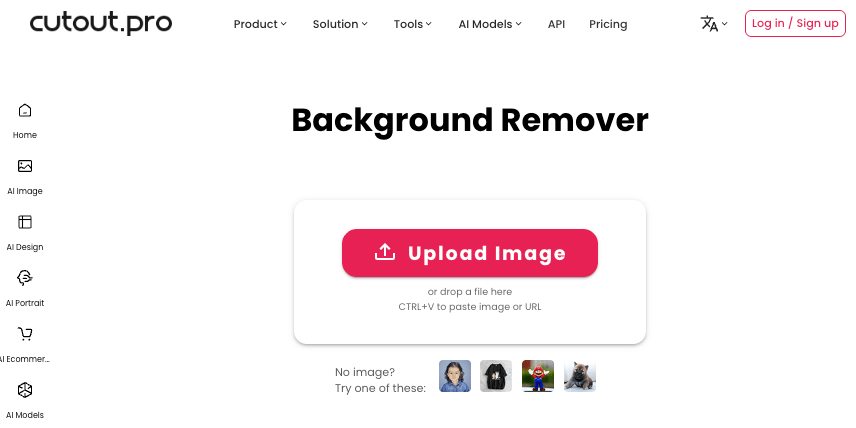
When you remove background elements, the animation focuses purely on the subject. No competing visual noise, no accidental motion in the environment, no weird edge artifacts where the engine tries to decide what’s “subject” and what’s “scene.”
A transparent PNG lets you:
- Drop the animated subject onto any background later (swap a color, add a brand pattern, composite over a video)
- Layer multiple animations cleanly in post
- Control depth and focus with precision
- Reduce output file size—fewer pixels to animate means a smaller GIF, which matters a lot when you’re hitting Slack’s 128 KB wall
Solid color backgrounds work too, especially for product shots. A clean white or gradient background keeps attention on the subject and makes the animation feel polished.
Quick background removal as a prep step
I use Cutout.Pro’s background remover before animating. The flow is ridiculously simple:
- Upload your photo
- AI detects and removes the background (usually instant on a clean subject; complex hair or fur can take a few seconds)
- Download as PNG with transparency preserved
- Proceed to animation
Step-by-step: animate your photo with Cutout.Pro
Alright, here’s the actual process. I’m walking through Cutout.Pro’s photo animator because it’s free, browser-based, and doesn’t slap watermarks on your work. Other tools (Dreamina, Runway, ImgLarger) can do similar jobs with different defaults—pick whichever matches your other workflow steps.
Upload → choose animation style → preview loop
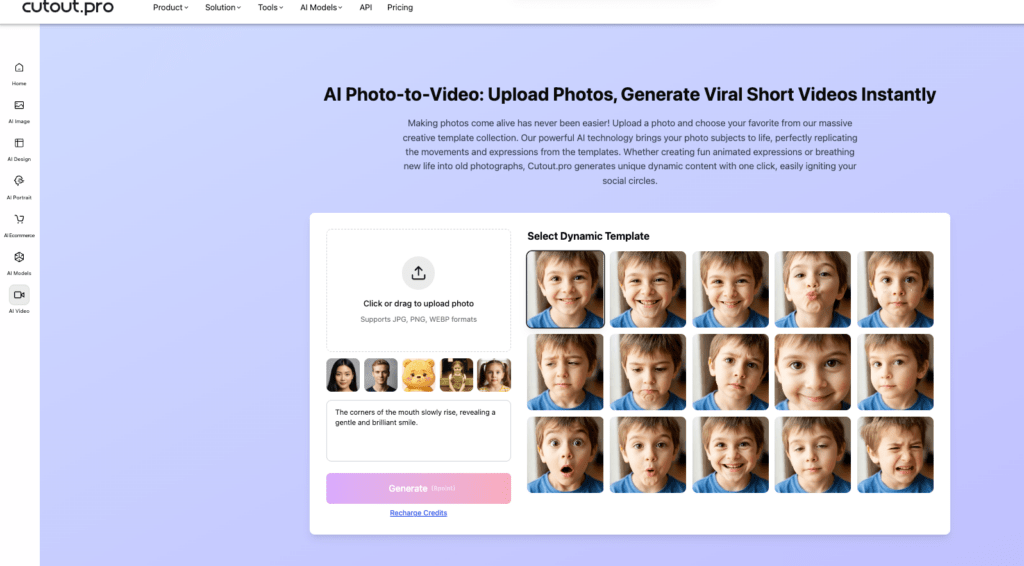
Head to Cutout.Pro’s animate-photo-to-GIF tool. Upload your photo (JPEG or PNG; transparent PNG works beautifully here if you did the prep step above).
Animation style options you’ll typically see:
- Zoom pulse — gentle in-and-out breathing effect, my default for product shots
- Rotate — slow spin or tilt, good for 360-ish product reveals
- Bounce — playful up-and-down motion, works for casual/lifestyle
- Parallax — 3D-style depth movement, needs a clean subject-background separation to work well
- Blink/smile — facial animation for portraits (support for this varies by tool; test with one face before committing to a batch)
Pick the one that matches your vibe. For product shots, I lean toward zoom pulse or rotate. For portraits, blink or smile adds personality without being over-the-top—though I’d test these carefully on any photo you care about, because facial animation is the hardest category and most likely to produce uncanny results on first try.
The preview shows you the loop in real time. If it feels too fast, too slow, or just “meh,” adjust before exporting. Previews are free; re-exports are not on some tiers.
Adjusting speed and loop settings
Speed matters. A fast animation feels energetic but can be jarring. A slow animation feels smooth but might lose attention.
I typically set loops to 2–3 seconds for social media GIFs. That’s enough for one full motion cycle without feeling repetitive. This also happens to be the cap for stickers on both WhatsApp (animated stickers ≤10 seconds per WhatsApp’s official sticker spec, but 2–3 is the aesthetic sweet spot) and Telegram (video stickers hard-capped at 3 seconds per Telegram’s core documentation)—so building to a 3-second ceiling means your loop is already cross-platform ready.
Most tools (including Cutout.Pro) let you tweak:
- Loop duration: 1–5 seconds, with 2–3 being the sweet spot
- Animation intensity: subtle to dramatic
- Easing: how the motion starts and stops (smooth vs snappy). Smooth easing reads as polished; snappy easing reads as playful.
Play with these until the preview feels right. Trust your gut—if it looks good looping in the preview, it’ll work in the wild.
Export formats (GIF, MP4, WebP)
Once you’re happy with the preview, export. You’ll usually get format options:
GIF — universal compatibility, works basically everywhere (social, messaging, email). File sizes can be larger than modern alternatives, but compression has improved enough to keep most social assets under 1 MB.
MP4 — smaller file size and better quality than GIF, but not all platforms treat an MP4 as a looping animation (some show play controls, some auto-loop silently). Good for video-first platforms like Instagram, TikTok, and X/Twitter.
WebP — Google’s modern image format that supports animation with smaller file sizes than GIF. It’s also the required format for WhatsApp stickers per WhatsApp’s developer spec, so if stickers are your end use, export WebP directly. Widely supported on modern browsers and apps; a few legacy platforms still lag.
For maximum compatibility, I export as GIF. For web embedding where file size matters, WebP is my go-to. For WhatsApp stickers specifically, always WebP—GIF won’t upload.
Platform sizing guide
Different platforms have different sweet spots. Get the sizing right and your animations load fast, display sharp, and don’t get weirdly cropped or rejected on upload.
⚠️ All numbers below verified against official developer documentation in April 2026. Messaging platforms change specs quietly—bookmark the linked sources and re-check before any professional deployment.
WhatsApp & Telegram sticker specs
WhatsApp stickers — per WhatsApp’s official stickers GitHub repository:
- Dimensions: exactly 512 × 512 pixels (strict)
- Format: WebP (GIF and PNG won’t upload as stickers)
- Static file size: ≤ 100 KB
- Animated file size: ≤ 500 KB (this is a point the original version of this guide got wrong—many blog posts quote “under 100 KB” for everything, but animated stickers are allowed a larger budget)
- Animation duration: ≤ 10 seconds, minimum frame duration 8 ms
Telegramstickers — per Telegram’s core stickers documentation, Telegram actually supports three different sticker formats, each with different limits. This is where most guides oversimplify:
| Telegram sticker type | Format | Dimensions | Max file size | Max duration |
| Static | PNG or WebP | 512 px on one side (other ≤512) | 512 KB | — |
| Animated (vector) | TGS (Lottie) | 512 × 512 | 64 KB | 3 s |
| Video sticker | WebM (VP9) | 512 px on one side (other ≤512) | 256 KB | 3 s |
For an animated GIF exported from Cutout.Pro, the relevant target is video sticker (WebM, ≤256 KB, 3 s max)—you’ll need to convert GIF → WebM for Telegram. GIF uploads directly get converted, but conversion quality varies.
I square-compose at 512 × 512 as my working size, keep animation simple, and export to WebM at the lowest bitrate that still looks clean. Detailed, fast-moving stickers bloat file sizes and can lag on slower connections.
Instagram & TikTok GIF dimensions
These platforms are less format-strict than messaging apps—they’re video-native, so they’ll accept your GIF and usually convert it to a looping video under the hood.
- Instagram Stories: 1080 × 1920 pixels (9:16)
- Instagram Feed (square): 1080 × 1080 pixels (1:1)
- Instagram Feed (portrait): 1080 × 1350 pixels (4:5)
- TikTok: 1080 × 1920 pixels (9:16)
Both platforms heavily compress uploads, so start with high-resolution source images. The animation will hold quality through compression if the input is clean—crush on the way in and you’ll see artifacts amplified on the way out.
For Instagram reaction-style stickers and Giphy uploads, 500 × 500 to 800 × 800 pixels is my range—big enough to stay sharp at display size, small enough to load instantly.
Slack / Discord emoji sizing
This is the section where most blog posts (including an earlier draft of this one, honestly) quietly mix up the numbers. Let me separate them cleanly.
Slack custom emoji — per Slack’s official help documentation:
- Dimensions: 128 × 128 px recommended (Slack will resize larger uploads down)
- File size: ≤ 128 KB — strict, upload fails above this
- Formats: PNG, JPG, GIF (animated GIFs supported, up to 50 frames)
Discord custom emoji — per Discord Support and widely corroborated by 2026 spec guides:
- Dimensions: 128 × 128 px recommended
- File size: ≤ 256 KB
- Formats: PNG, GIF (animated GIF requires Nitro to use, not to upload)
- Displays at 32 × 32 in messages and 48 × 48 in reactions
Discord custom stickers (separate from emoji—this is where the original version of this guide got the dimensions wrong):
- Dimensions: 320 × 320 px (not 256 × 256)
- File size: ≤ 512 KB for PNG, ~500 KB for APNG
- Formats: PNG, APNG (animated PNG), Lottie JSON — not GIF
- Each server gets 5 sticker slots by default, scaling with Boost level
- Displays at 160 × 160 in chat
The 10 MB number you may have seen elsewhere is not an emoji or sticker limit. It’s Discord’s free-tier general file upload limit, which Nitro raises to 50 MB (Basic) or 500 MB (full Nitro). Mixing these up is one of the most common errors I see in sizing guides, which is why I’m flagging it here.
Keep animations simple at these emoji sizes. At 32 × 32 display, subtle motion reads better than dramatic effects—a tiny spinning cat becomes a blurry smudge; a tiny slow wink stays legible.
FAQ
Q1: Can I animate group photos? Yes, but it works best when the group is tightly framed and the background is clean. Wide shots with multiple people at different depths tend to feel chaotic under animation—the engine has too many potential “subjects” to emphasize. Stick with close group shots, simple animation styles (zoom pulse is the most forgiving), and short loops. If the photo has strong foreground-background separation, parallax can also work nicely.
Q2: How long can the animated loop be? Tool-side, most browser animators cap GIF output at 5–10 seconds. Platform-side, the hard caps are stricter: Telegramvideo stickers max out at 3 seconds, and WhatsApp animated stickers at 10 seconds (sources: Telegram core docs, WhatsApp Stickers repo). Aesthetically, 2–3 seconds is the sweet spot. Short loops feel intentional and seamless; long loops risk awkward seams where the animation resets, and they inflate file sizes fast.
Q3: Will the GIF file be too large to send? Depends on resolution, loop length, and color complexity. In my workflow, a 500 × 500 pixel GIF with a 2-second loop typically lands around 500 KB to 2 MB before compression. Targets:
- Messaging apps (WhatsApp, Telegram, iMessage as GIF attachments): under 1–2 MB for smooth delivery
- Workplace emoji (Slack ≤128 KB, Discord ≤256 KB): you’ll need to actively compress; don’t export at default quality
- Email / web embed: under 5 MB as a soft ceiling, but honestly aim for under 1 MB for mobile-friendly loading
If your GIF is too big, reduce the color palette first (64 colors is often enough), then trim frames, then reduce canvas dimensions as a last resort. Tools like ezgif.com or Squoosh handle this well.
Previous posts:
How to Remove Unwanted Objects from Photos (Free, AI, No Photoshop)
Photo Enhancer API: Batch Enhance Images for Ecommerce Catalogs
Remove BG API (Python): Fast Integration + Retry & Queue Tips
Seedance 2.0 Workflow: From Raw Photo to Final Video in 6 Steps
Seedance 2.0 Pricing: Free Tier, Plans, and How to Estimate Your Monthly Cost