
That morning I opened a folder of 600 product shots and whispered, “Easy now.” You know that feeling, nice images, scattered backgrounds, a whole catalog waiting. Past me would’ve masked edges one by one. These days, I treat bulk background removal like a gentle assembly line: quiet tools doing the heavy lifting while I pet cat and make the creative calls.
I’m your friend- Camille. Over the last two months, I tested batches across e‑commerce photos, lifestyle cuts, and simple portraits using a mix of desktop tools and APIs. On average, I’m saving 3–6 hours per 500 images, with a first‑pass approval rate hovering around 92–95% when the photos are consistent. Not perfect, just calm, fast, and reliably “good enough” to keep projects moving. Let me show you what that looks like in practice.
When Bulk Removal Makes Sense (Ecommerce, Teams, Catalogs)
If you’re wrangling more than a handful of images per session, bulk background removal starts paying for itself. It shines in a few places:
- Ecommerce catalogs: product grids, listing photos, colorways, and seasonal refreshes. Think 100–2,000 SKUs where consistency matters more than micro‑perfection.

- Team workflows: photographers hand off RAWs, designers need cutouts, social managers need transparent PNGs by end of day. One pipeline, many outputs.
- Multi‑channel deliveries: marketplaces that require white backgrounds, website hero images with soft gradients, ad variants, and quick social crops.
In my January run, I processed 800 images (home goods and accessories). Using a cloud API for removal and a local action for standardizing canvas and shadows, I cut the process from a full day to about 2.5 hours wall‑clock. Roughly 10% needed touch‑ups (fine hair, glass edges), which I earmarked during spot checks.
Why it works in practice:
- Predictable visuals scale better than bespoke. A consistent silhouette against consistent backgrounds reads “premium” without slowing you down.
- Faster QA loops. It’s easier to flag a few edge cases than to hand‑cut every edge.
- Cost clarity. When the process is repeatable, you can estimate time and API spend before you commit.
Caveat: if your set is extremely varied, complex props, motion blur, hair wisps in backlight, plan for a higher manual polish rate (15–25%). Not a deal‑breaker, just honest expectations.
Prep for Scale
File Naming Convention
A tidy naming scheme is the quiet hero of bulk anything. I keep it boring on purpose: brand_sku_variant_shot-v001.ext. It sorts cleanly, helps with versioning, and keeps your API outputs aligned with inputs.
In January’s test, this alone saved me about 20 minutes during re‑exports. When a client asks, “Can we swap the blue variant on shot 3?” you’ll actually find it.
Tips:
- Use underscores or hyphens, avoid spaces.
- Put the stable ID (SKU or product code) first for sorting.
- Reserve a suffix for processing stage, e.g., -raw, -bgrem, -final.
- If using APIs, pass the original filename as metadata so the returned file name matches.
Consistent Photo Standards

Bulk removal is only as good as your inputs. A few anchors make everything click:
- Lighting: soft, even, minimal cast shadows. Bright but not blown.
- Separation: subject at least a few inches from the backdrop to avoid spill and edge confusion.
- Background: neutral, non‑reflective, and not too close in color to your product.
- Color space: shoot and edit in sRGB when you know you’re headed for web: it avoids odd shifts later.
- Framing: consistent angles and distance. Your batch tool will “learn” less and struggle less.
If the team must shoot on location, agree on a 1‑page standard (light height, backdrop code, lens, camera profile). It sounds fussy: it saves hours.
Batch Workflow: Upload → Process → Export
Batch Upload Strategy
I like a two‑bucket approach:
- Clean Input: a folder with lightly edited JPGs or PNGs (lens correction + exposure only). No layers, no masks.
- Process Queue: a mirrored folder where an app or API drops the cutouts.
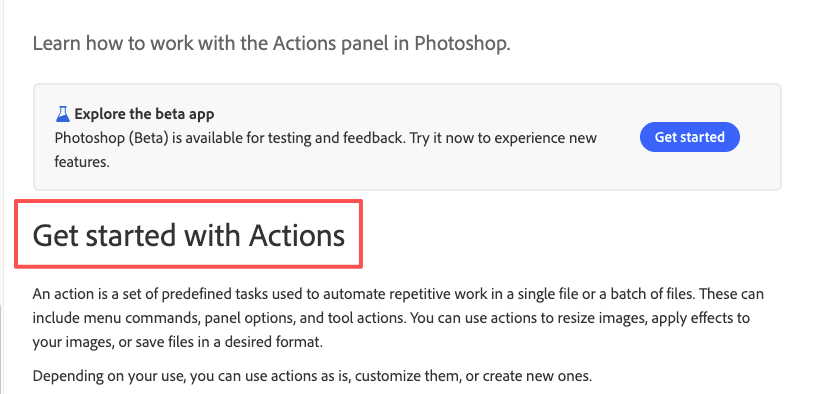
For desktop runs, Photoshop Actions + Batch are still handy for pre/post steps, see Photoshop Actions and Batch. For removal, I rotate among tools depending on edge cases and cost:
- remove.bg desktop or API for solid, predictable subjects.
- ClipDrop Background Removal for tricky edges and hair.
- Cloudinary pipeline when I’m already storing assets there: the background removal add-on keeps everything in one place.
In December, ClipDrop handled 1,000 lifestyle crops at ~1.8s/image via API: remove.bg ran ~2.2s/image for studio shots. Both were more than fine for overnight batches. Not sponsored, just sharing what behaved nicely.
If you’re processing large batches and want a calmer, more predictable workflow, you can try our Cutout.Pro. It helps you remove backgrounds at scale with clean, consistent edges, so teams can focus on QC and creative decisions instead of manual masking.

Spot-Check Sampling Method
Here’s the little habit that saves me: sample early, not just at the end.
- First 20 images: check all, zoom to 150–200% on edges. Approve the tool choice or switch now.
- Then every 25–50 images: inspect 3–5 randomly (mix dark, light, glossy, textured).
- After any lighting change in the set: inspect that block more closely.
I keep a “manual_fix” subfolder and drag any offenders there as I spot them. Well, that settled nicely.
Export Formats and Delivery
After removal, I usually auto‑export in two or three flavors:
- Transparent PNG for design or marketplaces that accept it.
- JPEG on white (#FFFFFF) for marketplaces that require solid backgrounds.
- WebP for web performance (marketing pages, PDPs).
Notes from the field:
- Keep sRGB embedded: CMYK can surprise you online.
- Use a naming suffix that says the background, e.g., -onwhite, -trans.
- When sending to clients or teams, zip per SKU or per category to avoid link chaos.
- For dev handoffs, push to S3 or Cloudinary and share a simple spreadsheet with filenames, variants, and links. There… just right.
QC Checklist (Fast but Strict)
When speed is the point, QC can’t be a vibe, it needs a rhythm. I run this checklist lightly but consistently.
Edge Quality
- Zoom to 150–200%. Look for halos, jagged saw teeth, or fuzzy gray rims on high‑contrast edges.
- Toggle a mid‑gray layer behind your cutout: artifacts pop faster than on pure white.
- For hair or fur, check the silhouette at thumbnail size too. If it reads natural small, you’re good.
Holes/Missing Parts
- Transparent product? Hold it over both white and black backgrounds to catch accidental holes.
- Intricate shapes (earrings, chair legs) love to vanish. Compare with the original for 2 seconds, just a flicker. You’ll spot the missing bit.
- Reflective packaging often loses label edges: a 1px inside stroke on a separate layer can rescue definition without looking “outlined.”
Background Color Consistency
- If you’re compositing on color, lock a global hex and stick to it, e.g., #F7F7F7 for soft gray. Build a template so every export reads consistent.
- For white backgrounds, check luminance. A white that’s a hair too dark next to true white looks dingy.
- Gut check at grid view: if one tile shouts, nudge it or re‑run. Mmm, that feels good.
Time check: on a 500‑image batch, this stricter QC adds ~15–25 minutes and usually saves a round of client notes. Past me was so serious: present me just smiles and moves on.
Automation Options (If Using API)
If you want this humming in the background while you work (or sleep), an API pipeline is lovely.
Core pieces I lean on:
- Ingest: images land in cloud storage (S3, GCS, or Cloudinary).
- Worker: a simple queue triggers removal calls in small bursts (5–10 concurrent to respect rate limits).
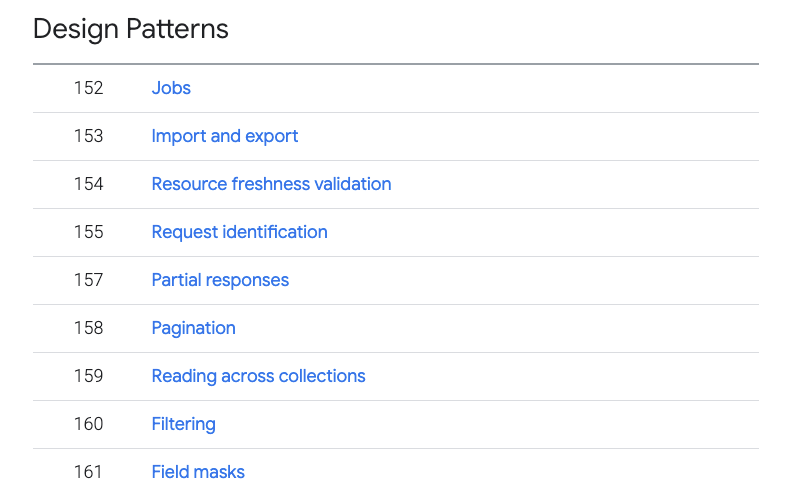
- Callback: use webhooks to mark jobs complete and move files to their final folders. If you’re designing webhooks, this high‑level overview is handy: Webhook design.
Practical bits I wish I’d known sooner:
- Budgeting: estimate credits and time up front. Example from my Jan batch: 1,200 images ≈ 1,200 credits, ~40–60 minutes total at 10 concurrent calls, average 2–3s per image. Costs vary, check each vendor.
- Metadata: carry the original filename and SKU through every step. Your future self will thank you.
- Idempotency: if a job retries, don’t duplicate outputs. Use a unique key per input file.
- Throttling: APIs have ceilings: shipping fewer, steadier requests beats spikes.
- Human exits: keep a “divert to manual” flag so tricky files skip the loop and land in your fix folder.
Limits to note:
- Hair + busy backgrounds still create the occasional halo.
- Glass and clear plastics need an extra look: auto tools sometimes over‑erase.
- Very low‑light shots confuse edge detection. If a shoot runs late (hi, 10 p.m. Camille), bump exposure first.
If you pick a tool, skim the official docs above: they change features and pricing quietly.
All right, rest easy now~ Bulk background removal doesn’t have to feel heavy. Start with tidy inputs, sample early, and let the quiet automations do their thing. Try it on your next catalog or content sprint, you might surprise yourself.
Previous posts:
Fur & Hair Background Removal: How to Get Natural Edges
Remove Background Online: Best Method for Clean PNGs (2026)
Remove Background for Product Photos: White Background for Amazon & Shopify