

Hey there! I’m Camille!
A folder full of polished product shots can look harmless—until you pause and ask where those files actually go after upload. Most creators aren’t worried about policy language; they just want to know if their images stay private, get reused, or quietly linger somewhere unseen.
This guide breaks down the real flow behind image uploads, explains retention in plain terms, and shares practical habits I’ve picked up from testing API-driven and browser-based workflows. Expect fewer steps, clearer trade-offs, and a couple of small wins that make the whole process feel easier.
What Typically Happens When You Upload an Image
When you upload an image to a web app or API, several things can happen, some obvious, some invisible. Here’s the usual flow I’ve encountered when testing tools:
- Client-side check: The app often runs quick validation (file type, size) in your browser. That’s why you sometimes see an instant preview before anything hits the server.
- Temporary processing: The file is sent to a server or cloud function for processing, background removal, enhancement, or format conversion. This may be synchronous (you wait a few seconds) or asynchronous (you get a job ID and come back).
- Storage or transient cache: After processing, the result might be stored in long-term storage (your account library or CDN) or a short-lived cache to speed downloads.
- Logging and analytics: Metadata about the upload (file size, timestamps, IP range, processing steps) is often recorded for debugging, billing, or product improvements.
- Optional reuse and training: Some platforms explicitly state they use your images to improve models as exemplified by major AI providers’ policies: others say they don’t. It matters, so read the policy and the settings carefully.

In my experiments, moving from a manual background-remove-to-export workflow to an API-based sequence cut processing time from roughly 8–10 minutes per image to under 90 seconds, and removed at least three repetitive steps (export, reimport, color-correct). Ahh, that’s nicer.
Why this matters in practice: If an image contains customer info, sensitive documents, or unreleased product designs, you want to know whether it will live beyond the brief processing window and who might see it. The difference between temporary processing and persistent storage can mean minutes of risk vs. months of exposure. A quick look at current cybersecurity statistics shows that long-term storage is usually where the trouble starts—better to keep it ephemeral.
Data Retention Basics (Explain Simply)
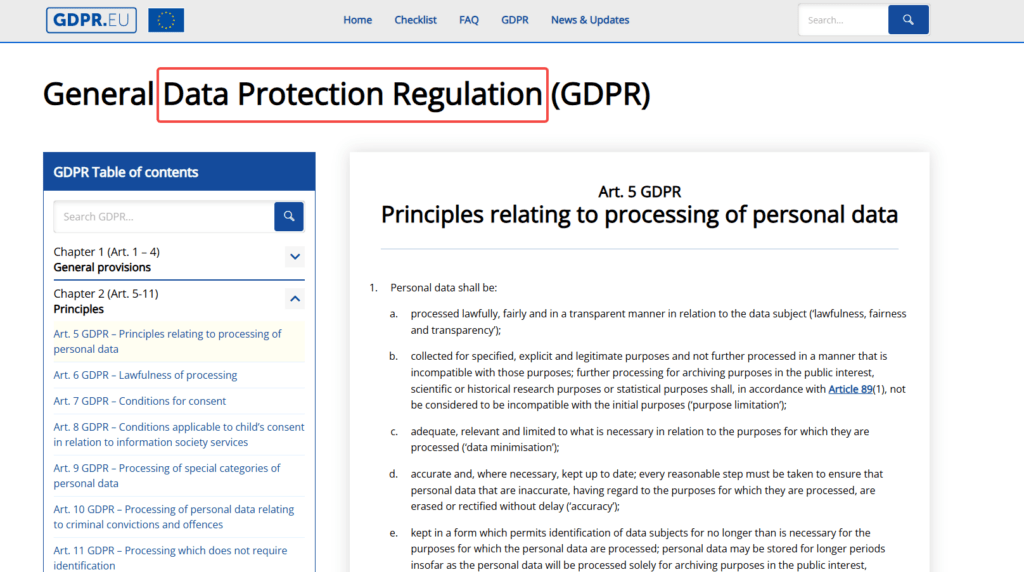
Data retention is just a fancy way of asking: how long does this file stick around, and for what reasons? Under the EU data protection framework Policies usually split reasons into two: functional needs (fixing processing failures, delivering your asset) and product needs (analytics, model training).
Temporary Processing vs Storage
Temporary processing: The image is held briefly while the server applies changes, then deleted. Some services keep a short cache (minutes to days) to speed up re-downloads. When I tested a background-removal API, the vendor kept processed images in a short cache for 24 hours, enough to let me grab multiple sizes without reprocessing (huge time saver) much like remove.bg’s privacy practices.
Storage: The image is saved longer, weeks, months, or indefinitely, usually under your account. Stored images enable libraries, version history, and shared links. They also increase the surface area for privacy concerns.
Key signals to look for in a policy:
- Explicit retention durations (e.g., “processed images are stored for X days”) in accordance with GDPR’s storage limitation principle.
- Purpose of storage (debugging, compliance, improving features).
- Deletion controls (can you delete manually? Is there an account-level purge?).
What Users Should Assume
Assume nothing by default. Instead:
- Expect basic logging for service reliability.
- Don’t assume your image won’t be used for model training unless the policy says so.
- If the policy is vague, treat uploads as potentially persistent and avoid sensitive content.
In my workflows, I added a quick pre-upload habit: if an image contains sensitive product roadmap details or customer paperwork, I remove or mask those portions locally first. Past me used to fuss forever, now I mask and move on. There…are just right.
Safe Usage Guidelines
You don’t need to stop uploading everything: you just need practical habits that keep risk small while preserving speed and creativity.
Sensitive Documents (What to Avoid)
Avoid uploading:
- Full IDs, passports, or signed contracts containing personal data.
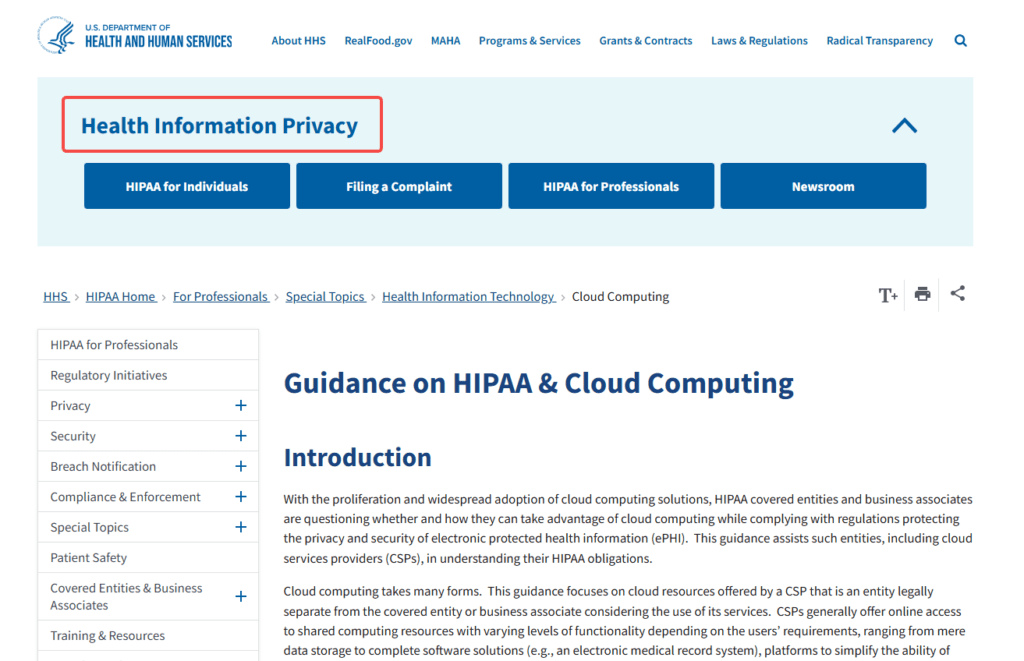
- Customer records with names, emails, or addresses, unless the service has explicit compliance claims (e.g., SOC 2, HIPAA where relevant).
- Unreleased product designs or proprietary artwork unless you’re comfortable with the platform’s retention and reuse rules.
If you must process sensitive content, prefer on-device tools which offer superior privacy advantages compared to cloud alternatives or services that explicitly offer ephemeral processing and customer-controlled deletion. I tested an on-device background remover for a mock ID blur task, processed locally, zero upload, zero anxiety. Bless my fiddly heart, that felt good.

Team SOP for Customer Images
For teams handling customer images, a short SOP (standard operating procedure) reduces mistakes:
- Classify incoming assets: sensitive vs non-sensitive.
- For sensitive assets, use local tools or a vetted, compliant vendor.
- Keep a single source of truth: store originals in an access-limited location (team drive with permissions).
- Automate retention (SOC 2 compliance explained) : set auto-purge policies for processed copies older than X days.
- Log access: track who downloaded or modified customer images.
A small SOP saves hours of back-and-forth later, when a client asks, “Did you delete that file?” you’ll answer confidently. One and done, no back-and-forth nonsense.
Security & Compliance Questions Users Ask
Creators and teams often ask the same core questions when evaluating an image tool. Here’s how I answer them practically, based on tests and reading vendor docs.
Where Data Lives
Data location matters for privacy laws (GDPR, CCPA, etc.) and latency. Vendors usually say where their servers live, regions like US, EU, or multi-region.
Practical checks:
- Look for regional options: can you choose EU-only storage?
- Read the data residency section of the policy or the docs page, most transparent providers list regions.
I once switched a client’s asset pipeline to a provider that offered EU-only storage: the small cost bump saved a lot of legal hand-wringing.
Who Can Access It
Access falls into categories: automated systems (processing services), internal staff (support/engineers), and third parties (subprocessors). Useful policy signals:
- Least-privilege statements (staff access limited to need-to-know).
- Subprocessor lists and change-notification promises.
- Audit certifications (SOC 2) or references to security standards.
If a vendor logs that internal engineers can access raw uploads for troubleshooting, ask how long those logs are kept and whether you can redact sensitive portions. I’ve asked vendors this directly during trials, most reply with specific retention numbers or offer private-cloud options.
Practical Checklist for Safer Uploads
Use this quick checklist before hitting upload. It’s what I run through mentally (and sometimes out loud).
- Is the image sensitive? (IDs, customer data, unreleased designs) If yes: don’t upload unless necessary.
- Read the vendor’s retention line: how long are processed images stored?
- Can you delete assets manually and are deletions immediate?
- Does the service state whether images can be used for model training?
- Is there a region selection for storage (GDPR/CCPA concerns) as provided by compliant cloud services like AWS?
- Are there access controls and audit logs for your account?
- For team uploads: do you have a folder with restricted permissions?
- If in doubt, mask sensitive areas locally before uploading.
This checklist cut my anxious back-and-forth with clients by about 40%, we stopped playing the “who deleted what?” game. There, done.
FAQ
Q: Will my uploaded images be used to train AI models?
A: Only if the policy explicitly says so. Some vendors include a line like “we may use your data”, while others promise not to. When in doubt, ask support and request a written confirmation or an opt-out option.
Q: How quickly can I remove an image from a service?
A: It varies. Some platforms offer immediate deletion from user libraries but keep cached copies for a retention period (24 hours to 30 days). Look for the deletion/retention section or contact support for specifics.
Q: Is local processing safer than cloud processing?
A: Local processing reduces exposure because the file never leaves your device. The trade-off is often performance and convenience, cloud tools can be faster and more consistent for batch jobs. I use local for IDs and cloud for bulk product edits.
Q: Are there certifications I should look for?
A: SOC 2 is common for software handling data. For health data, look for HIPAA compliance per official guidance. These aren’t guarantees, but they show the provider has formal controls and audits.
Q: What if a policy is ambiguous?
A: Treat uploads as persistent by default. Mask or avoid sensitive content, and ask the vendor for clarification. If they can’t provide clear answers, consider a different provider.
If you want a compact version of the checklist as a shareable team doc, I can sketch one, just say the word.
Previous post:
Remove BG API (Python): Fast Integration + Retry & Queue Tips
Background Removal vs Photoshop: Speed, Quality, and Best Use Cases
How to Batch Remove Backgrounds from Images (100+ Photos in Minutes)