
Table of Contents
Hey, buddy. I’m Camille. If you’ve ever tried to remove background from product photos and ended up hand-painting tiny shadows at 10 p.m., I’m sending you a soft hug. There’s an easier way, actually, several, that keep your style intact and your sanity unruffled.
I work in digital visuals and e‑commerce design every day, bouncing between social covers, product shots, and branded graphics. Over the past few months, I refined a simple approach that gets me consistent, platform‑friendly images fast. Here’s what actually matters for Amazon, Etsy, and Shopify, how I do clean white backgrounds in a click, and how I batch the whole thing so I can get back to the fun parts of design. There we go!
What Each Platform Actually Requires (Amazon, Etsy, Shopify)
Amazon: Pure White #FFFFFF, 85% Product Fill, The Hard Rules
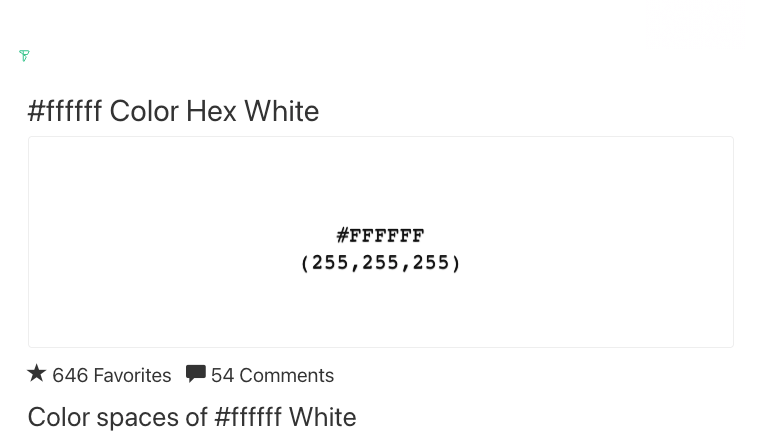
Amazon is the strict one at the table. For main listing images, they want pure white (#FFFFFF) and a product that fills about 85% (or more) of the frame. No props that aren’t included, no text, no watermarks, no busy reflections, no borders. Think clean, bright, and true-to-color.
What I check before I upload:
- Background is truly #FFFFFF (not a soft gray). If you pop the image into a color picker, your RGB should read 255/255/255 in the background.
- Product fills the frame without feeling cramped, roughly 85–95% is the sweet spot.
- No stray edges or haloing around hairlines or transparent parts (bottles, glass, glossy plastics).
- File size: at least 1000 px on the longest side to enable zoom: I aim for 1600–2560 px for crispness.
- Color space: sRGB, JPEG usually preferred.
If you want the official language (worth bookmarking), see Amazon’s product image requirements: Amazon Seller Central – Product image requirements.
Etsy & Shopify: What’s Flexible and What Gets Flagged
Etsy and Shopify are more about consistency and clarity than hard bans on backgrounds.
Etsy:
- Lifestyle images are welcome, and often helpful. Your first photo doesn’t have to be pure white, but a clean, distraction‑free background converts better in my tests.
- Size: Etsy suggests at least 2000 px on the shortest side for quality. sRGB JPEG or PNG works well.
- Watch for heavy compression or overly dark images, less likely to “flag,” more likely to underperform.
- No strict background rules. White or soft neutrals keep collections feeling premium and consistent.
- Shopify recommends at least 2048 px on the longest side for product images, sRGB, JPEG for color photos.
- If you enable zoom or use large galleries, stick to a standard aspect ratio across the catalog.
Step-by-Step: Clean White Background in One Click
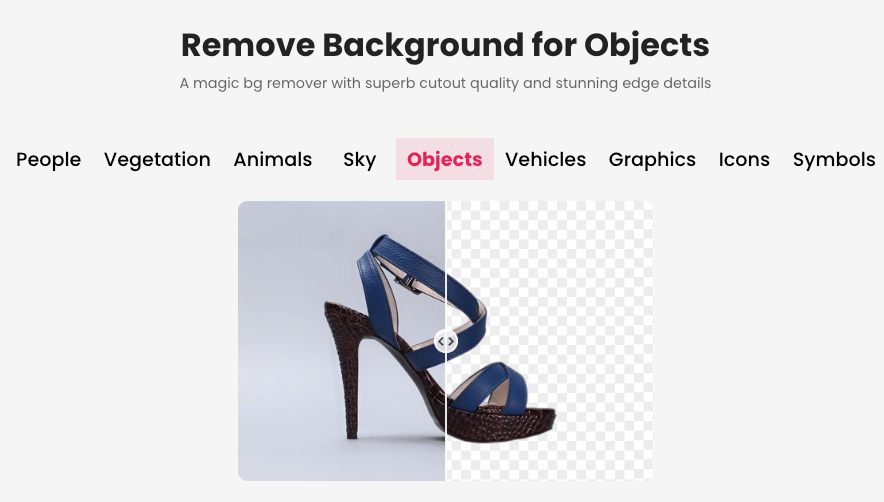
Let’s keep it quiet and simple. These days, most modern tools give you a “Remove Background” button. I’ve tested the usual suspects (Photoshop 2024/2025’s Remove Background, Canva’s Background Remover, and a couple of dedicated web apps) and, honestly, they all do fine for solid objects. Glass, hair, and complex textiles still need a minute of love.
Here’s my practical, one‑click‑first flow:
- One click, then quick sanity checks
- Hit Remove Background (or Select Subject > Mask).
- Add a pure white layer behind the subject (#FFFFFF). If the tool offers “Background = White,” great, just confirm the hex.
- Zoom in 200–300%. Look for halos on edges, little stair‑steps on diagonals, and any soft spill where the old backdrop clings to metal or glass.
- Nudge edges without drama
- Refine edge/feather: 0.5–1 px usually cleans harsh cutouts without blurring detail.
- Defringe or Decontaminate Colors if you see color cast from the original backdrop.
- For transparent items (bottles, gloss), keep a faint contact shadow or inner highlight, otherwise it floats weirdly. I sometimes paint a 5–8% gray soft shadow on a new layer under the base.
- Rebuild a natural shadow (30 seconds)
- Create an elliptical soft shadow under the product: big soft brush, low opacity (10–20%), one or two passes. Shorter and darker near the object, wider and lighter as it fades. There… just right.
- Match brightness and contrast to the platform
- Amazon likes “even bright.” I lift exposure a hair, pull whites up, and keep blacks gentle so the product reads crisply on zoom.
- Etsy/Shopify: I let a bit more texture live in the midtones so fabrics, wood grain, or matte finishes feel real.
- Save a repeatable preset
- Whether you’re in Photoshop, Affinity, or a web app with presets, save your mask/refine settings and export recipe (sRGB JPEG, quality 80–90, 2000–2560 px longest side). Next time it’s nearly one and done, no back‑and‑forth nonsense.
Tiny true story: I once spent 20 minutes nudging a shadow by hand for a ceramic planter… only to realize the product was rotated 2° off. Present me drops a quick global rotate, taps a premade shadow brush, and calls it a day. Bless my fiddly heart~
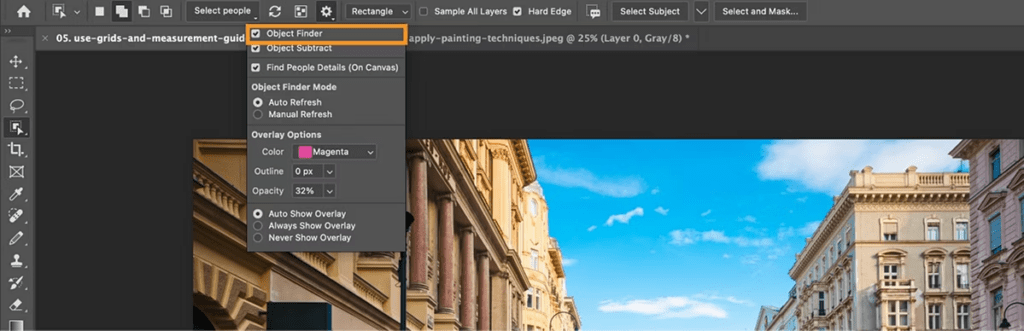
If you want more technical grounding, Adobe’s current docs on Select Subject and Background Removal are a helpful skim: Adobe – Make a quick selection. Not required reading, but reassuring if you like peeking under the hood.
Batch Processing for E-Commerce at Scale
When you’re cleaning up a whole catalog, the real magic is staying consistent while you move fast. I like to treat background removal like brewing a big pot of tea: set it up right, then let it steep while you do other things.
My repeatable batch flow (used last month on 380 images):
- Standardize input: shoot or crop everything to a common aspect ratio first (1:1 or 4:5) so your masks and shadows feel uniform.
- Run a bulk background removal pass in a web app or desktop tool that supports queues. Keep a “Needs Human Touch” folder for the 10–15% that require edge fixes.
- Auto‑apply a soft contact shadow layer for objects that look floaty: skip for flat lays.
- Export with naming rules (SKU_variant_view). Your future self will thank you.
A gentle note: If the batch includes reflective packaging, make a separate preset with a slightly stronger edge decontaminate and a lighter contrast curve. Past me was so serious about one‑preset‑for‑everything. Old habits, still learning.
Web App Bulk Upload vs Shopify Plugin, Which to Use When
I use both, depending on where the assets live.
Use a web app bulk upload when:
- Your images come from multiple sources (photographer, vendor packs, screenshots) and need uniform treatment before they touch your CMS.
- You want cross‑platform outputs in one go: Amazon‑compliant white, plus a softer Shopify variant, plus a lifestyle Etsy thumbnail.
- You need an API for automation. Developers on my clients’ teams plug bulk removal + export profiles into scripts so new SKUs process overnight.
Use a Shopify plugin when:
- Images already live in Shopify and you’re cleaning them in place, nice for tidy catalogs.
- You want quick reprocessing after theme changes (e.g., swapping to a darker theme and needing lighter shadows).
- Collaborators are less technical: approving changes within the admin is friendlier.
Either way, the joy is in batching the brainwork once. And just like that… you’ve halved the time without halving the quality.
If you’re handling dozens or hundreds of product images at a time, this is exactly why we built Cutout.Pro.
At Cutout.Pro, we focus on making background removal fast, consistent, and batch-friendly, whether you’re preparing Amazon-ready pure white images or cleaner Shopify collections. Our bulk processing and API workflows are designed to reduce manual masking time and keep edge quality stable across entire catalogs.

Export Checklist Before Uploading to Any Platform
Before I hit upload, I do a calm little lap around this list. It catches 95% of oopsies.
- Background purity: Is the backdrop truly #FFFFFF for Amazon hero images? Spot‑check with a color picker.
- Edge integrity: No halos, no crunchy stair‑steps, clean transparency handling on glass or glossy metal.
- Natural presence: Soft contact shadow in place (if needed). If it looks like it’s levitating, give it 10% more.
- True color: sRGB, white balance corrected, no weird casts from the original set. Products should look like themselves.
Size & aspect ratio:
- Amazon: 1600–2560 px on the longest side for good zoom: product fills ~85–95% of frame.
- Etsy: aim for 2000 px on the shortest side: consistent aspect across images.
- Shopify: at least 2048 px longest side: keep a standard ratio across your catalog.
- File format & weight: JPEG (quality 80–90) for photos, PNG only when transparency is needed. Keep files lean for fast pages.
- Naming convention: SKU_variant_view (e.g., mug-12oz-sage_front). Future searches and bulk edits become painless.
- Consistency pass: Open a 3×3 grid of thumbnails and squint, do the brightness, crop, and shadow density feel like a family?
A gentle closing thought: beautiful, sales‑ready images don’t have to feel heavy or fussy. With a one‑click start, a minute of honest refinements, and a calm export ritual, your catalog will look clean, consistent, and quietly premium. Try it on your next upload, you might surprise yourself. There… feels gentle, doesn’t it?
Until next time, keep it light, keep it lovely.
Previous posts:
How to Batch Remove Backgrounds from Images (100+ Photos in Minutes)
Remove Background from Logo: Keep Sharp Edges & True Colors
Transparent Background PNG: How to Export Cleanly (No Artifacts)