Image to SVG
Conversion history
Your account’s records from the last 30 days.
Sign in to view your conversion history.
Convert PNG and JPG to SVG online
Convert PNG, JPG, and other images to scalable SVG online. Use automatic settings by default, or adjust the number of colors, the small-region filter, or both.
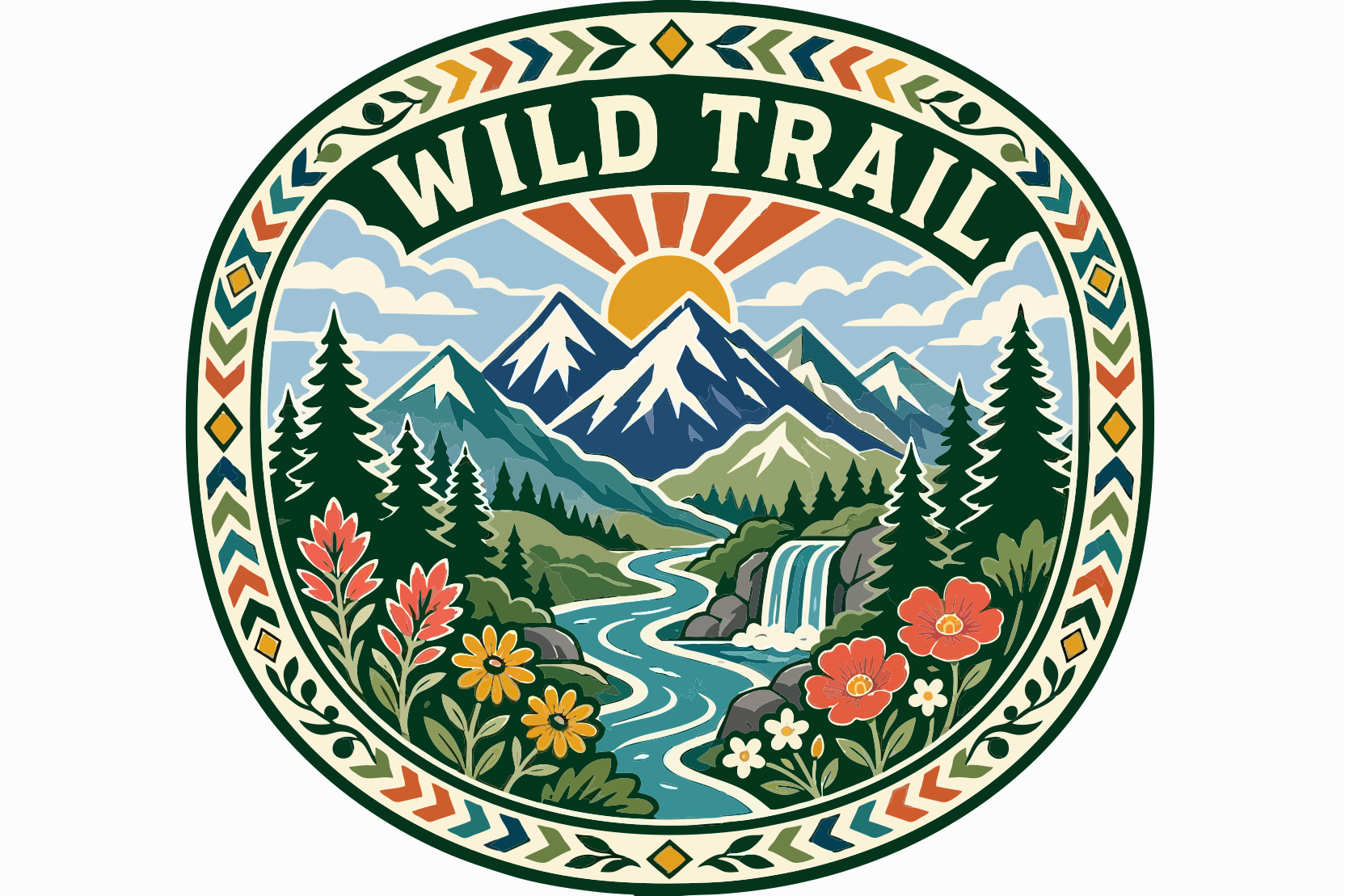
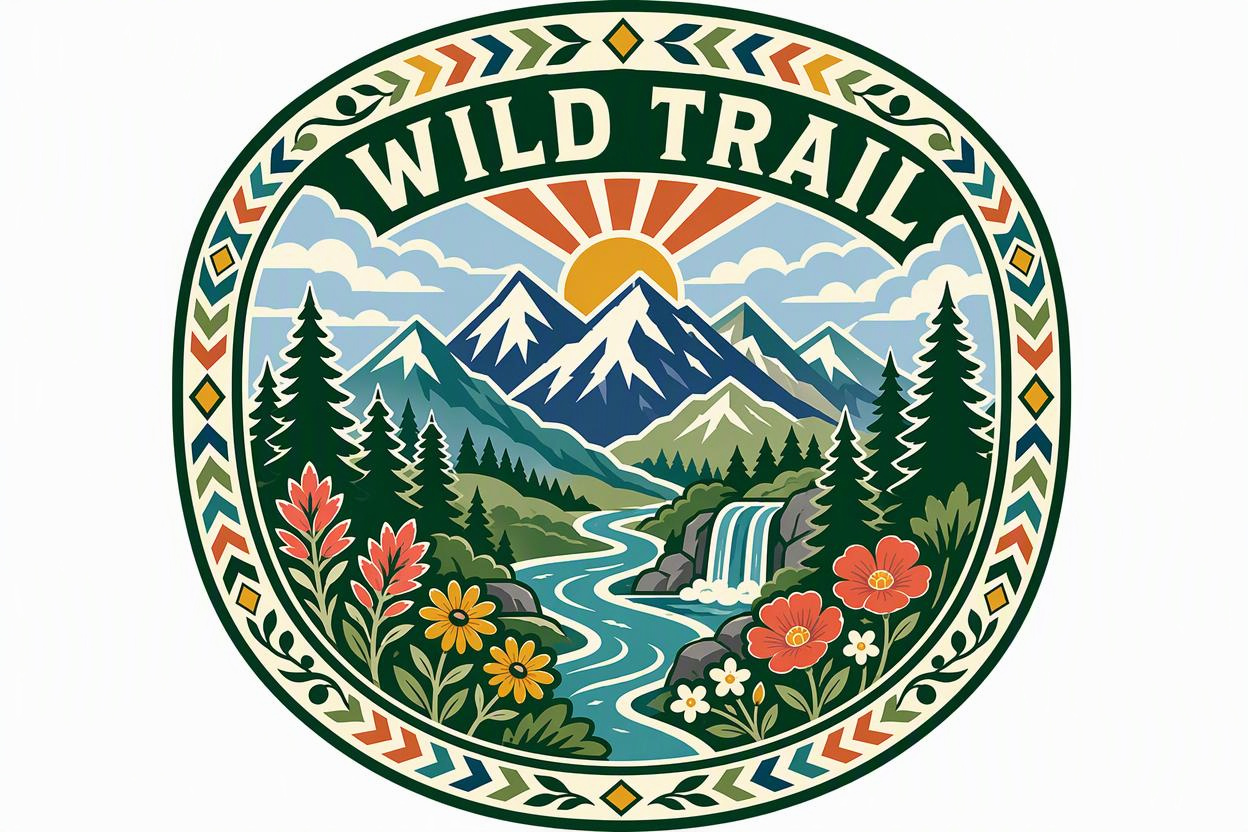
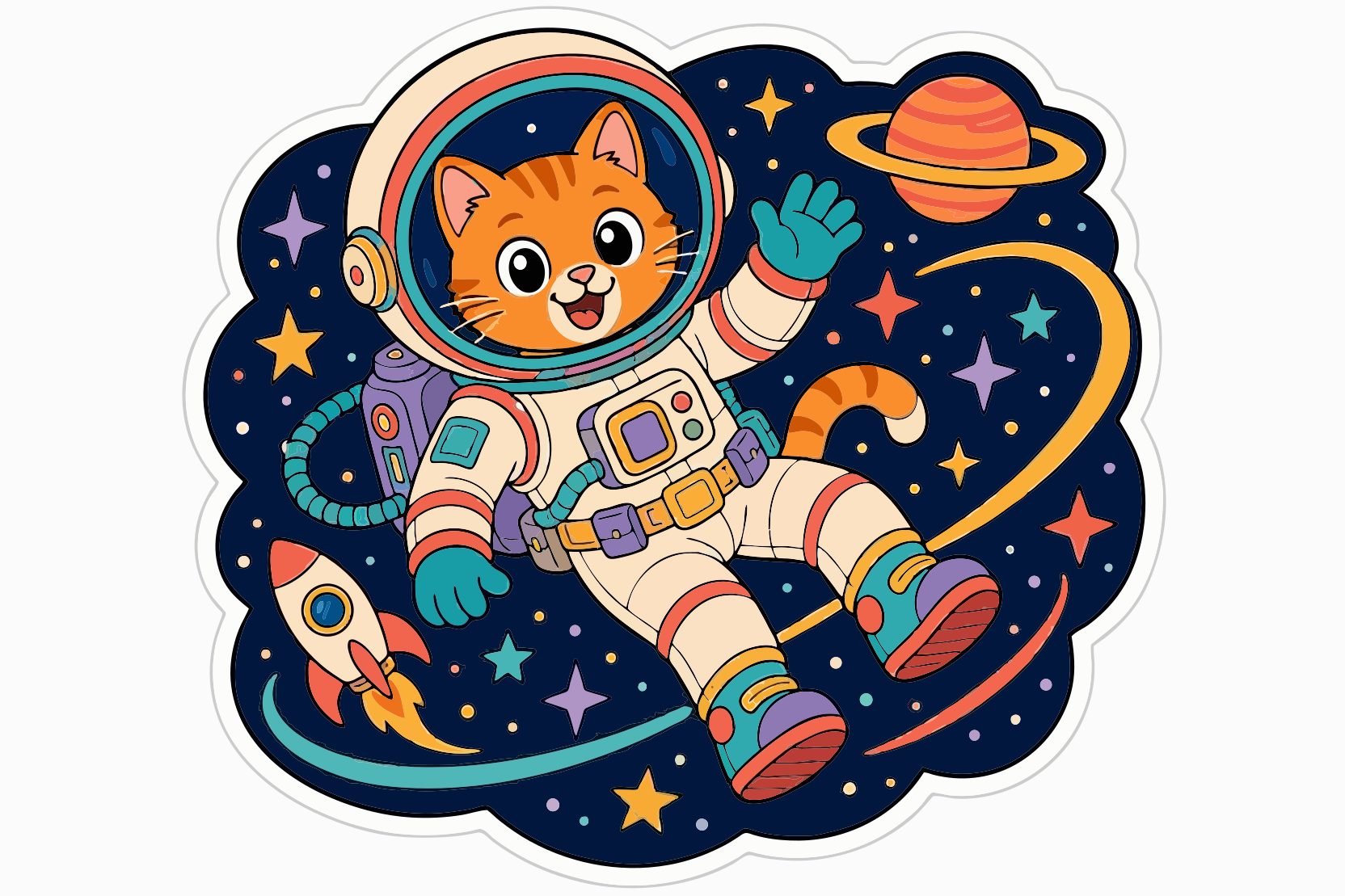
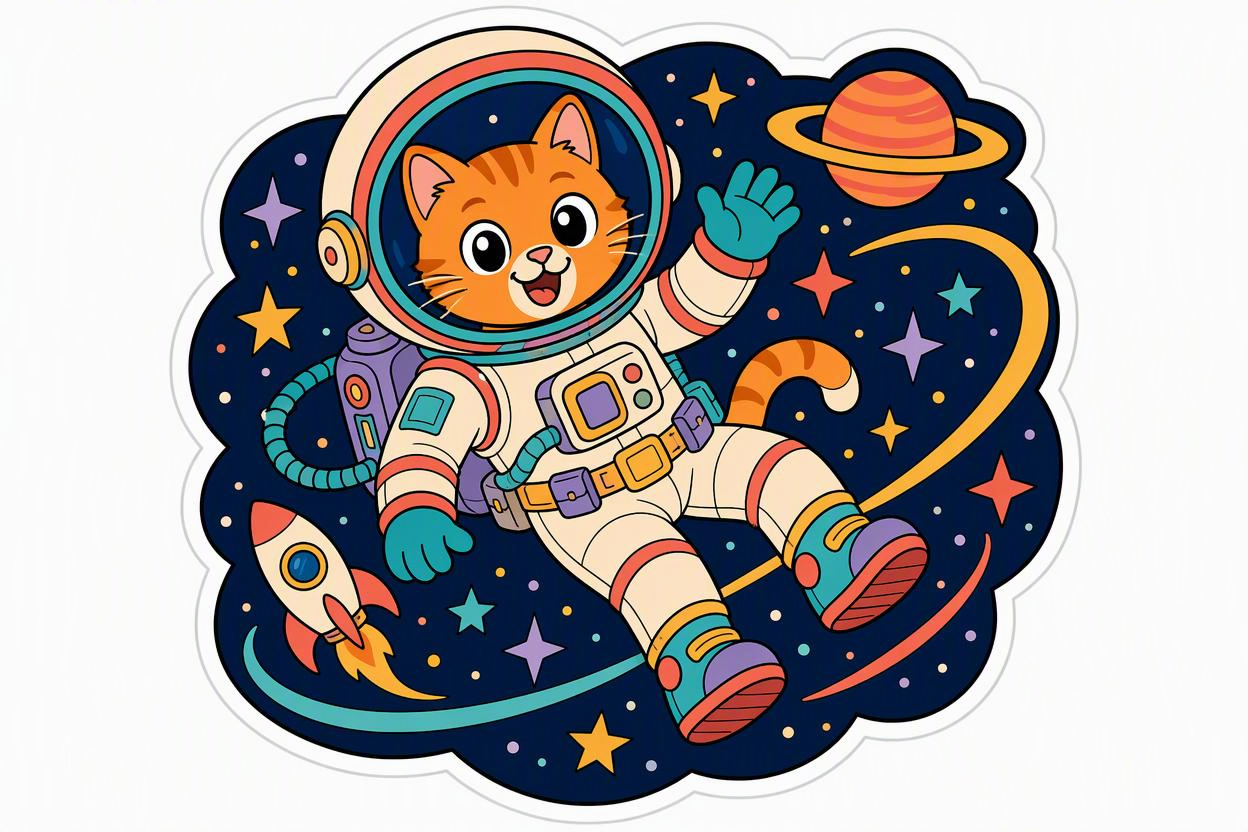
How to convert an image to SVG
Upload an image
Sign in, upload a PNG, JPG, GIF, or WebP image, then start the conversion.
Adjust and convert
Use automatic settings with no setup required. If you want more control, adjust the number of colors, the small-region filter, or both before starting the conversion.
Download or keep creating
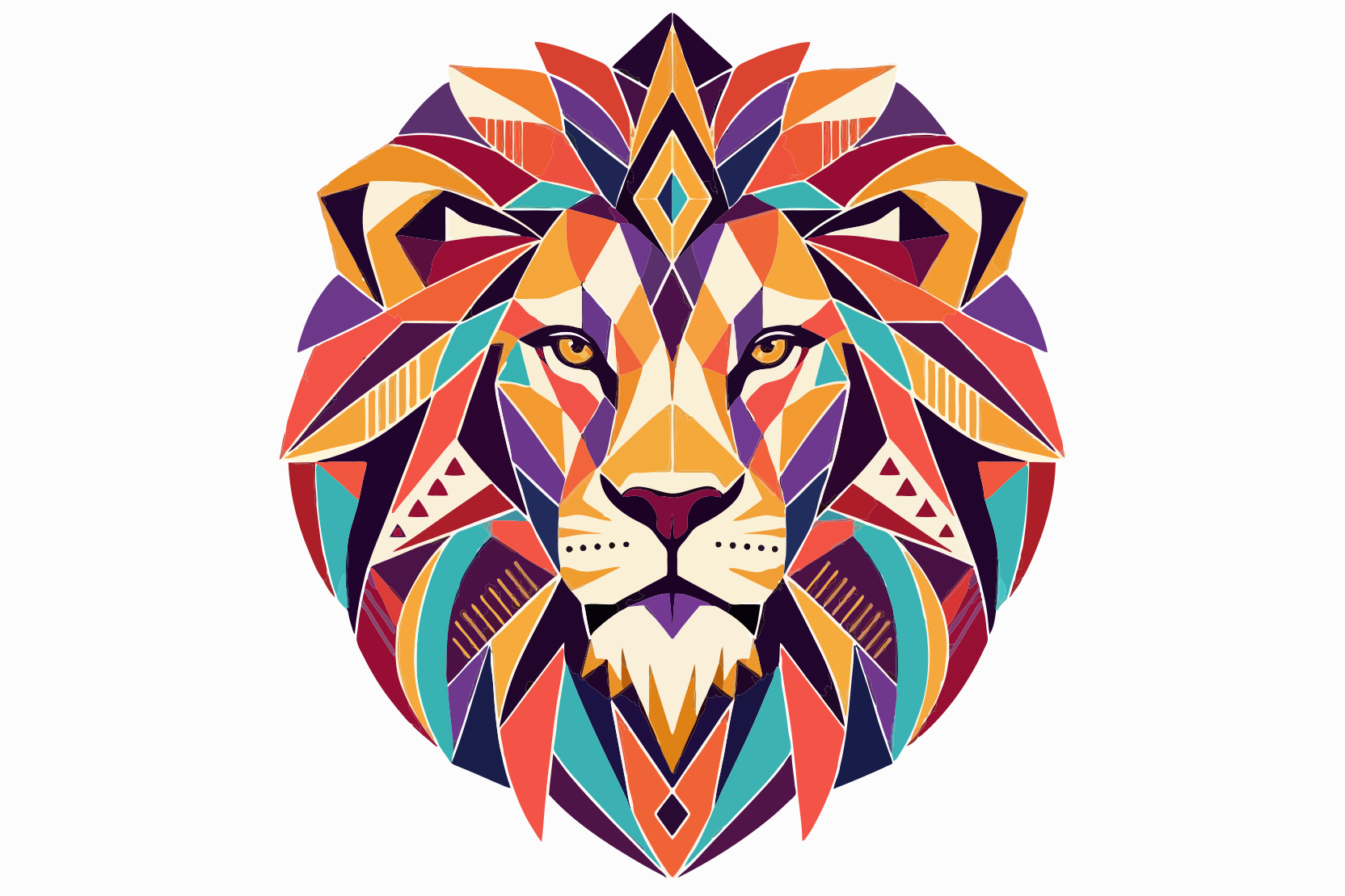
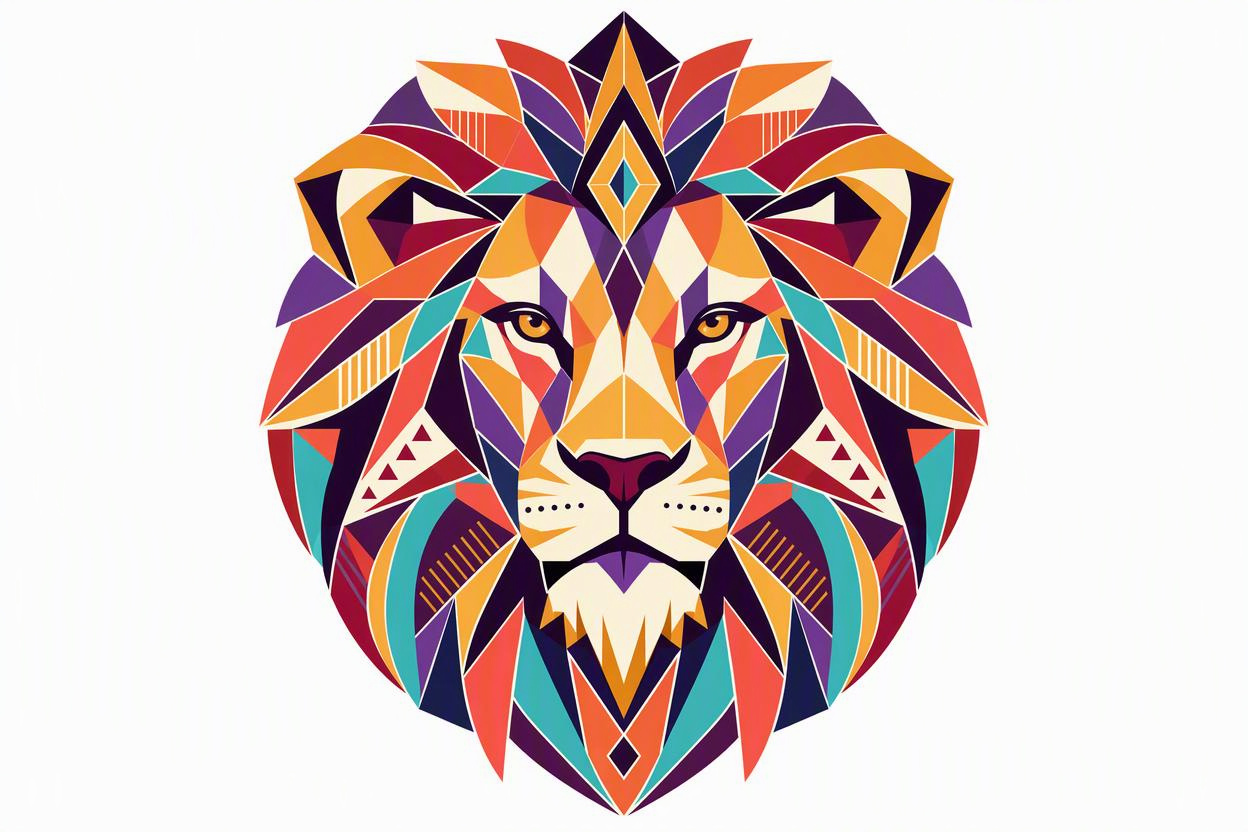
Use the slider or side-by-side view to compare the original and SVG, then download your file. Result links expire, so save your files promptly.
Convert PNG and JPG images to vectors online
Turn PNG, JPG, GIF, or WebP images into SVG files right in your browser. Convert logos, illustrations, and hand-drawn sketches into scalable vector graphics, with no software to install.
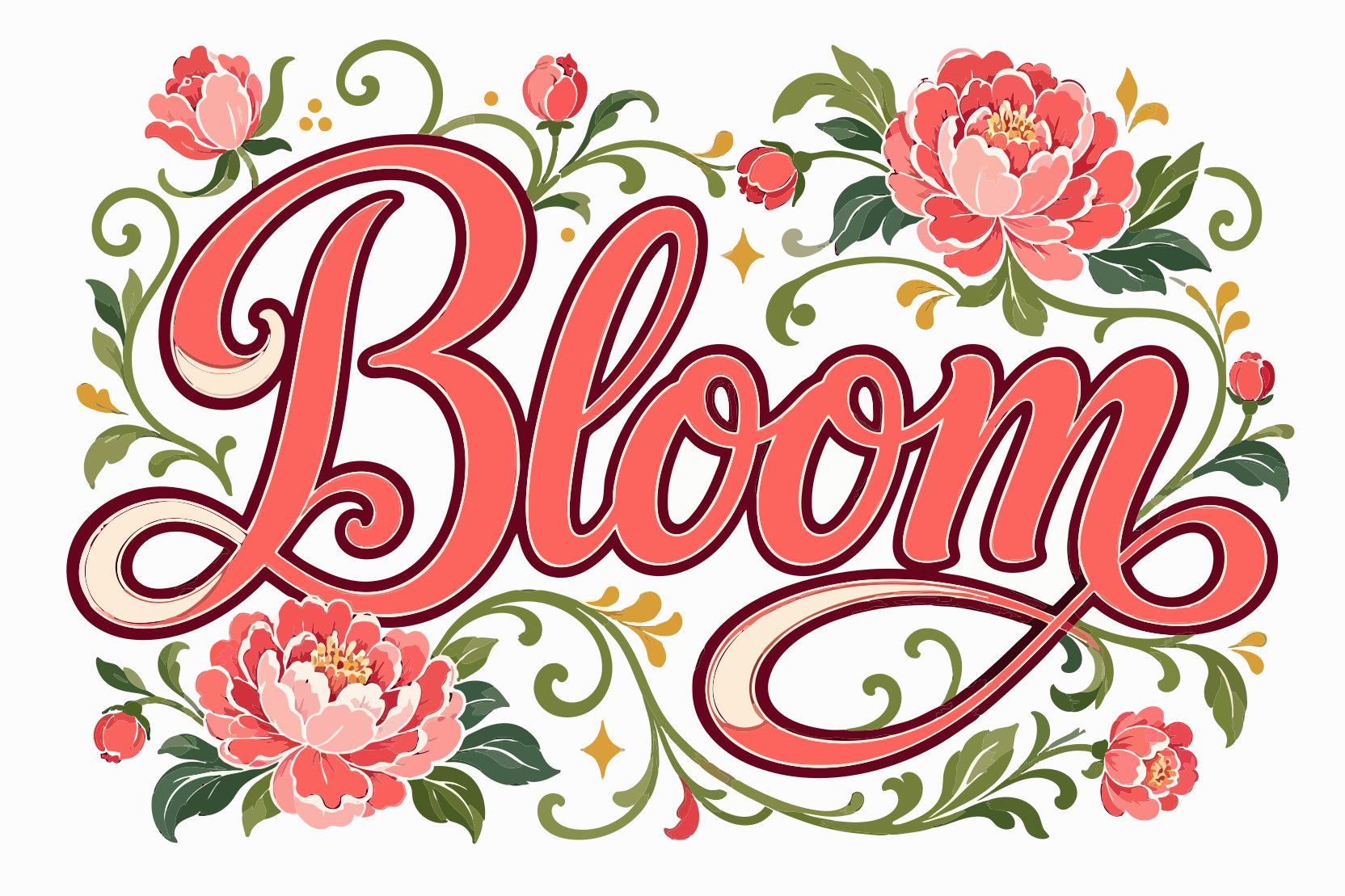
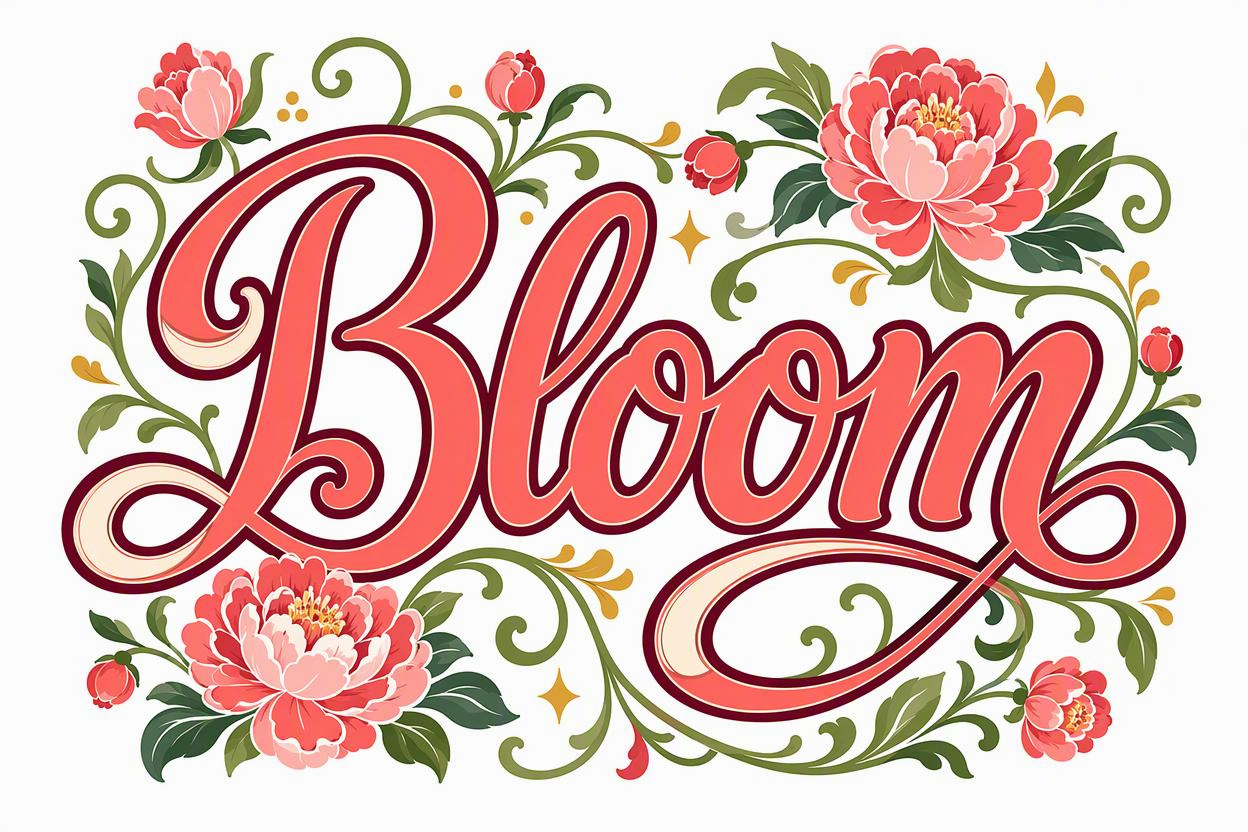
Automatic by default, with two optional adjustments
Uploaded images use automatic settings by default, with no manual setup needed. For more control, adjust the number of colors, the small-region filter, or both to get the result you want.
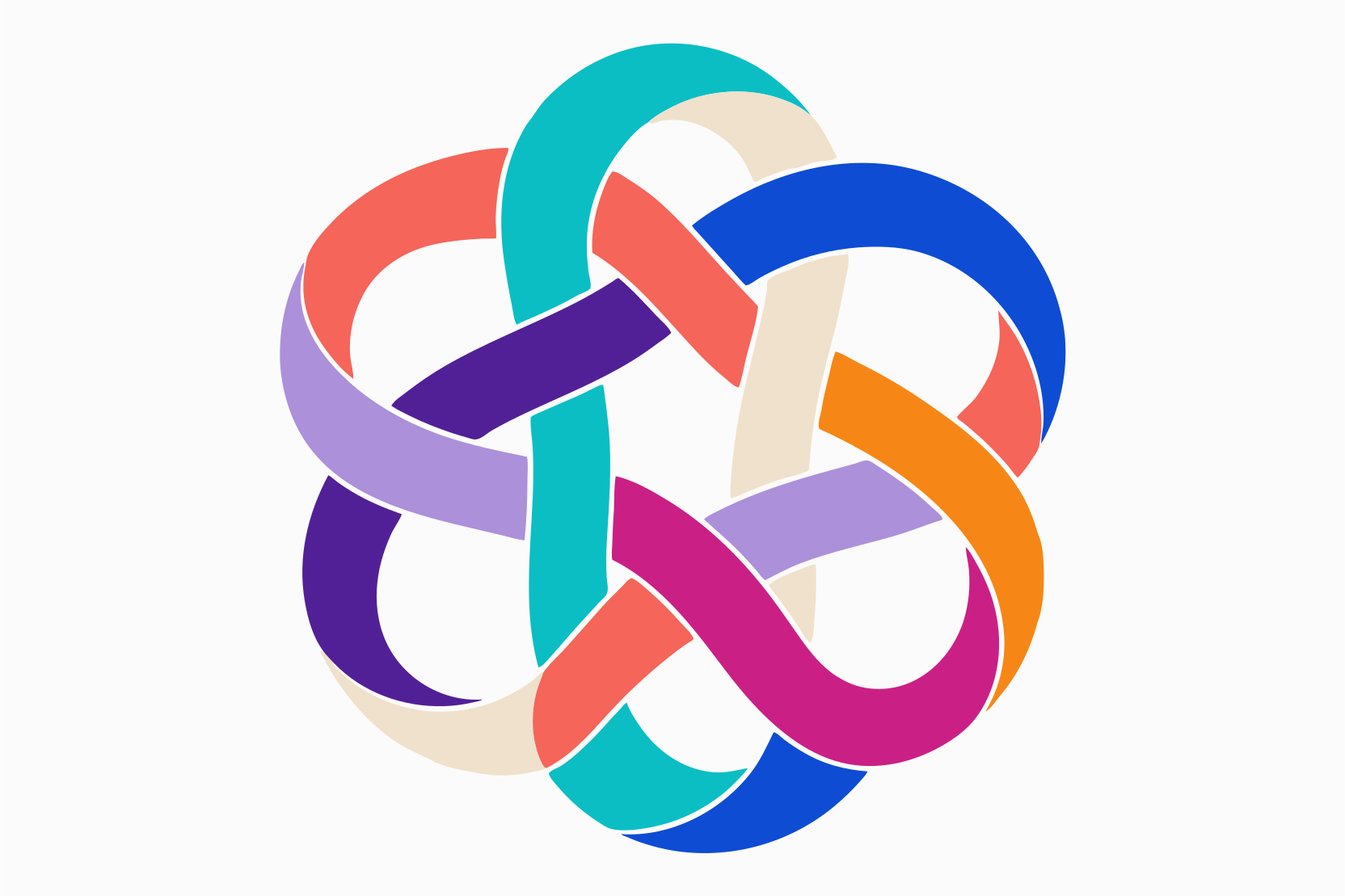
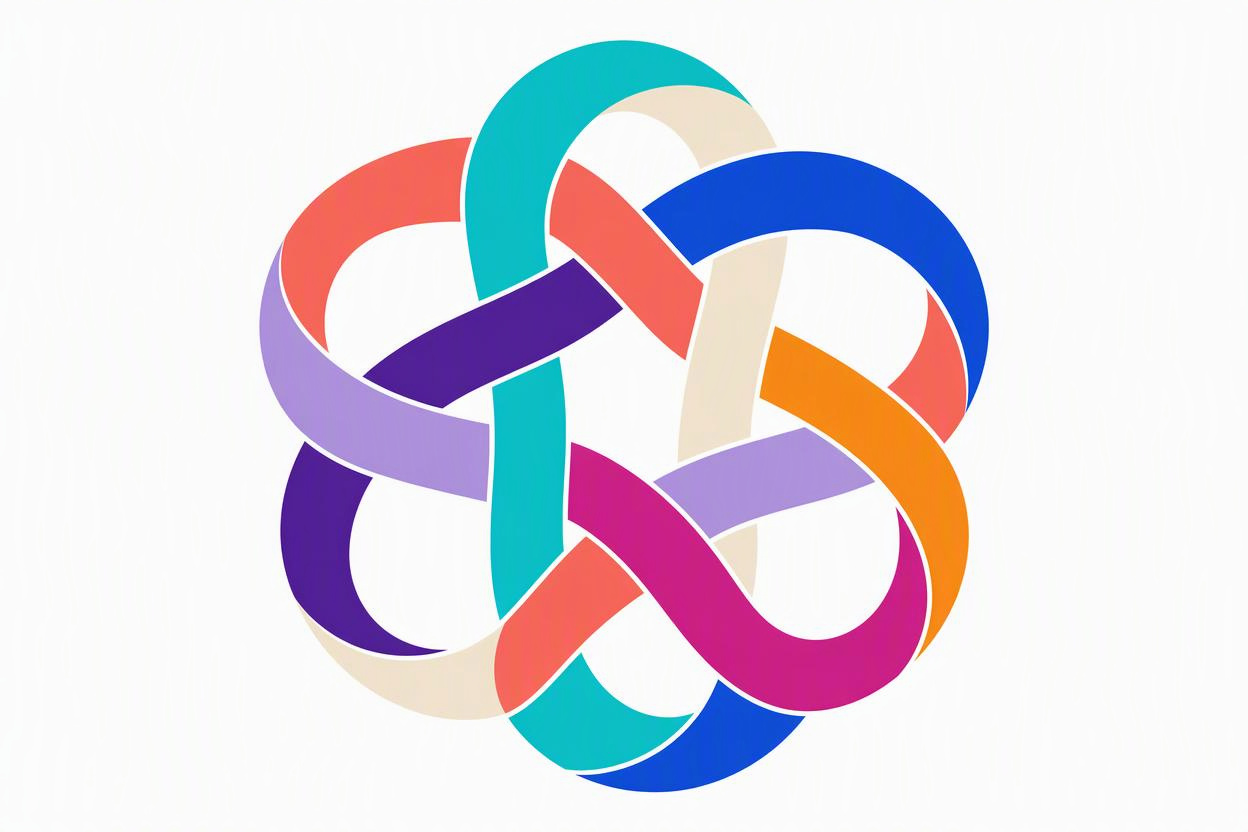
Choose the number of colors for your SVG
Colors are chosen automatically by default, or you can select 2–24 colors. Fewer colors suit simple logos and icons, while more colors can capture a wider range of tones. Adjust the color count on its own or together with the small-region filter.
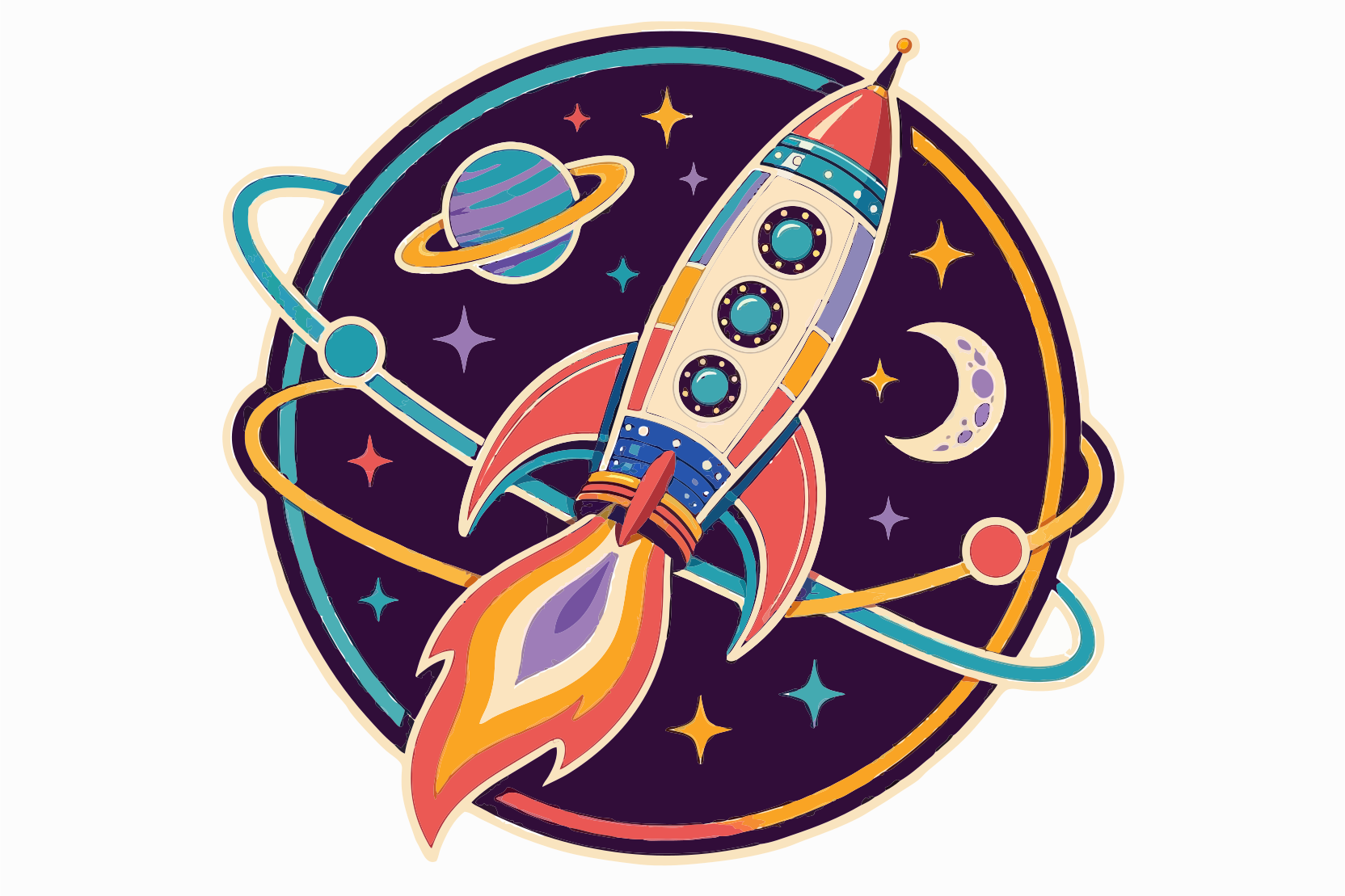
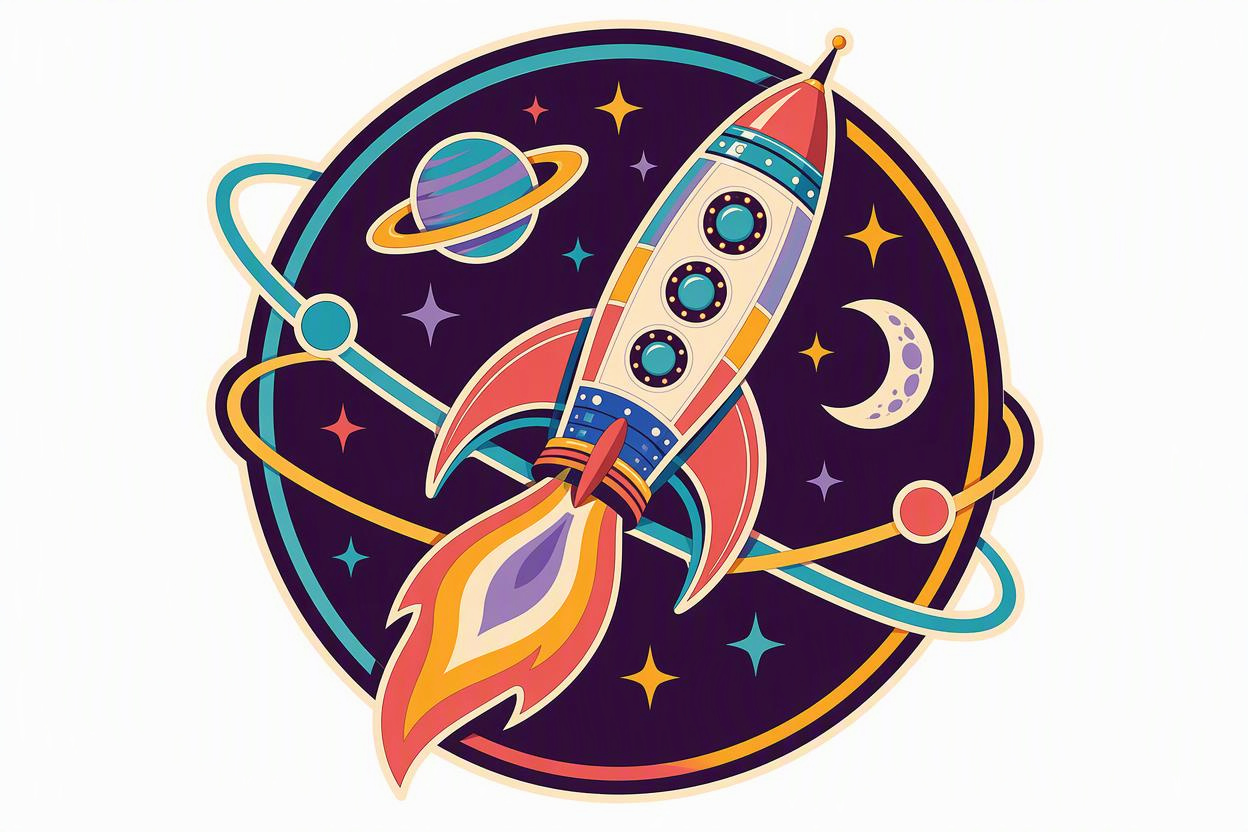
Filter small regions for cleaner shapes
The small-region filter is set automatically by default, or you can enter a whole number from 1 to 64. Higher values filter out more small regions; lower values help preserve small details. Adjust this setting on its own or alongside the color count, then compare the original and SVG to check the result.
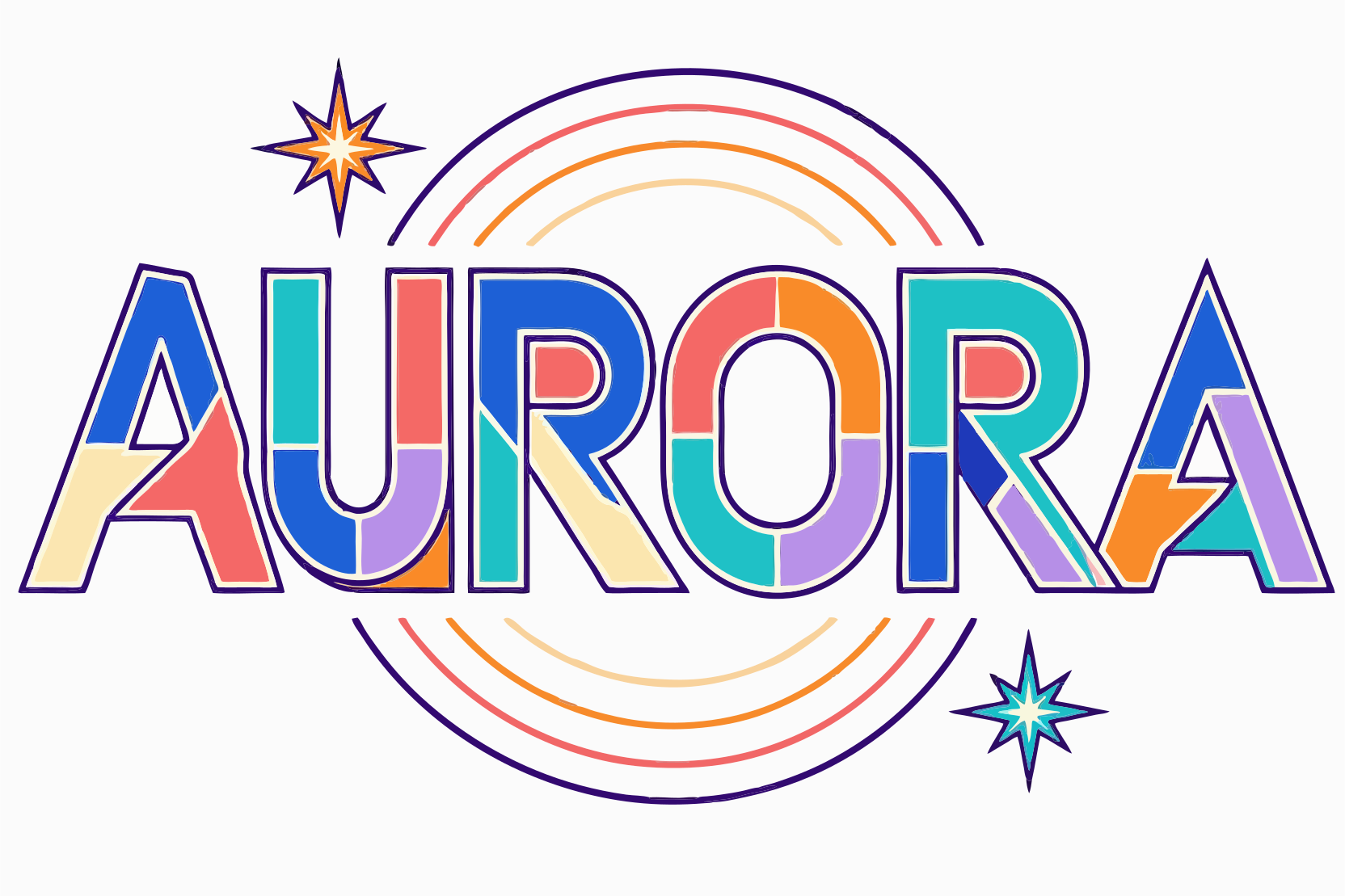
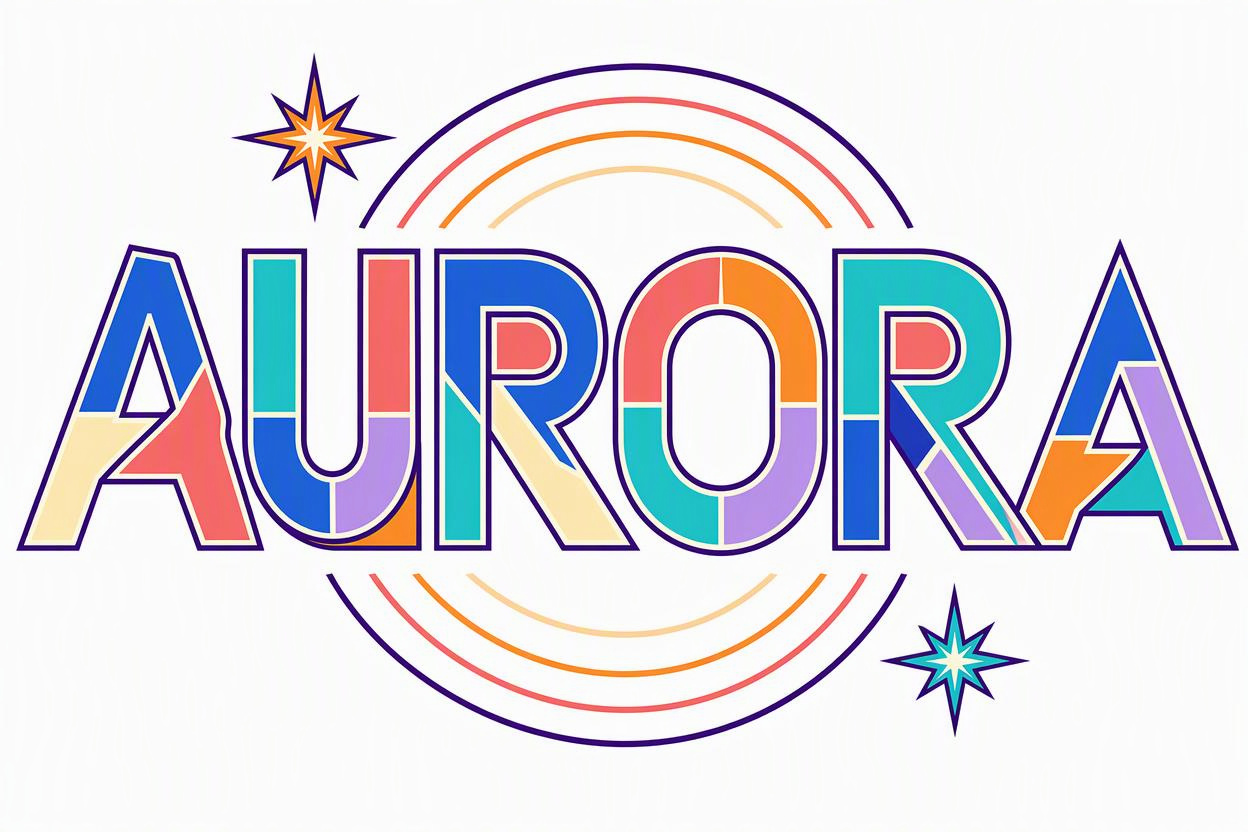
Download your SVG and keep creating
Use your SVG for logos, packaging, and print layouts, or open it in compatible design or engraving software for further editing. Scale your vector artwork to fit projects of any size.
Your next great design starts with a vector
Convert PNG, JPG, and other images to scalable SVG online. Use automatic settings by default, or adjust the number of colors, the small-region filter, or both.