

Portraits
Check hair, shoulders, and clothing edges when preparing images for profiles, introductions, and promotional designs.

Remove image backgrounds for free with cutout.pro, then download your high-resolution results at no charge. Work with portraits, product photos, pets, and everyday artwork. Refine edges with Erase and Restore, keep a transparent background, or choose white or another backdrop, all in your browser.
Basic background removal and HD downloads are free on the website. Check the results page for the available image size.
Drag the divider to compare the original and cutout, or click an image to open a larger view. Check outlines, small gaps, and edge transitions to see whether the result suits your next design.
Check hair, shoulders, and clothing edges when preparing images for profiles, introductions, and promotional designs.
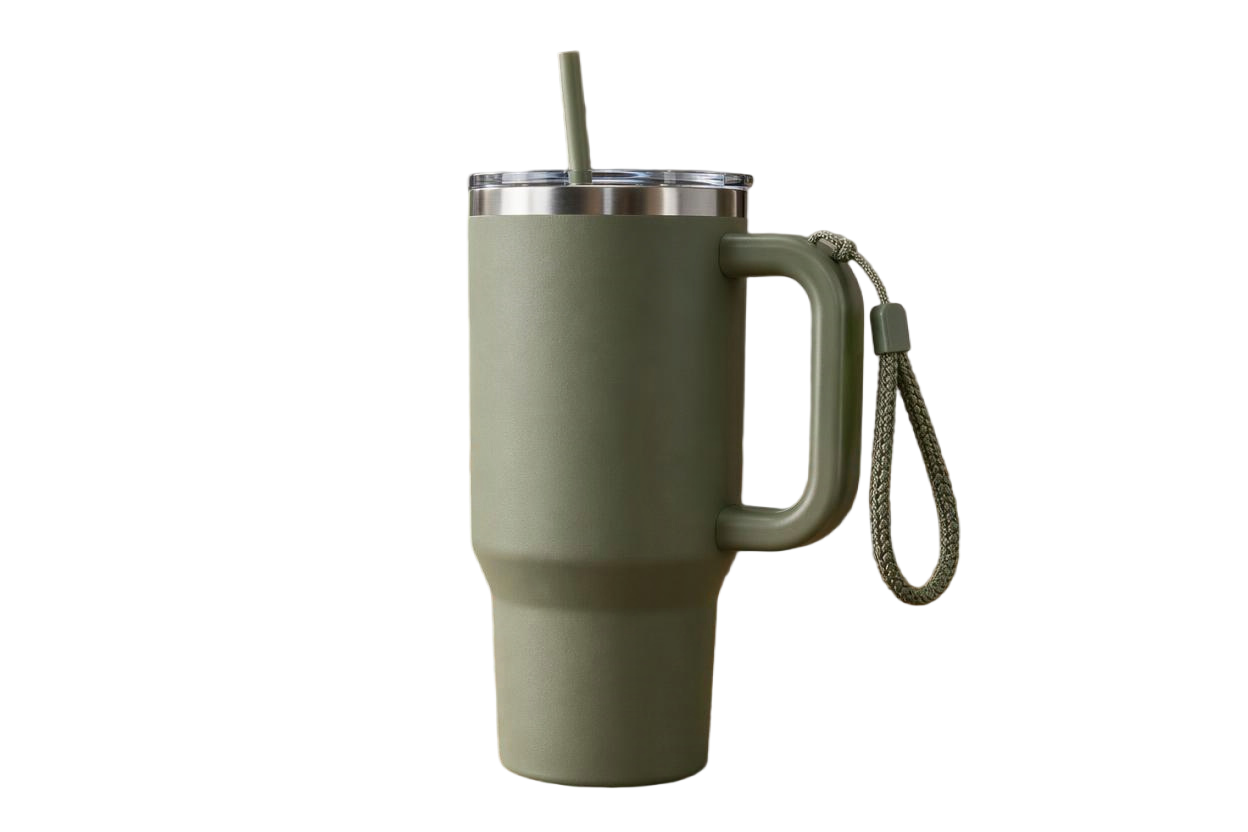
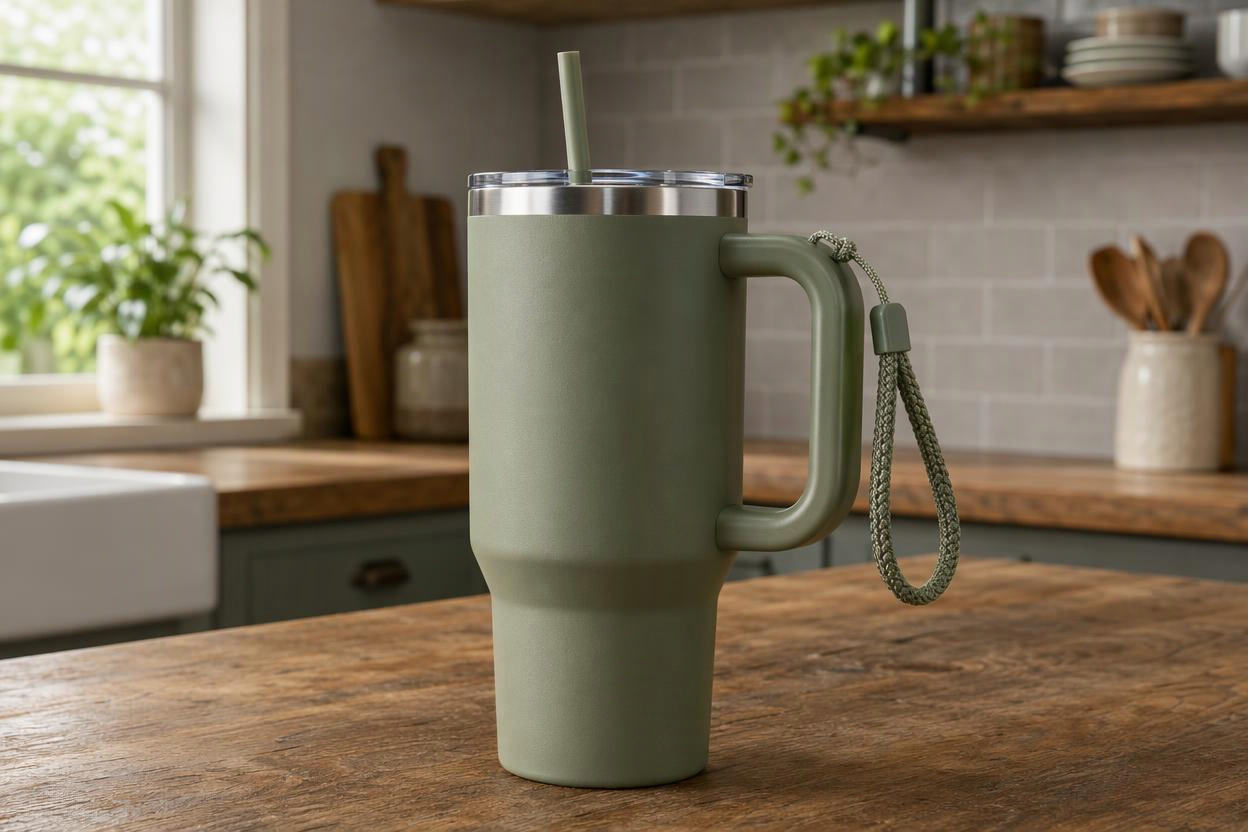
Inspect packaging outlines, handles, and small gaps to prepare a clear subject for product cards and descriptions.
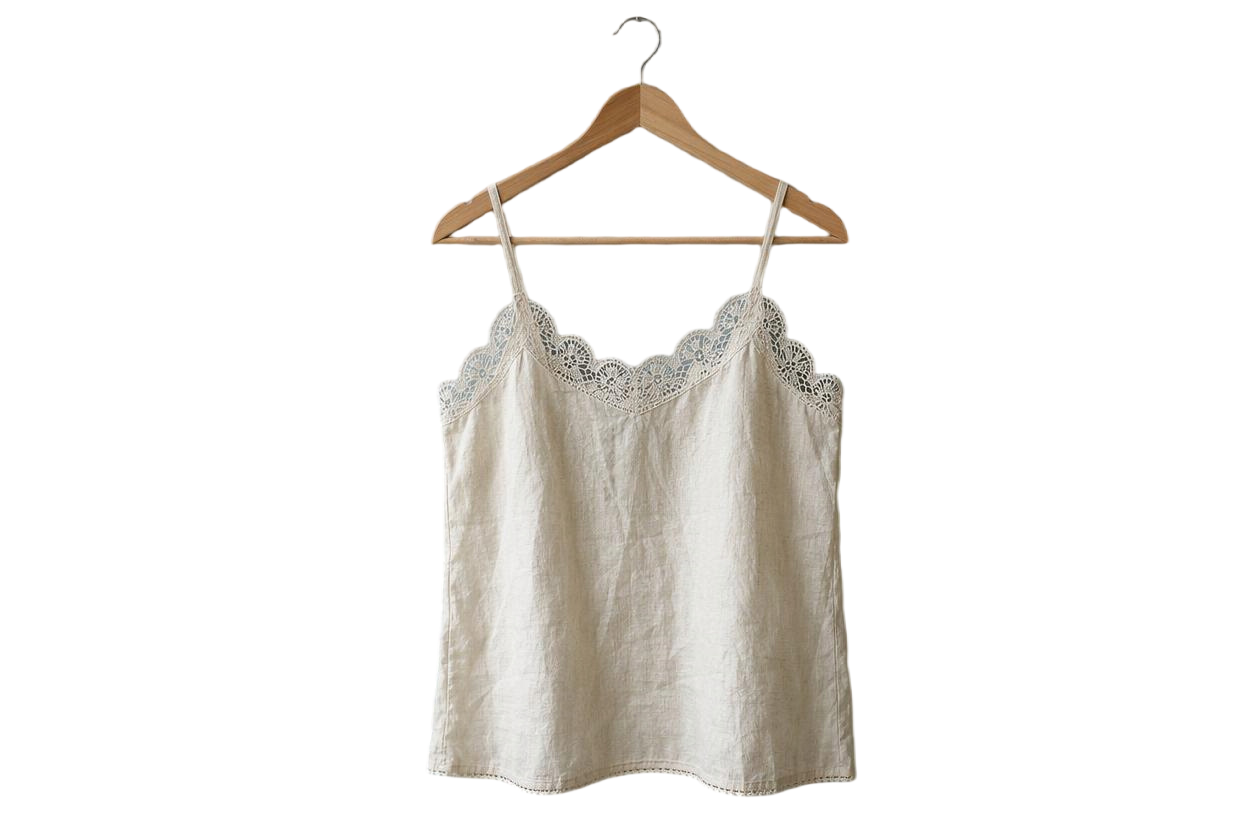
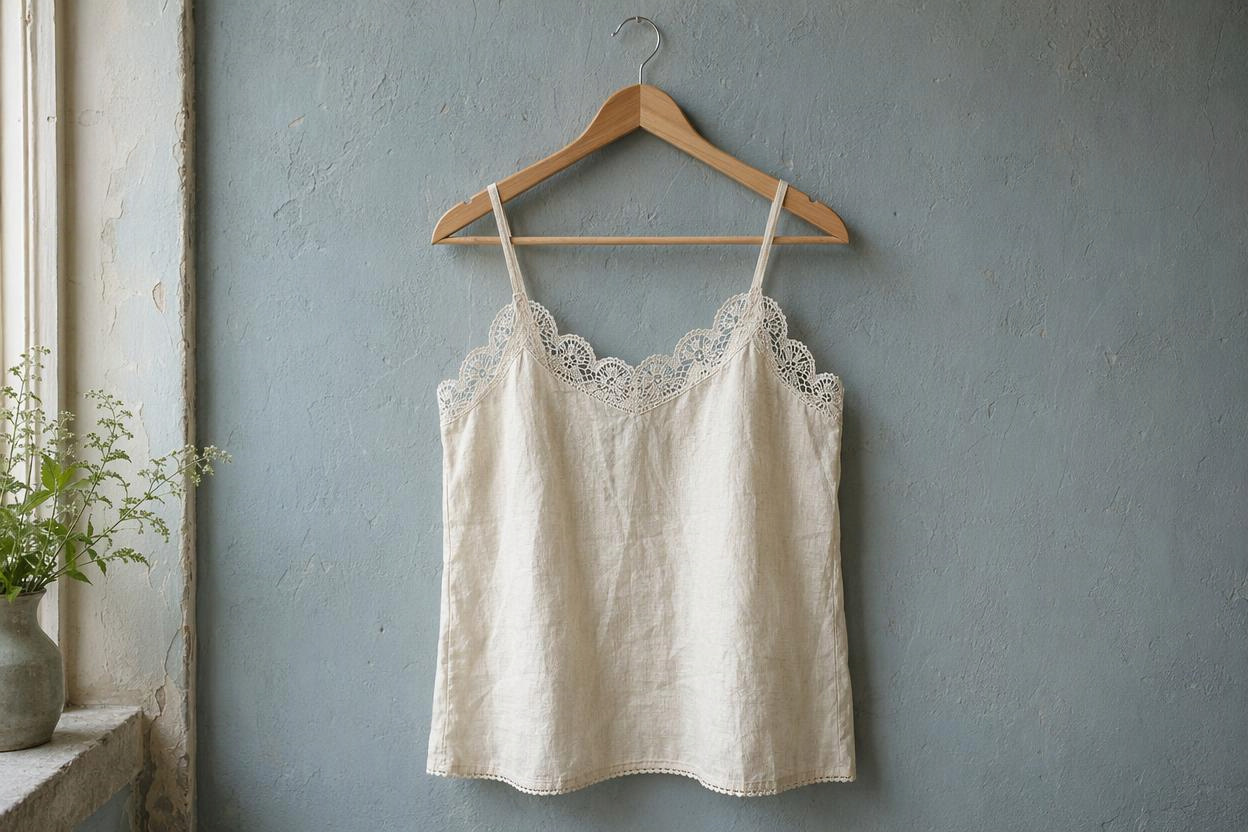
Look at fabric folds, straps, and accessory edges before adapting the same product image to different layouts.
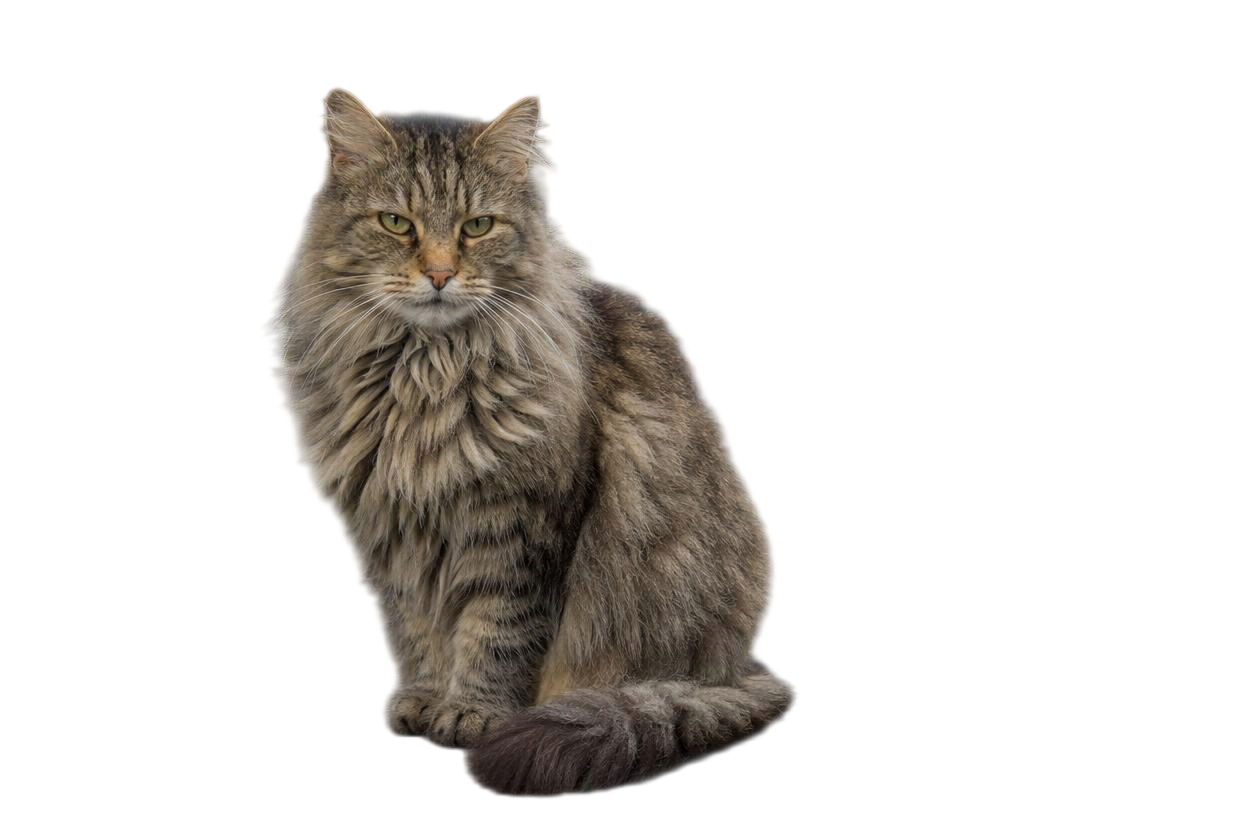

Zoom in on ears, whiskers, and fur to check for natural edges against your chosen background.


Compare bodywork, wheels, and the areas around mirrors when preparing images for vehicle listings.
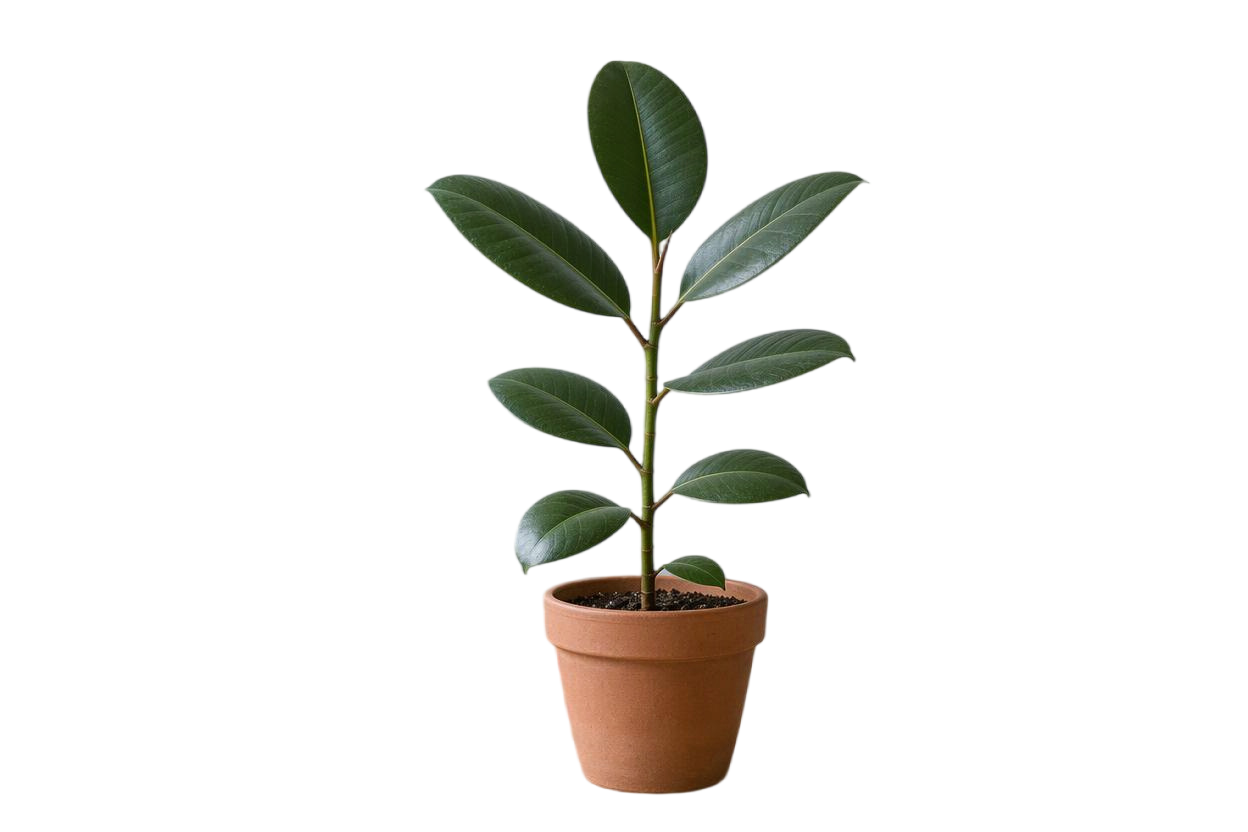
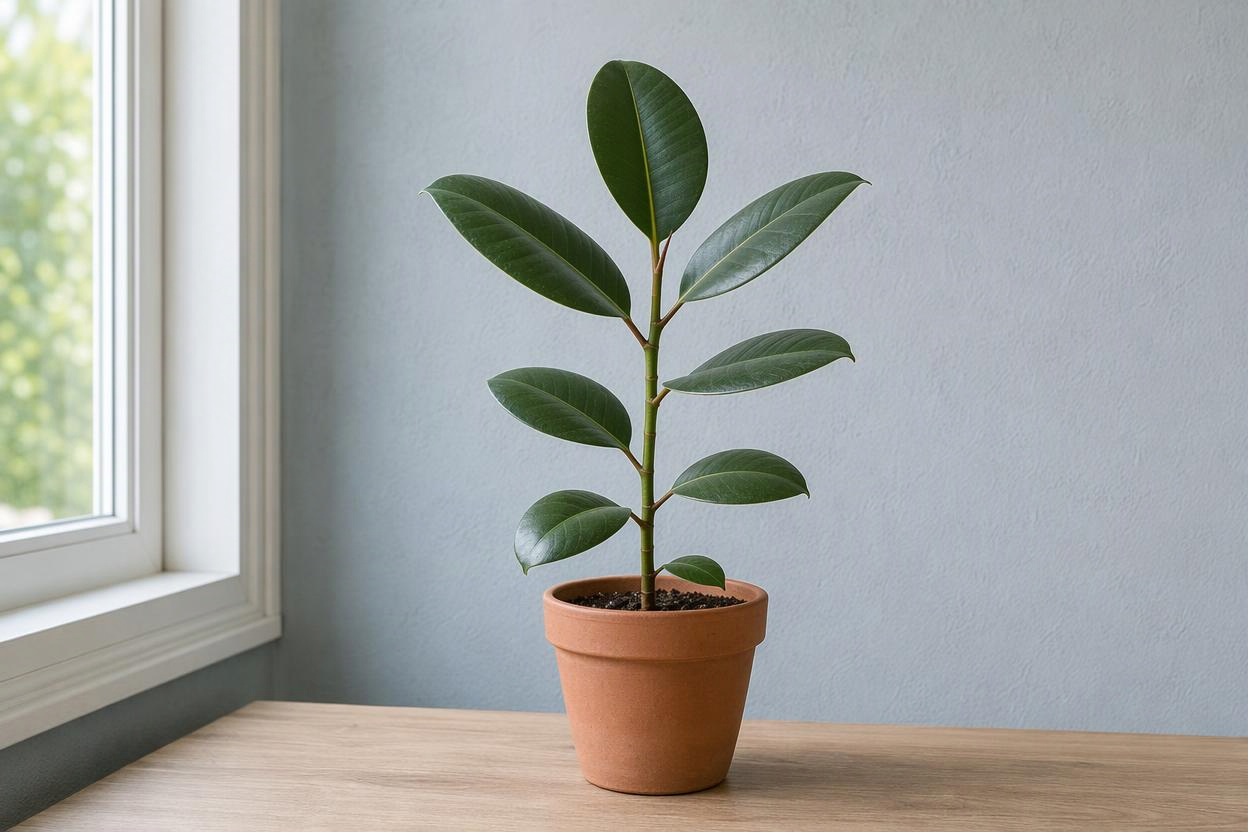
Inspect gaps between leaves and the outlines of thin stems before combining plants in a new design.
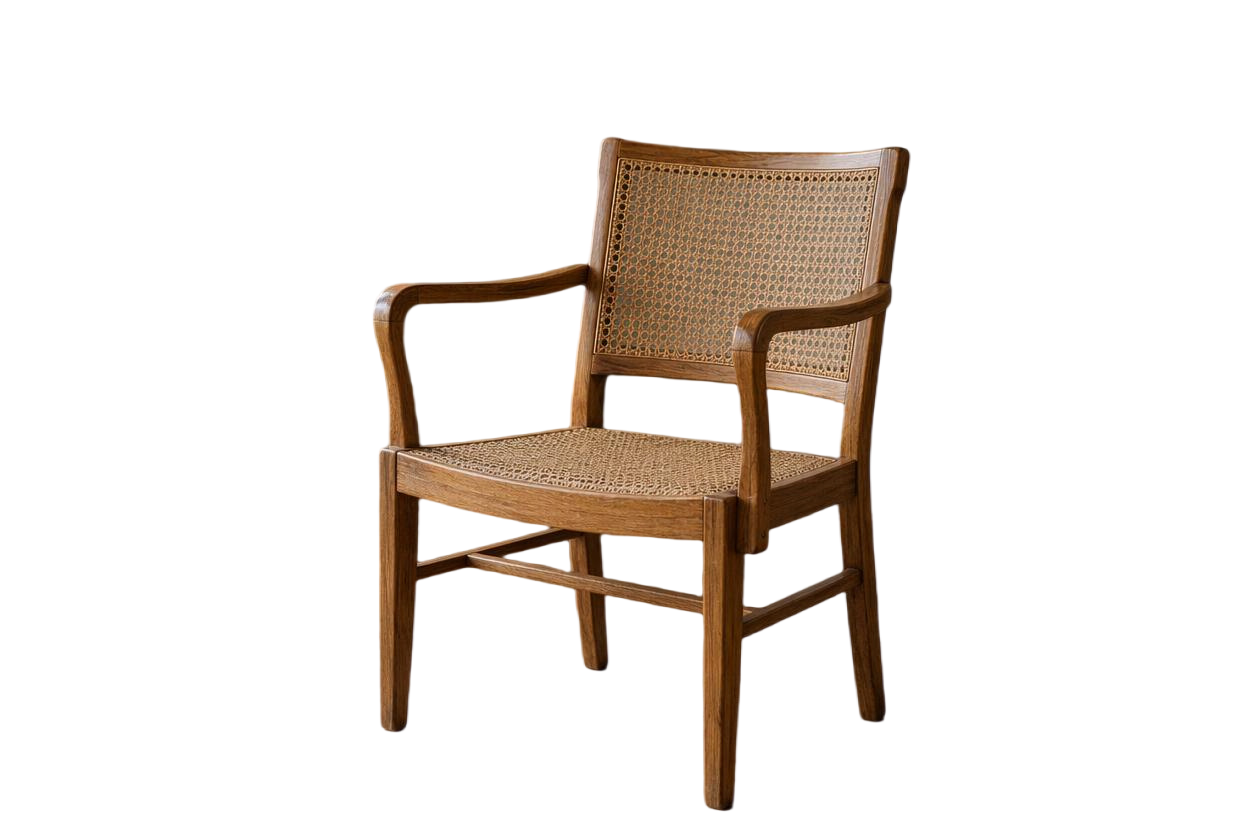
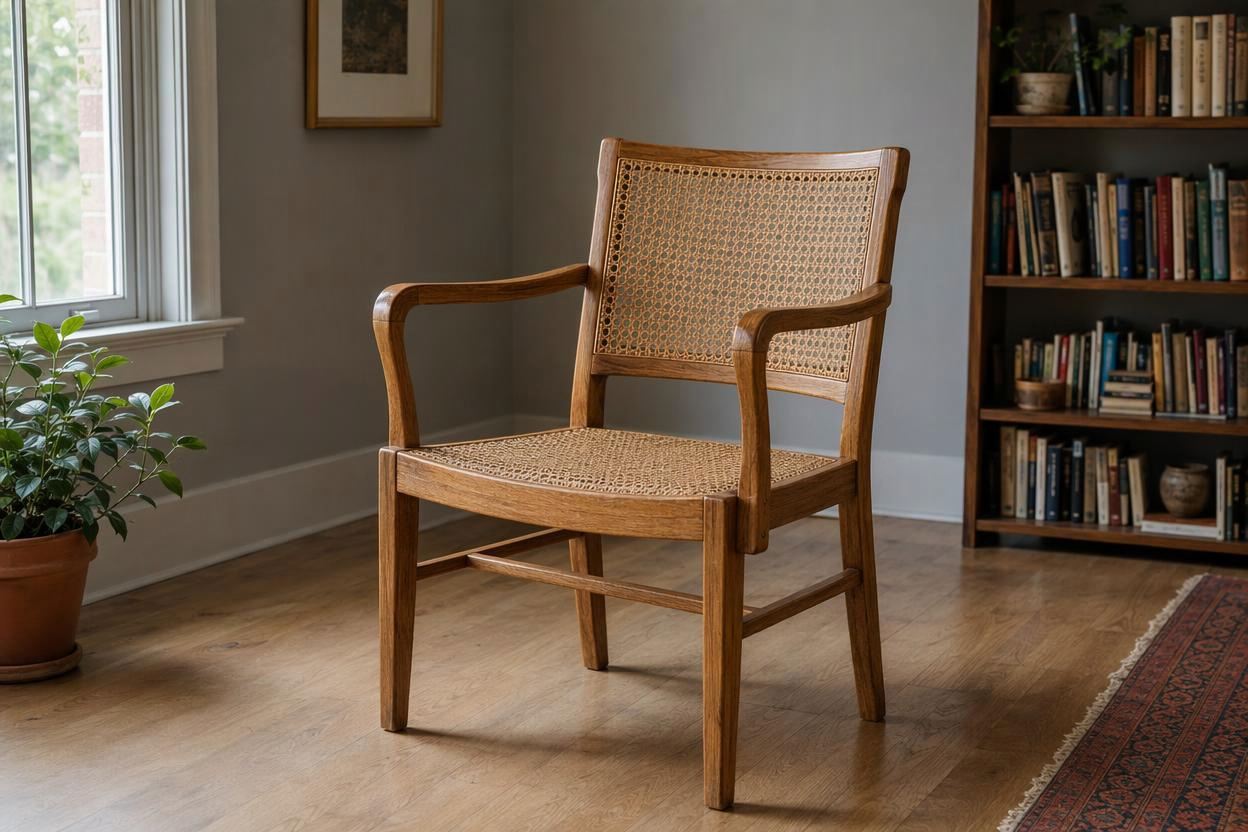
Check chair legs, open structures, and product edges when preparing subjects for catalogs and room layouts.
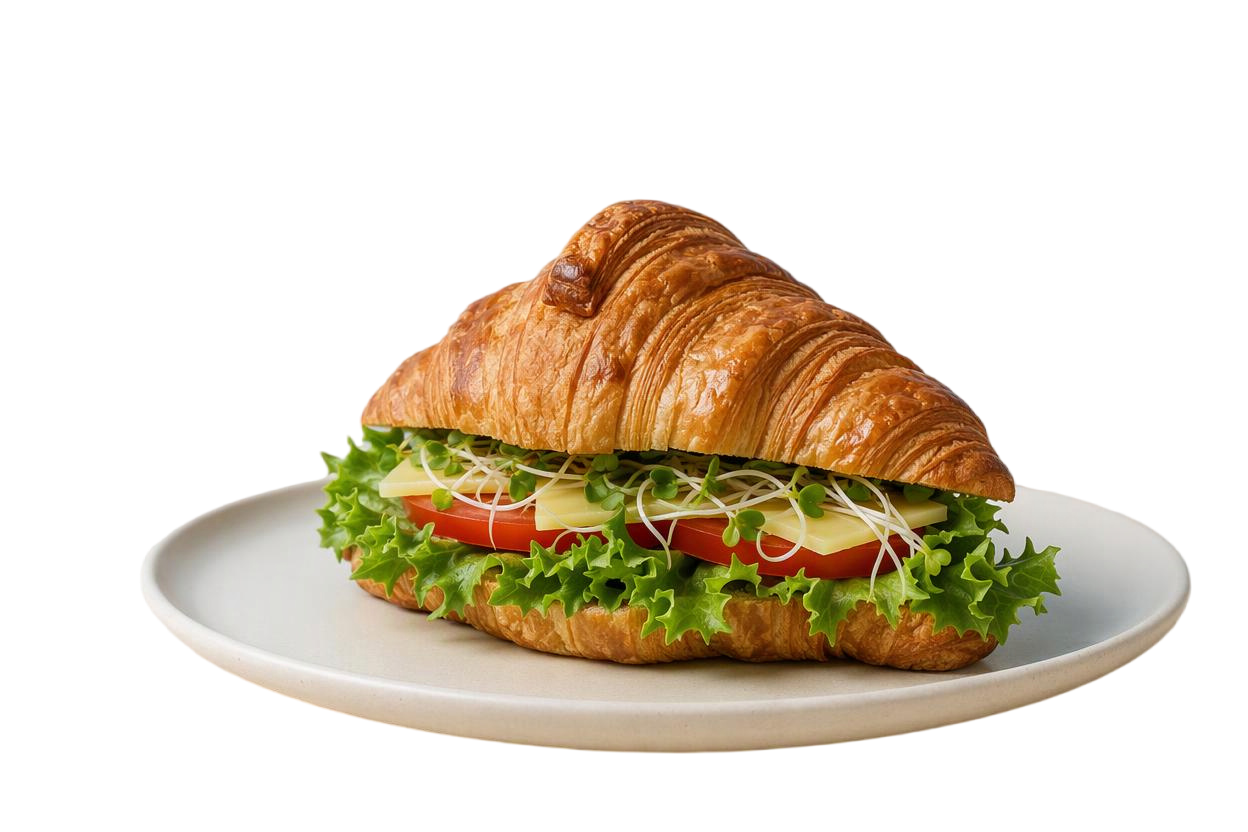
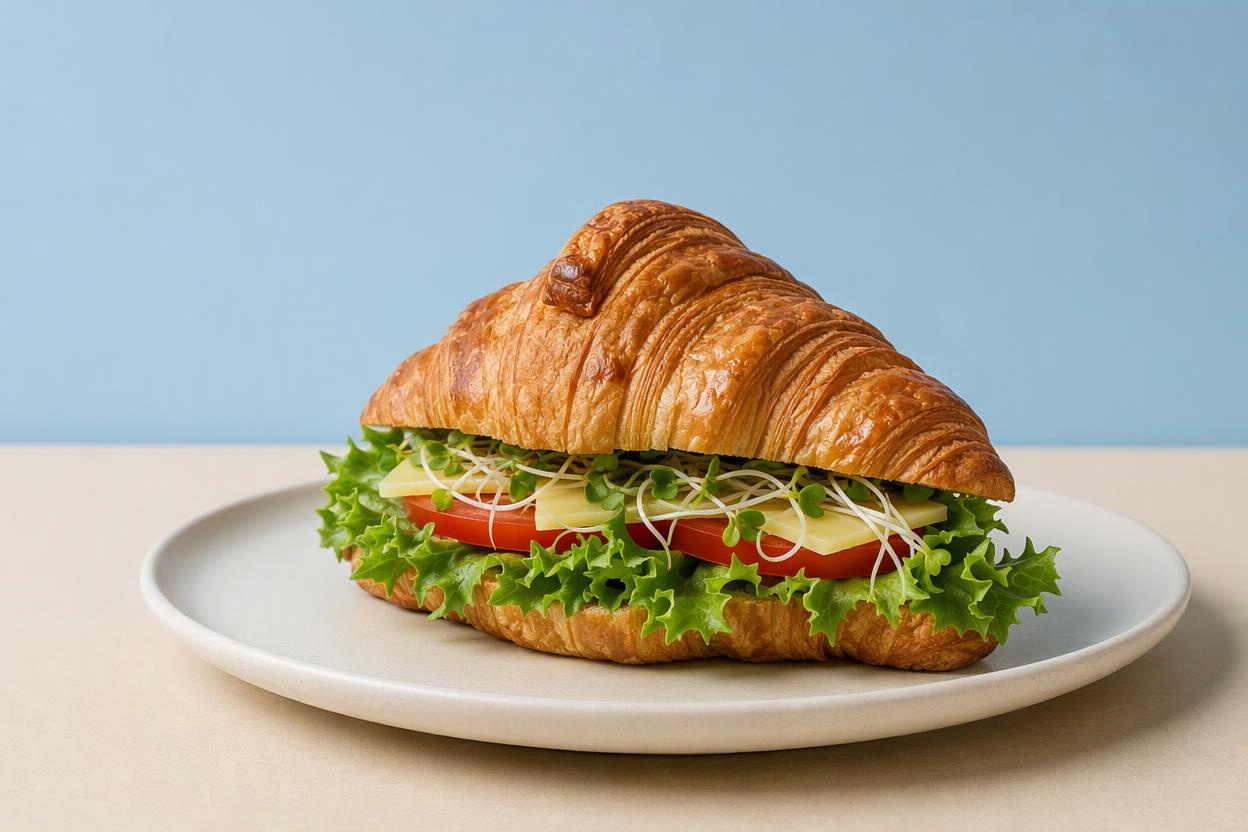
Keep food and containers fully in view when changing backgrounds for menus, promotions, and social posts.


Inspect outer edges and internal spaces when preparing transparent images for websites and presentations.
A free remove.bg alternative should also fit the work that comes after the cutout. cutout.pro connects free background removal on the website with edge adjustments, background changes, and downloads, so you can keep working with images you already have.


Upload a JPG, PNG, or WebP image and let AI separate the foreground from the background for free. It gives you a cutout to inspect and continue editing, whether you are cleaning up a portrait, a product shot, or an everyday image. Start with a clear, well-focused original that shows the whole subject. Check the overall outline first, then look for small areas that need attention. Background removal cannot recreate parts that are hidden or already blurred in the original.
Remove a background for free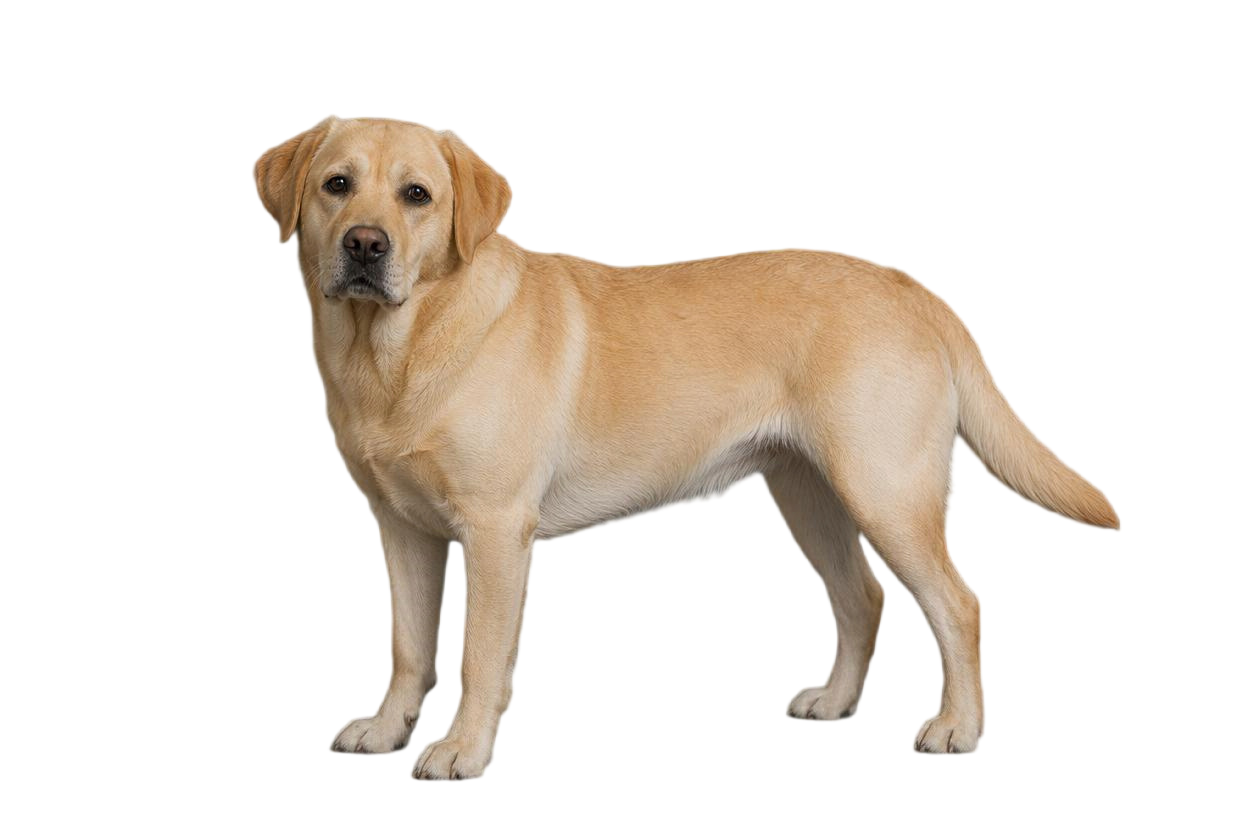
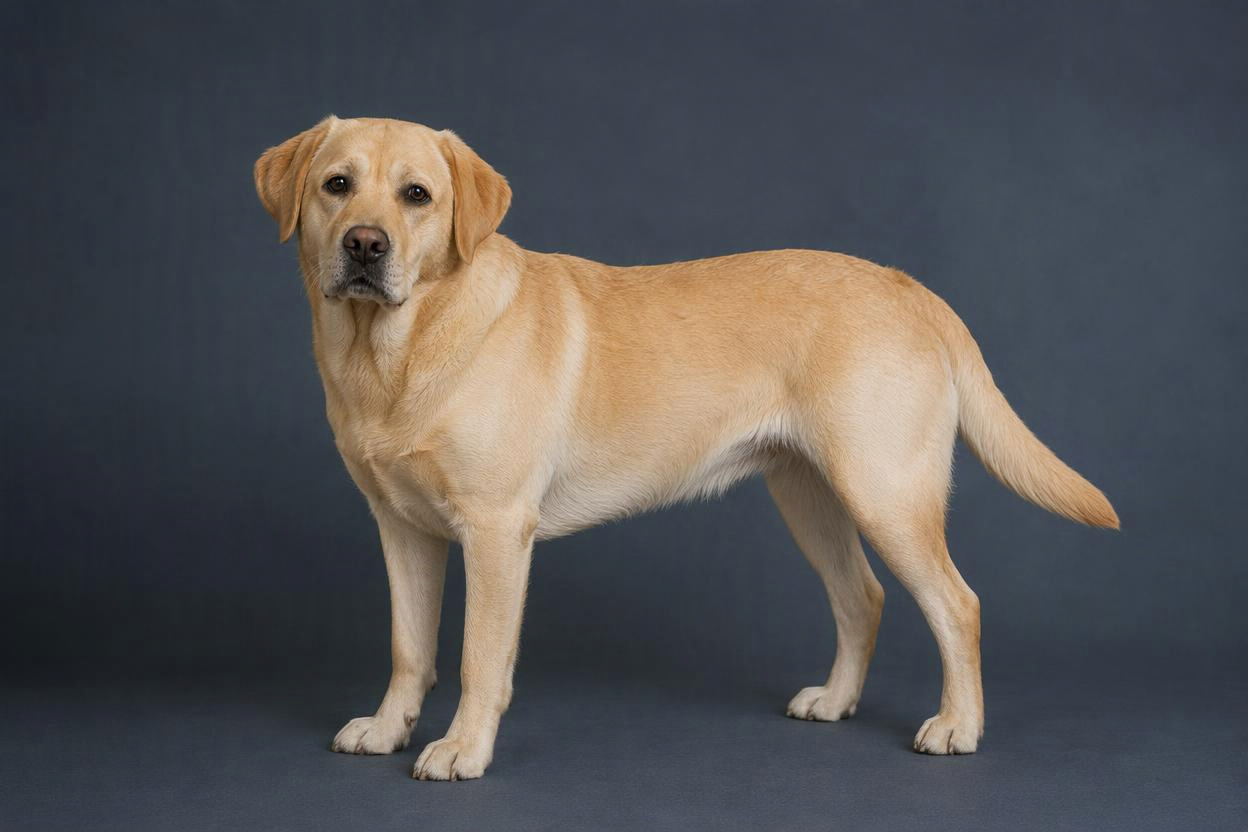
After automatic processing, use Erase and Restore to remove leftover background or bring back parts of the subject you want to keep. Zoom in when checking hair, fur, clothing edges, and gaps in products. The amount of cleanup varies by photo, especially where the subject and background have similar colors. Confirm your edits before leaving the editor, then check the cutout against a light or dark background to see whether its edges work in the setting you actually plan to use.
Refine your cutout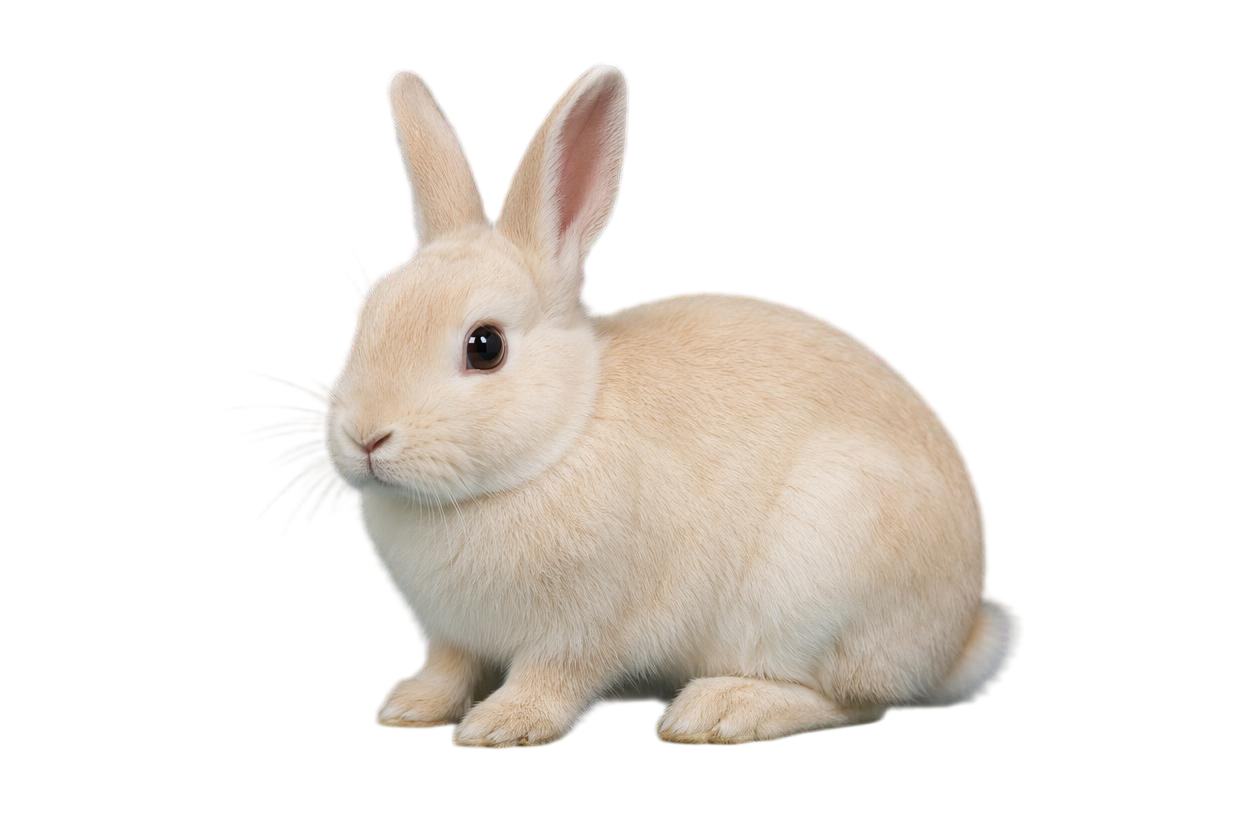
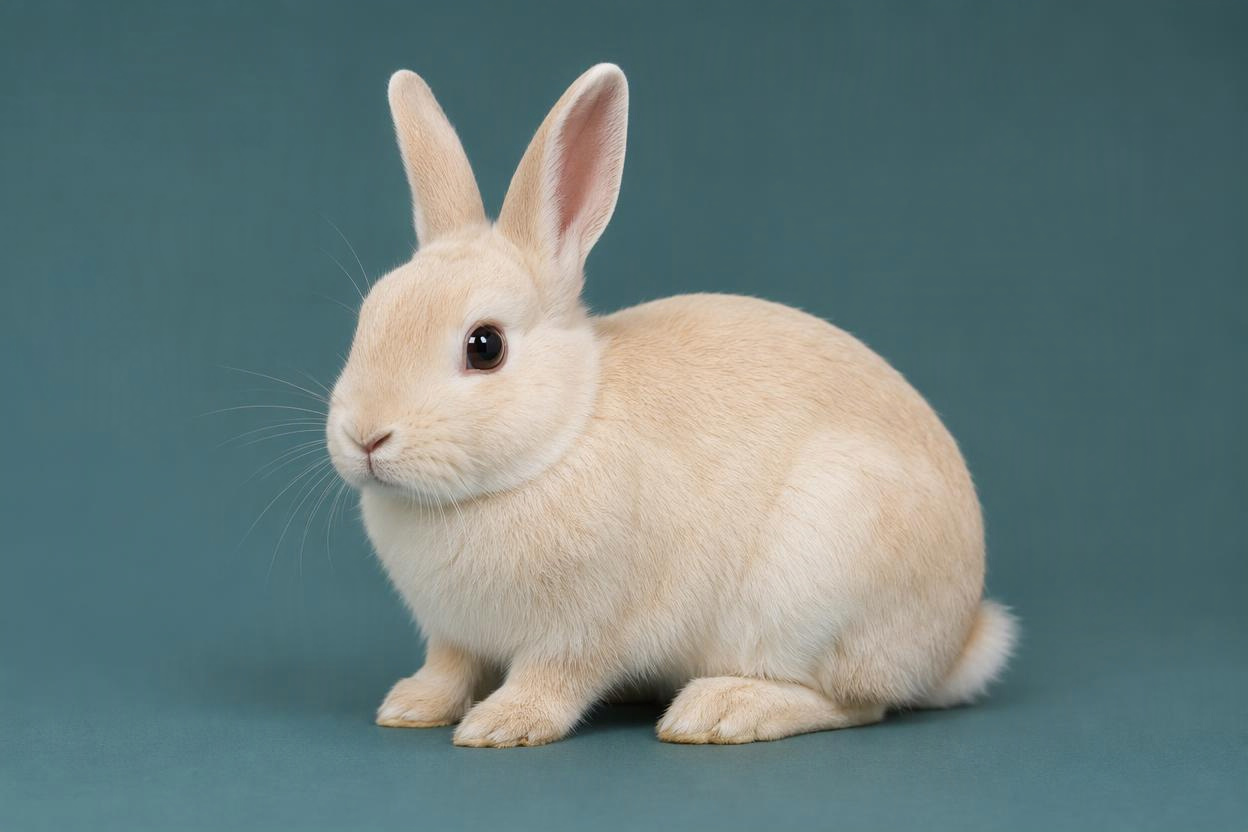
Keep the background transparent and download a PNG for free when you want to reuse an image on websites, slides, product cards, or social media. The website’s results page offers free HD downloads and shows the available pixel dimensions before you save. A transparent image can sit on different colored layouts without another round of background removal. Make sure you have not added a solid color or background photo. To keep transparency in later edits, continue saving in a format that supports it.
Create a transparent PNG for free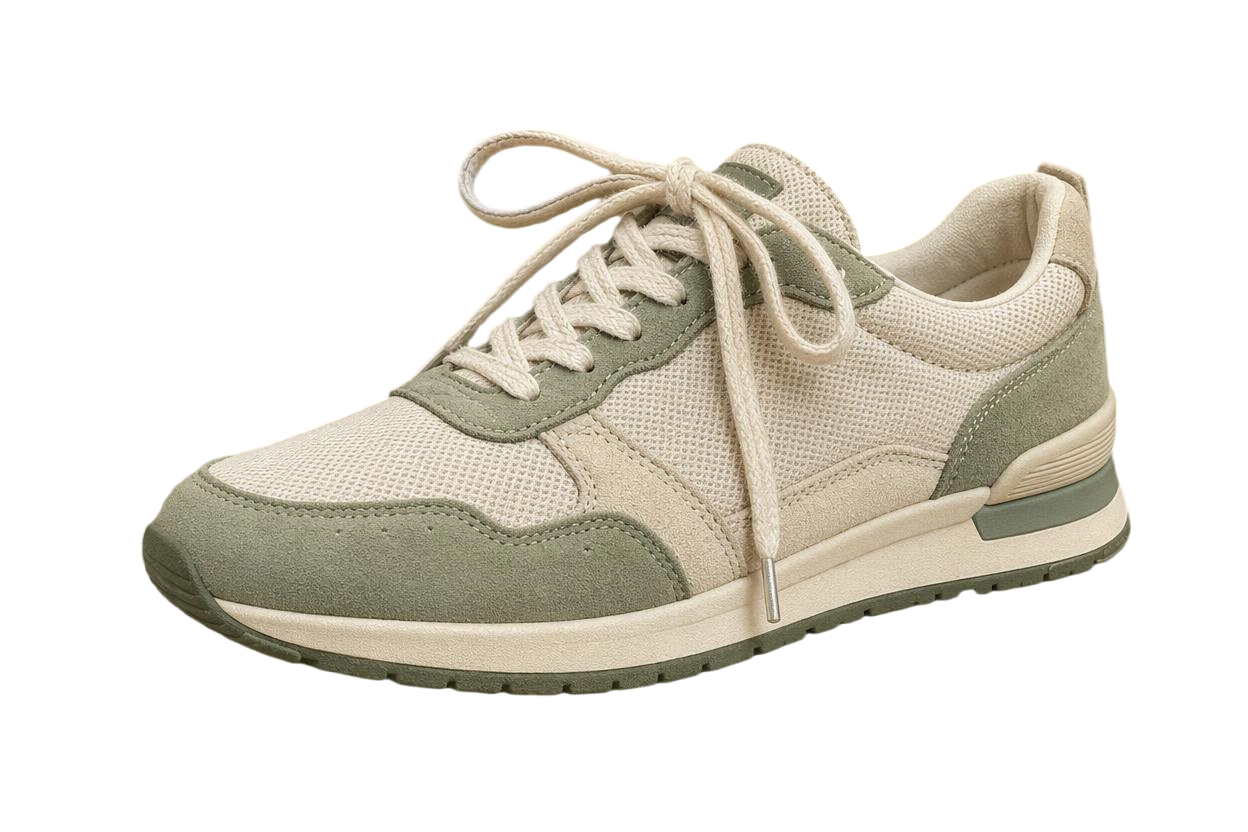
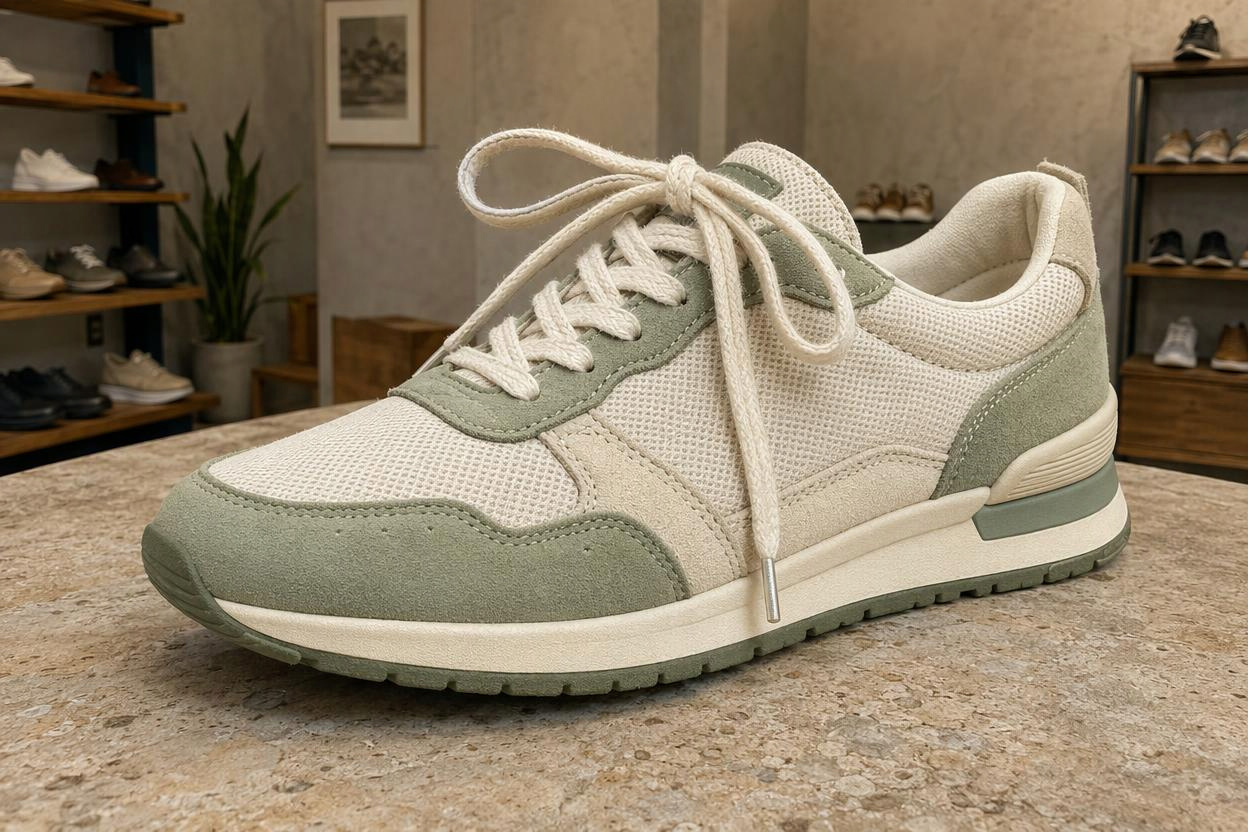
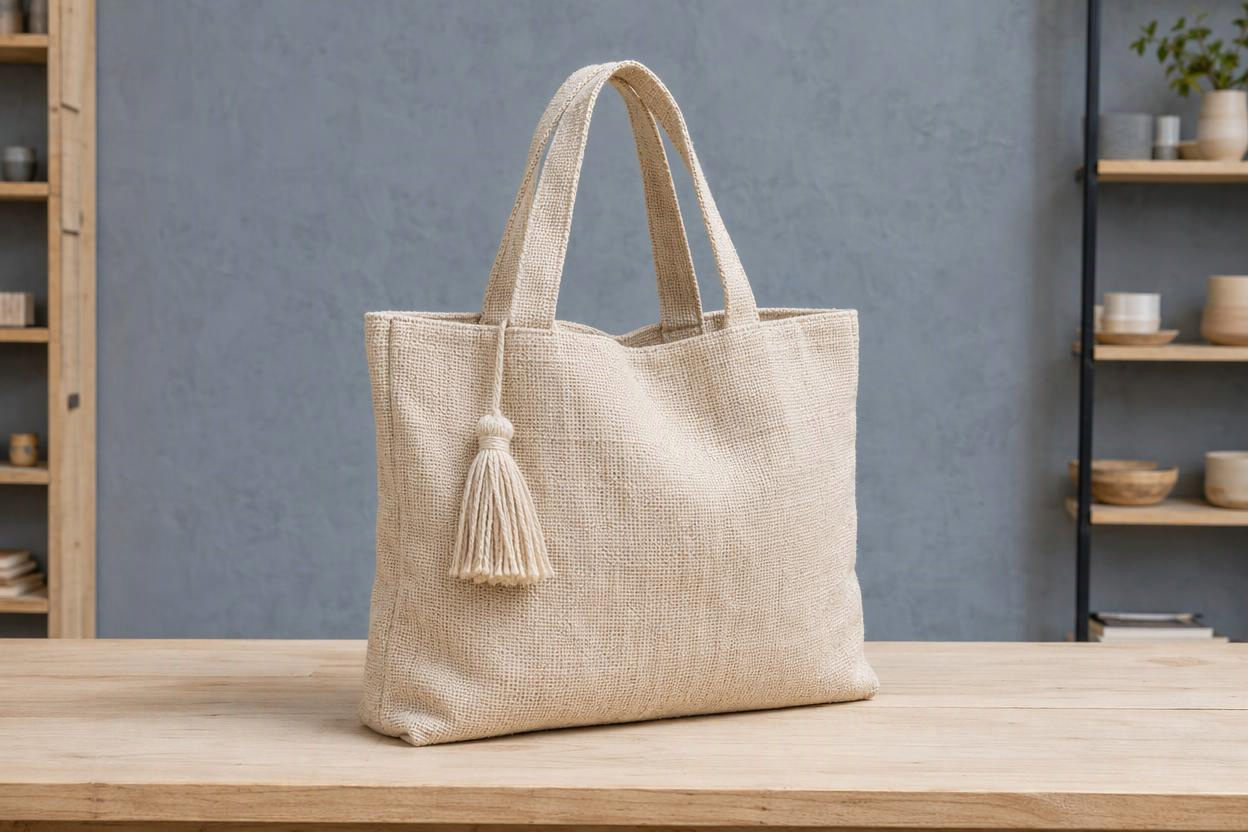
Once the original background is removed, choose white or another solid color, or add a background image in the editor. Give a product range a consistent backdrop, or place a portrait in a setting that suits your promotional design. Pay attention to the subject’s scale, the space around it, and the brightness of the new background so the combination feels natural. Each marketplace has its own image requirements. A white background alone does not ensure that a photo meets every rule for publishing.
Change an image background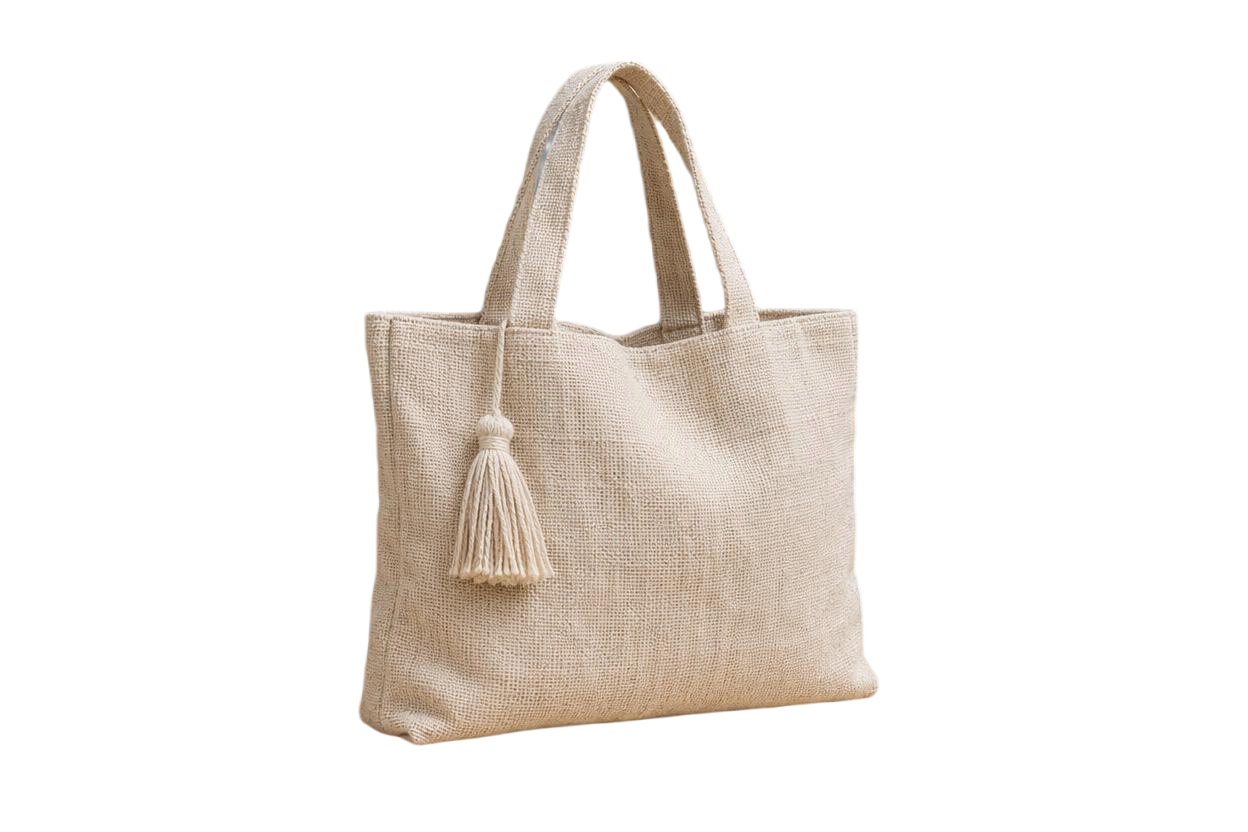
Select multiple images in the background remover when organizing product photos or event artwork, then review each result. Use the editor’s cropping and size adjustments to give the subject the position and space your layout needs. Consistent backgrounds and framing help a catalog, product grid, or collection of brand images look more cohesive. Choose PNG or JPG to suit the final use, and check the dimensions and details of every image before downloading, rather than judging the whole set from small thumbnail previews.
Start preparing your imagesTake a clear photo or choose an existing image. Keep the whole subject in view and easy to distinguish from the background.
Click to upload, drop an image onto the page, or paste an image link. cutout.pro removes the background automatically for free.
Refine edges with Erase and Restore, change the background or crop as needed, then download your PNG or JPG for free.
Understand suitable images, transparent formats, and download options before choosing a background removal workflow.
The cutout.pro website currently offers free background removal and HD downloads for everyday designs that need transparent PNGs, edge adjustments, or a new backdrop. Compare tools using the same image you own: check hair, gaps in products, whether the whole subject is preserved, and the final download size, then consider how easy the result is to edit. Portraits, product photos, and complex scenes can produce different results. A good result on one example does not guarantee the same outcome on every image.
Yes. Basic background removal and HD downloads on the website’s results page are currently free. You can check the available pixel dimensions before saving. Download a PNG for transparency, or choose JPG when you want a solid background. This free offer covers basic background removal and result downloads on the website. The API, other premium tools, and separate services have their own terms. Check the current tool page for available image specifications and any account prompts.
The website currently accepts JPG, JPEG, PNG, and WebP uploads, with PNG and JPG download options. Choose PNG with transparent areas when placing a person, product, or graphic on another design. Choose JPG when you want a white background or another solid color. JPG does not support transparency, so transparent areas receive a background color during export. Before using the file, check its format, pixel dimensions, and appearance in the software or layout where it will be displayed.
You can try these images, but results depend on sharpness, the separation between subject and background, and how much edge detail the original contains. Backlit hair, transparent objects, motion blur, and areas with similar colors usually need closer inspection. Use Erase and Restore after automatic processing to refine the cutout. If the original lacks detail, background removal cannot guarantee that it will be recovered. A clearer source photo can give you a more useful starting point.
For transparency, do not add a solid color or background image after removing the background, and download as PNG. The checkerboard in the preview represents transparent areas; it is not a backdrop that needs to be saved with the image. For a white background, choose white and download PNG or JPG as appropriate. If a viewer shows your PNG on black or white, place it on a different colored canvas to check its transparency. Also check whether an editor or export setting filled in the background.
Use cutout.pro to remove backgrounds from portraits, product shots, or creative artwork for free, then download your results at no charge. Keep transparency, choose white, or add a new backdrop. Check the edges and save an image ready for your next website, product listing, or social media design.
Remove a background for free